
The WordPress plugin for ownCloud.
Works with ownCloud Server 10.x . Files stay on your ownCloud server.
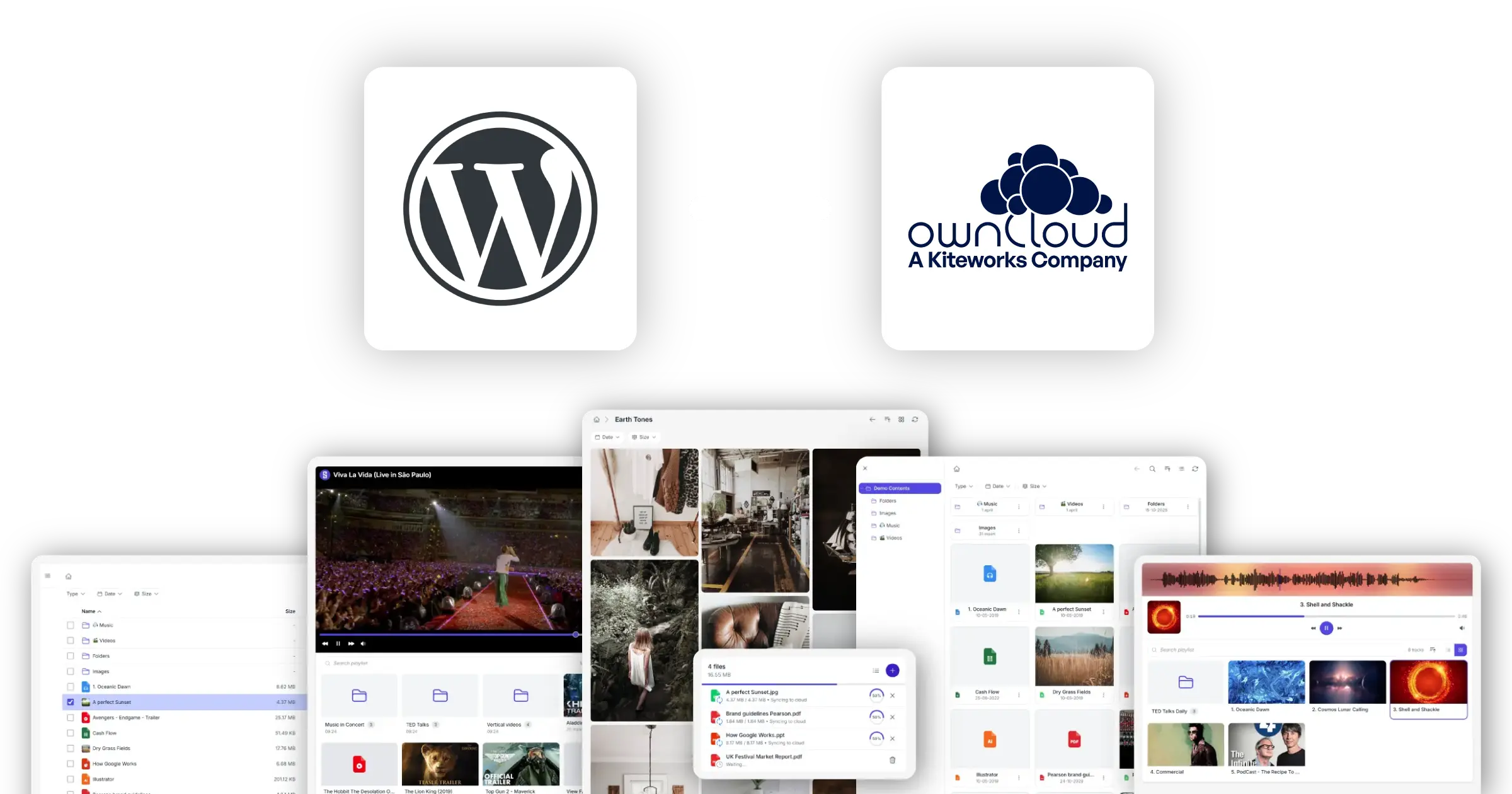
Your ownCloud, on your WordPress site
Browse files, accept uploads, display galleries, and stream media. All from your existing ownCloud server.
Synkivo is a WordPress plugin that connects your ownCloud server to your WordPress site. Once connected, every page can show, share, or accept files that live on ownCloud. No copying. No syncing. No parallel storage.
A staff portal where employees download internal documents. An intake form that drops applications straight into ownCloud for review. A client workspace where each client sees only their own folder. All powered by the ownCloud you already manage. No server-side changes required.
Your ownCloud stays in charge. Files never leave your server. Synkivo only touches the folders you configure, and respects the permissions ownCloud already enforces.
What you can do with ownCloud and Synkivo
Synkivo turns your ownCloud into a WordPress-native experience.
Browse files
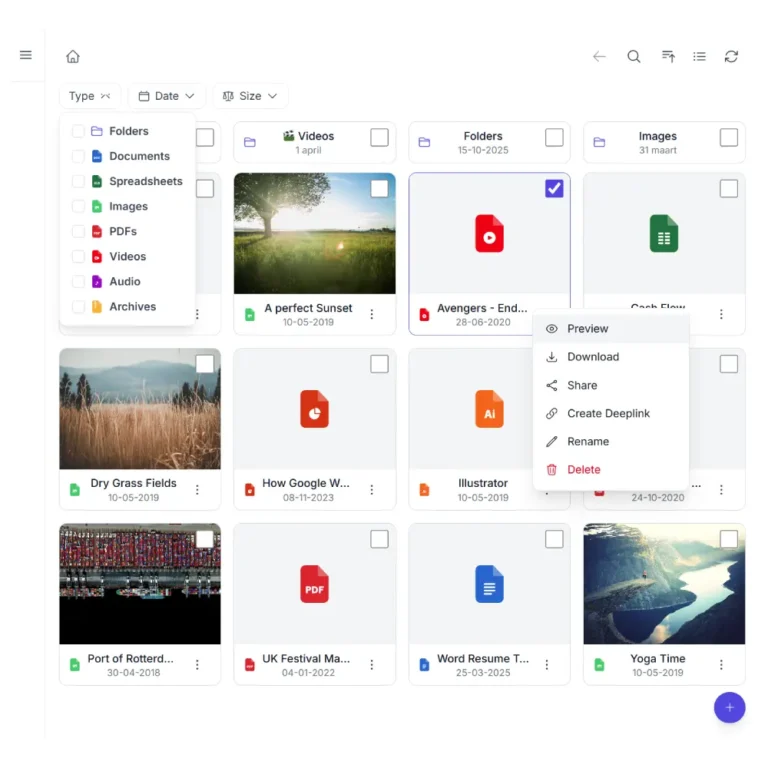
Show a file browser on any page or post. Visitors navigate folders, preview files, and download what they need. Configurable per ownCloud folder.
Display galleries
Turn an ownCloud folder of images into a responsive gallery, masonry grid, or justified layout.
Accept uploads
Let staff, members, or visitors upload files directly to an ownCloud folder from a WordPress page. Files arrive in ownCloud; WordPress is never the storage.
Stream audio and video
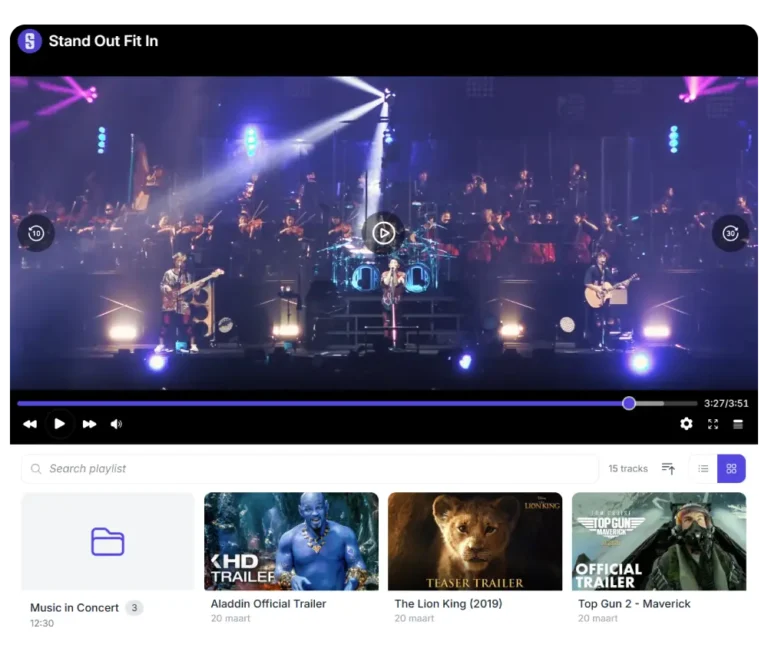
Embed audio and video players that stream directly from your ownCloud server. Supports MP3, MP4, WebM, and other common formats
Share files publicly
Generate shareable links for individual files. Combine with Synkivo's Public Assets management for permanent WordPress-hosted URLs.
Search files
Search your ownCloud files from the WordPress front-end. Full-text search inside files is available when ownCloud's search backend supports it.
How Synkivo connects ownCloud to WordPress
Four steps. No file copying. No syncing.
Synkivo connects to your ownCloud server through ownCloud’s native API. Every Synkivo module reads directly from ownCloud. No scheduled sync, no duplicate storage, no manual copying. When something changes on ownCloud, your site reflects it.
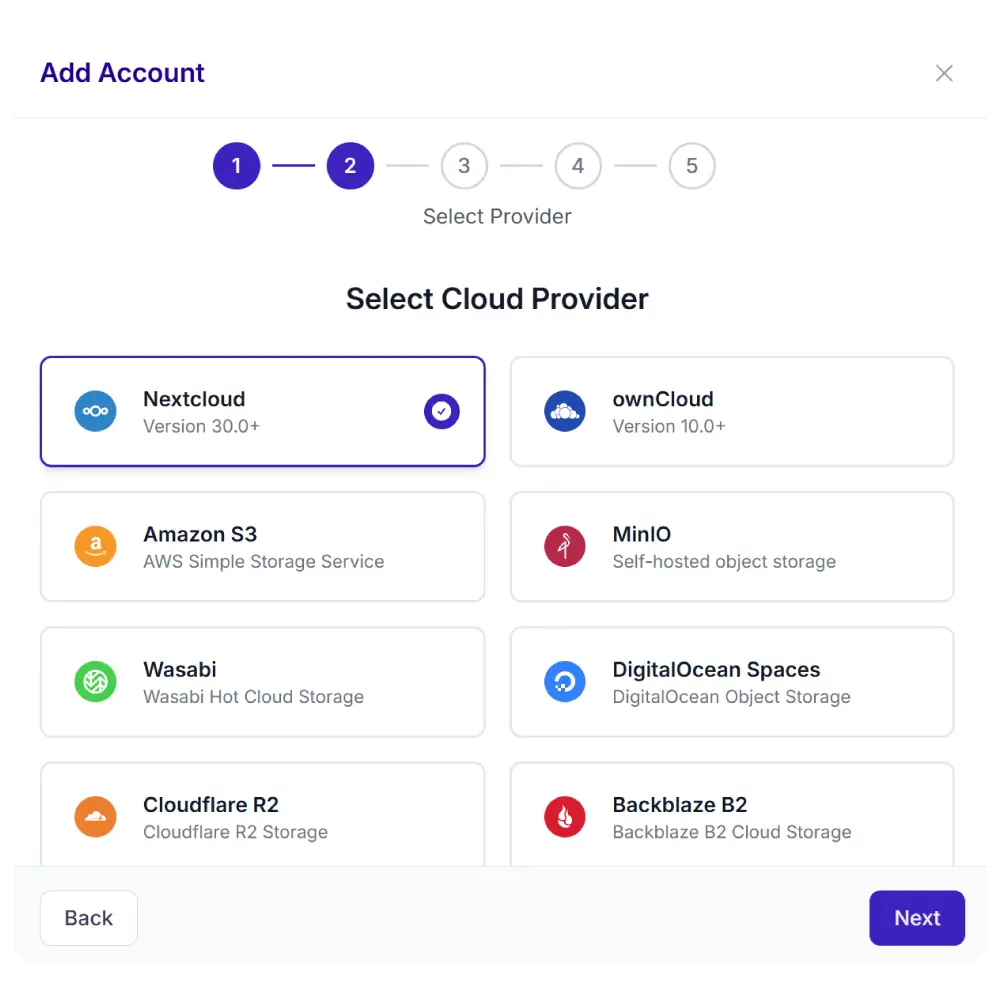
1.
Connect your cloud
Add your ownCloud server URL and credentials in the Synkivo admin. Synkivo verifies the connection and lists your folders.
2.
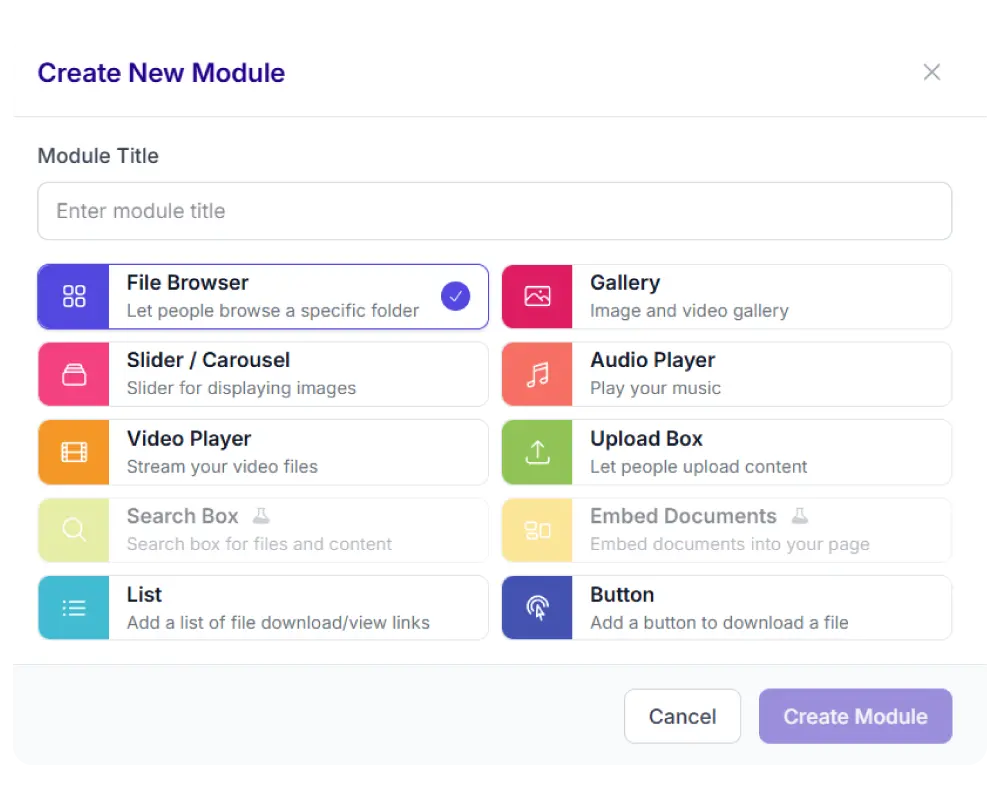
Pick a module
Choose from 8 display types: file browser, gallery, upload box, player, and more.
3.
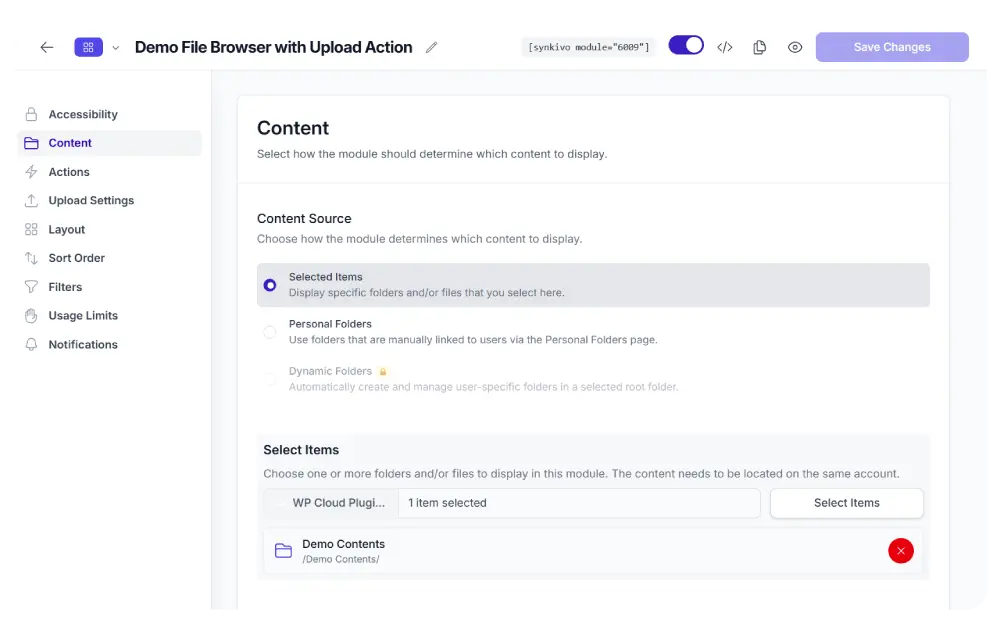
Configure visually
Set the source, permissions, appearance, and behavior. No code needed.
4.
Publish
Insert the module on any page or post using a shortcode or page builder block. Your visitors interact with ownCloud files directly.

Use ownCloud files in the WordPress Media Library
Insert ownCloud files into pages, posts, products, and any WordPress plugin that uses the media picker.
Your files remain stored on your ownCloud server while WordPress provides the content editing experience your team already uses every day.
Whether you need to insert images into articles, attach documents to customer portals, or reference files in WooCommerce products, Synkivo lets you work directly with content stored in ownCloud.
The integration works with the Block Editor, Elementor, WooCommerce, Advanced Custom Fields, and most plugins that use the standard WordPress media picker.
Every embedded file gets a permanent WordPress-hosted URL through Synkivo’s Public Assets system. You can also revoke access to any embedded file with one click in the Public Assets admin page.
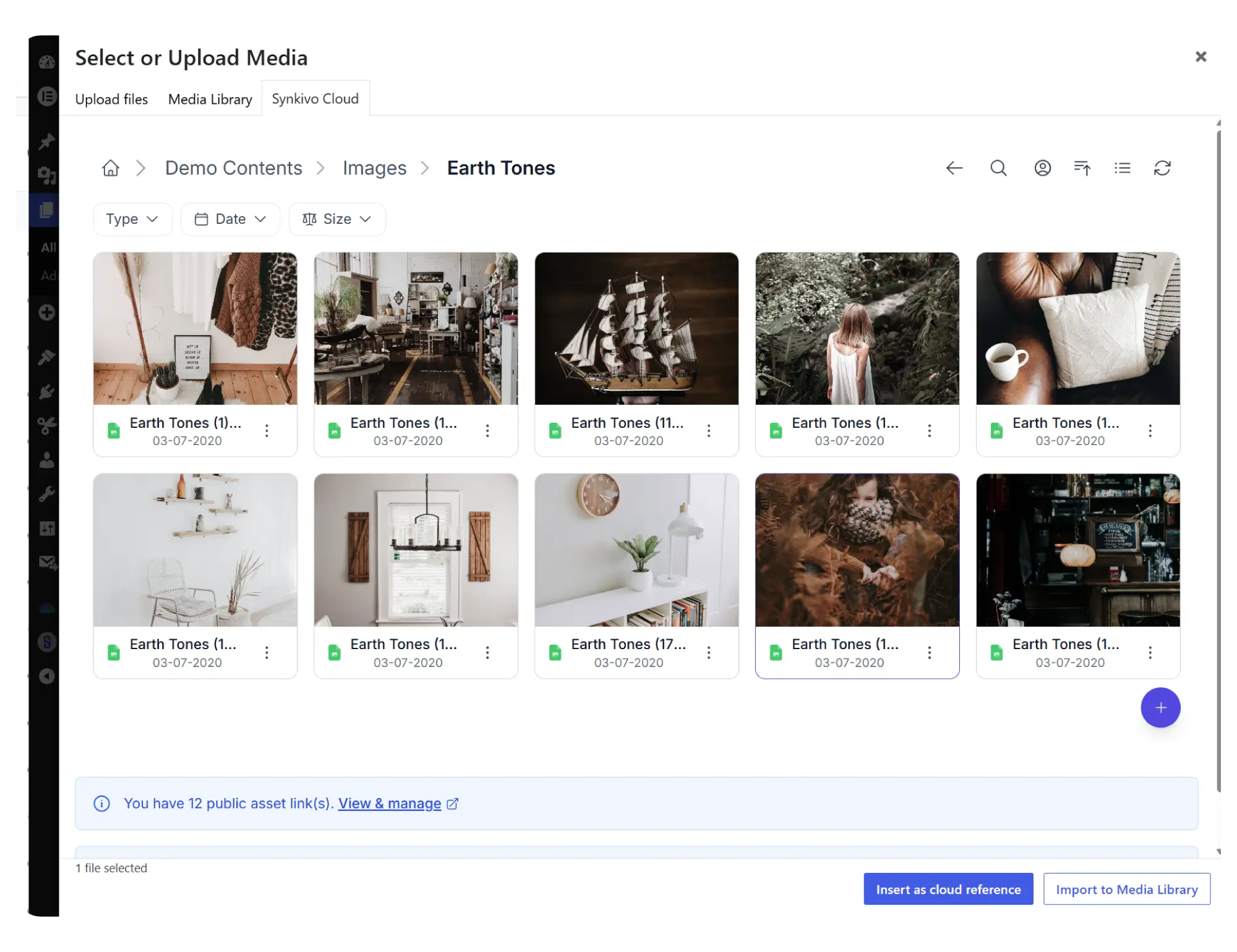
Browse ownCloud files
Access your ownCloud folders directly from the WordPress Media Library.
Embed without copying
Insert files stored in ownCloud without creating duplicate copies in WordPress.
Always use the latest version
Update a file in ownCloud and existing WordPress content automatically uses the latest version.
Stable public assets
Generate permanent WordPress-friendly URLs for embedded files and media.
Embed vs Import
| Embed (recommended) | Import | |
|---|---|---|
| What it does | References the file on ownCloud | Copies the file to WordPress uploads |
| Local disk usage | None | Full file size on your WP server |
| Sync | Always the latest version on ownCloud | One-time copy; no further sync |
| Best for | Any file you manage on ownCloud | Files you want guaranteed to stay even if ownCloud is offline |
Everything you need to share files on your site.
Each module is visually configured — no code required. Place it anywhere with a shortcode, Gutenberg block, or page builder widget.
Every Synkivo module works with ownCloud
Pick the module that fits your page. The same ownCloud connection powers all of them.

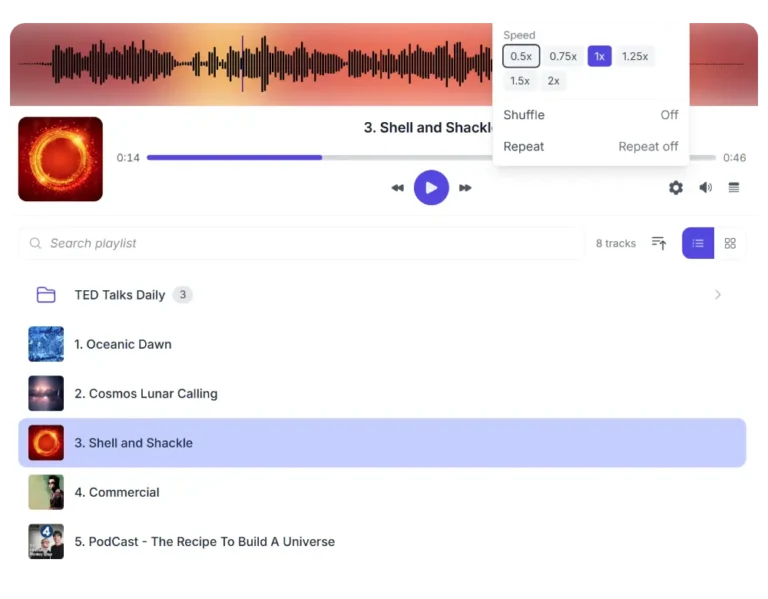
Audio Player
Stream audio files directly from ownCloud . Playlists, single tracks, custom themes.
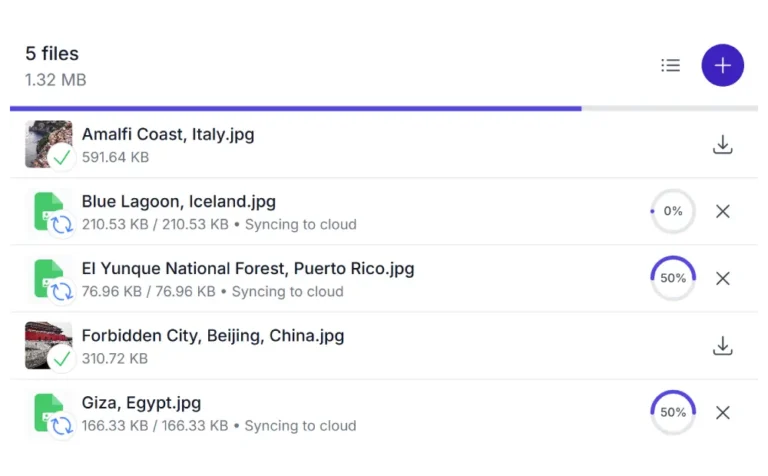

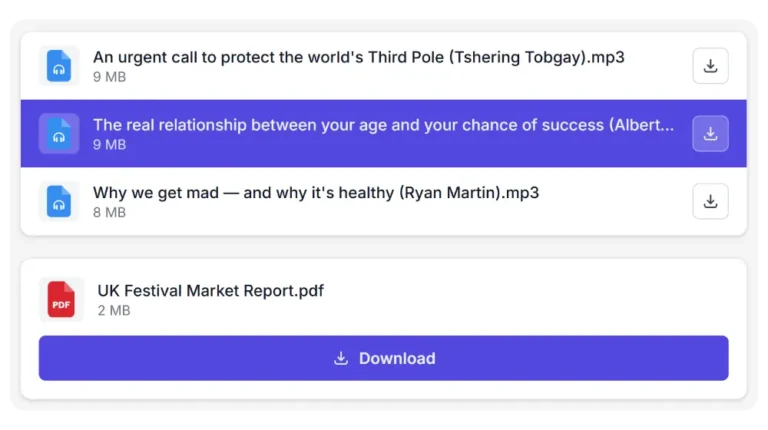
List and Buttons
Display ownCloud files in a minimal file list with download and/or preview links.
Deliver personalized file experiences
Synkivo allows content to be tailored to individual users, teams, departments, or customers
Instead of maintaining files in multiple systems, teams continue working in ownCloud while WordPress becomes the delivery layer for customers, employees, or partners.
Customer-specific content
Display different files and folders based on the logged-in user.
Department workspaces
Provide separate file areas for teams, offices, or business units.
Partner portals
Share documents with external partners without exposing internal content.
Flexible access rules
Combine ownCloud storage with WordPress roles and permissions.
Secure by default
Your ownCloud credentials never leave your WordPress server. Your visitors only see what you let them see.
Encrypted credentials
Your ownCloud app password is encrypted in the WordPress database. Account IDs are obfuscated in the page source.
Role-based access control
Configure per-module what each WordPress role can do: browse, download, upload, delete, rename, move.
Personal folders
Link individual WordPress users to specific ownCloud folders. See the personal folders feature for details.
Scope enforcement
Visitors can never browse outside the configured root folder. Every request is checked against the module scope.
Encrypted file IDs
File and folder identifiers are encrypted per session. Visitors cannot guess or manipulate IDs to access other files.
Proxy downloads
Optionally serve files through your WordPress server instead of revealing the ownCloud URL. Hides the storage location entirely.
For a full breakdown of Synkivo’s security architecture, including nonce validation, password-protected modules, and usage restrictions, see the security features page.
Use cases for ownCloud and WordPress
Where enterprise file management and a public-facing website meet.
Client portals
Provide customers with secure access to project documents and shared files.
Document libraries
Publish policies, manuals, reports, and downloadable resources directly from ownCloud.
Educational platforms
Share course materials and collect assignments through WordPress.
Internal company portals
Give employees access to files through a familiar web interface.
Training resources
Stream training videos and educational content stored in ownCloud.
Compliance documentation
Maintain controlled access to regulated documents and records.
Connect your ownCloud to WordPress today
Prefer the Nextcloud ecosystem? Synkivo also supports Nextcloud installations along other cloud platforms.
Why ownCloud?
Why would you choose ownCloud over public cloud storage?
ownCloud gives organizations complete control over where files are stored, how they are accessed, and who can view them.
For many businesses and institutions, this level of control is a key requirement.
Self-hosted storage
Keep files on infrastructure you manage and control.
Data ownership
Maintain full ownership of business-critical files and documents.
Enterprise security
Apply your own security policies, access controls, and compliance requirements.
Designed for organizations
Support internal teams, customers, and partners from a single storage platform.
Common Questions Answered
The ownCloud-specific questions we hear most often.
What versions of ownCloud does Synkivo support?
Synkivo supports ownCloud Server 10.x. So self-hosted ownCloud installations and managed ownCloud hosting are supported, since Synkivo uses the standard WebDAV API exposed by every ownCloud deployment.
How is the connection authenticated and where are credentials stored?
For ownCloud Server (10.x), Synkivo uses app passwords generated in ownCloud's security settings, or a regular username and password. App passwords can be revoked at any time without changing your main account password. All credentials and tokens are encrypted at rest in your WordPress database, and never appear in your site's page source or JavaScript.
Can I use ownCloud files in the WordPress Media Library?
Yes. Synkivo adds an ownCloud tab to the WordPress Media Library dialog. You can insert ownCloud files into posts, pages, products, ACF fields, Gutenberg blocks, and any plugin that uses the standard media picker.
Are my files copied to WordPress, or do they stay on ownCloud?
Files stay on ownCloud. Synkivo does not copy, mirror, or sync files to your WordPress server in the default Embed mode. When a visitor browses, downloads, or previews a file, Synkivo retrieves it from ownCloud in real time. If you choose Import mode when inserting a file through the Media Library, that specific file is copied to WordPress uploads; everything else stays on ownCloud.
Can I give different WordPress users access to different ownCloud folders?
Yes, with the Personal Folders feature (Pro plan and above). You
link each WordPress user to one or more specific ownCloud folders.
When a user visits a page with a Synkivo module, they see only the
folders linked to their account. The Business plan adds Dynamic Folders, which create per-user or per-post folders automatically. See the personal folders feature for the full breakdown.
Does full-text search inside files work with ownCloud?
Yes, with a prerequisite. Synkivo can search inside files (PDFs, Word documents, etc.) when ownCloud's search backend is configured for content indexing. This is an ownCloud server-side configuration and depends on your deployment. Without it, Synkivo can still search filenames and folder paths, but not the text content of files. This is an ownCloud capability constraint, not a Synkivo limitation; the same applies to all cloud connectors.
Does Synkivo with ownCloud work alongside WooCommerce, Elementor, and Gutenberg?
Yes. Synkivo integrates with the Gutenberg block editor, Elementor, Divi, WPBakery, and other major page builders through dedicated blocks and widgets. For WooCommerce, you can attach ownCloud files to digital downloads, allow customers to upload to an ownCloud folder per order, or display ownCloud files on product pages. See the integrations page for the full list.
What happens if I cancel my Synkivo subscription?
The plugin continues to work; nothing breaks on your site. You stop receiving updates and support after your license expires. Your ownCloud files remain on ownCloud (Synkivo never owned them). You can reactivate at any time. Synkivo has a 14-day money-back guarantee if you are not satisfied after purchase.