Let visitors upload files to your Nextcloud, ownCloud, Dropbox, OneDrive, SharePoint, AWS S3, Wasabi, DigitalOcean Spaces, Cloudflare R2, Backblaze B2, MinIO, pCloud, WebDAV servers, and S3-compatible storage from your WordPress site. Drag and drop, set restrictions, receive notifications. All uploads are stored in your cloud. Not in WordPress.
This is a live Upload Box connected to a real folder in cloud storage. Drag files into the box or click to select. Uploads go directly to the cloud. File size in this demo is limited to 500 MB.
Demo using AWS S3
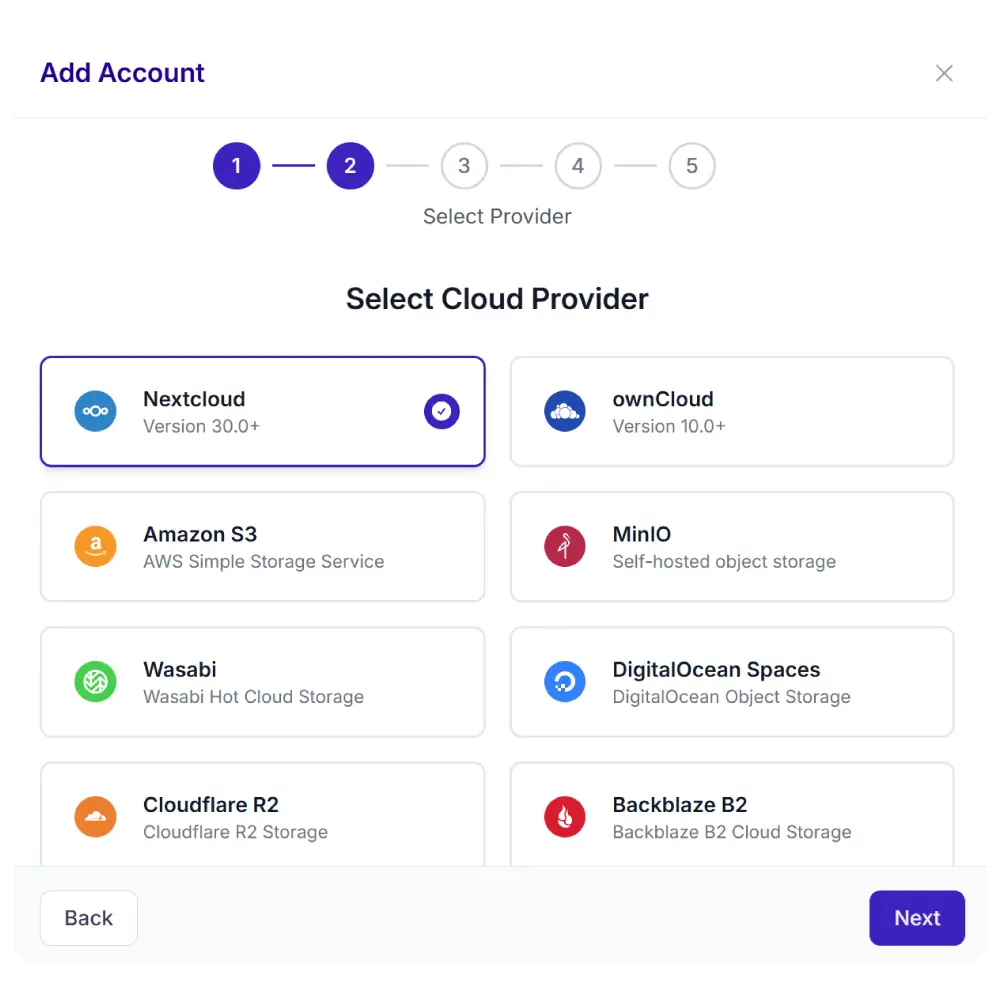
One plugin. Multiple cloud providers. Your choice.
Synkivo is built for teams that care about where their files live. Whether you self-host on Nextcloud, ownCloud or your NAS for full data sovereignty on your own infrastructure, or prefer the scalability of AWS S3, Wasabi, DigitalOcean Spaces, Cloudflare R2, Backblaze B2, MinIO, and other cloud services — Synkivo connects your storage to WordPress.
Everything you need to collect files in your cloud
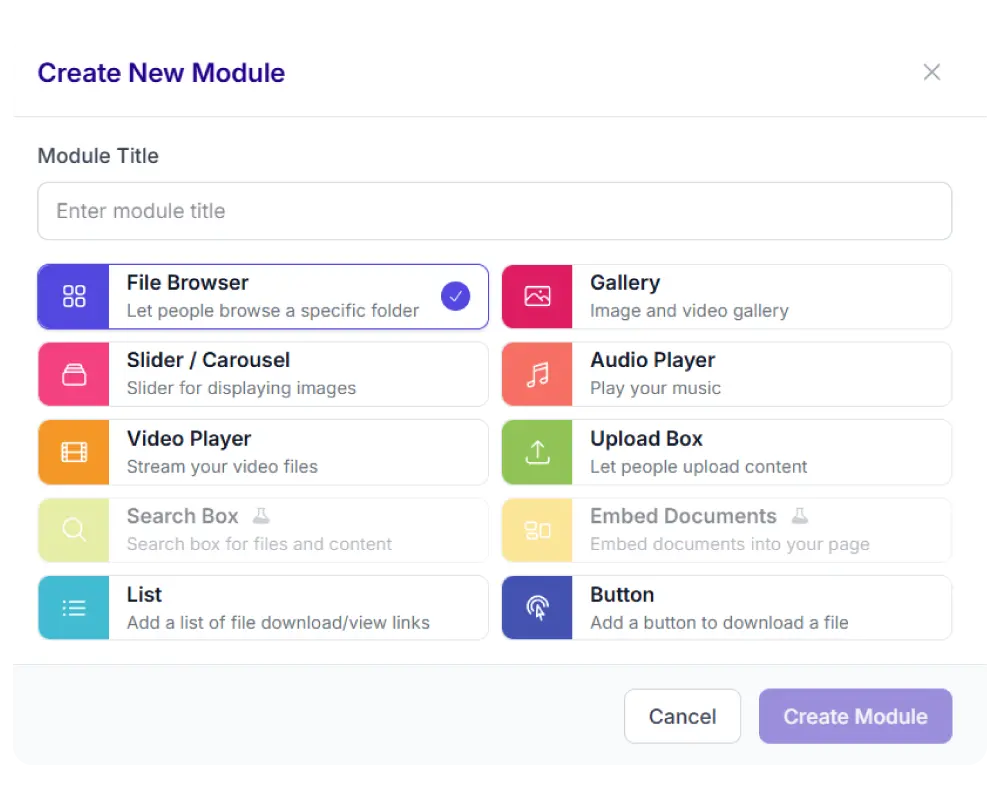
Each module is visually configured — no code required. Place it anywhere with a shortcode, Gutenberg block, or page builder widget.
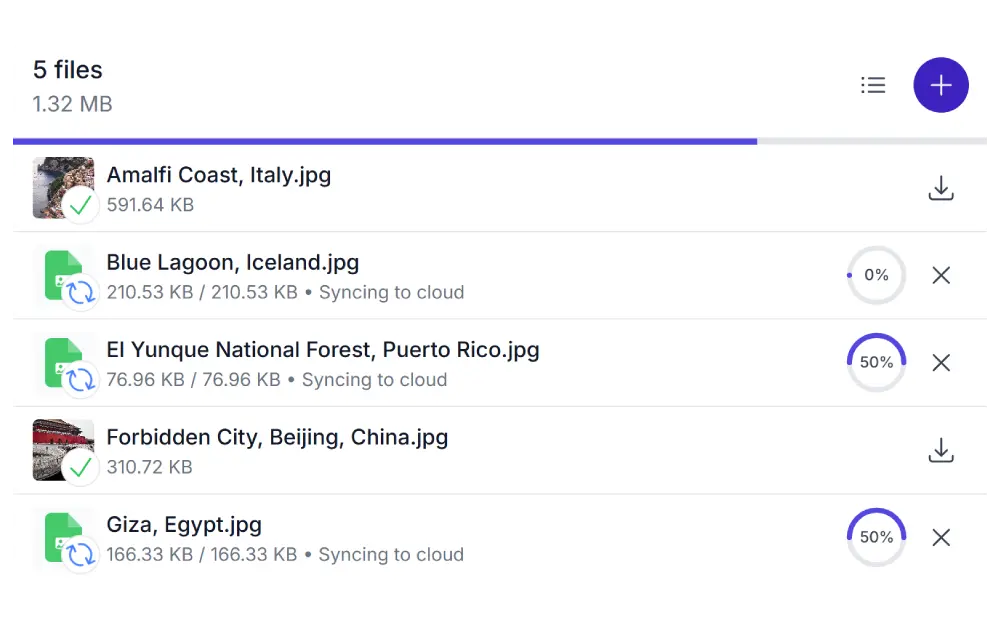
Drag files in. They land in your cloud.
Visitors drag files into the upload area or click to select them. All files are stored in your cloud, not on your WordPress server. When your provider supports it, uploads go directly to the cloud without passing through your server at all.
Supports single files, multiple files, and entire folder uploads with preserved folder structure.
Demo using AWS S3
You set the rules. The Upload Box enforces them
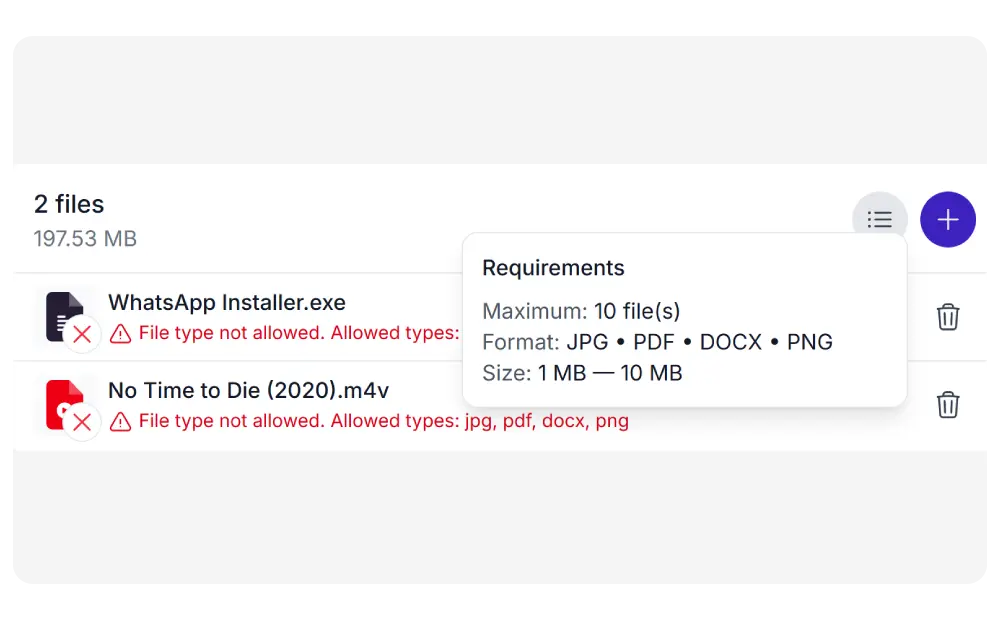
Control exactly what visitors can upload. Restrict by file type, minimum and maximum file size, and number of files per session.
Visitors see the requirements before they upload. Files that do not match are rejected with a clear error message.
Embed uploads in any form
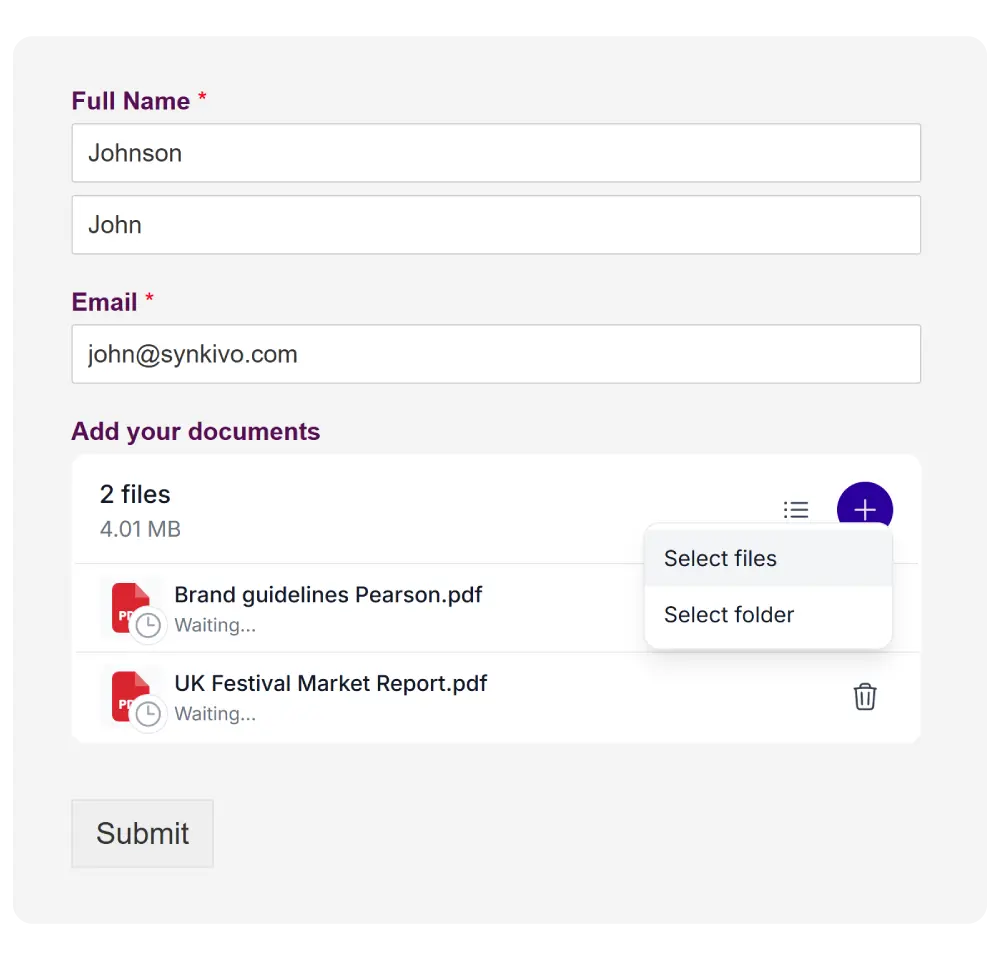
Add the Upload Box as an upload field in Contact Form 7, WPForms, Gravity Forms, Formidable Forms, or Fluent Forms. Uploaded files are linked to the form submission.
Form fields can even set the upload destination dynamically. Use placeholders to organize uploads by submitter name, email, or date.
Contact Form 7
WPForms
Gravity Forms
Formidable Forms
Let customers attach files to their WooCommerce orders
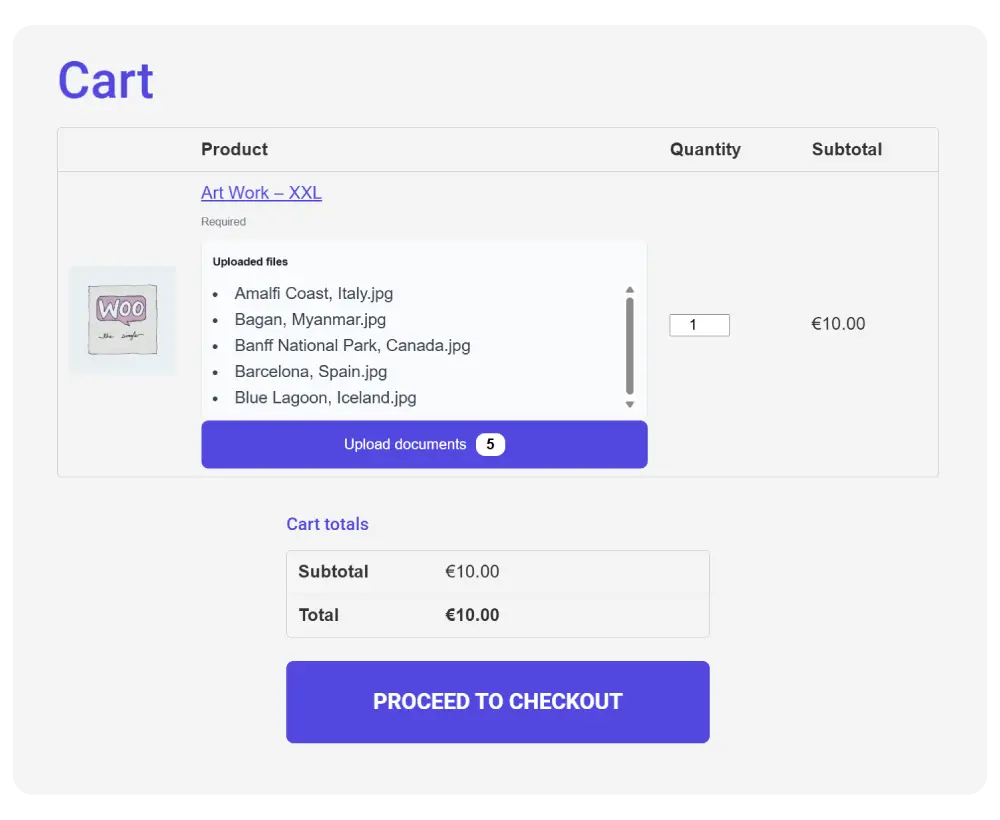
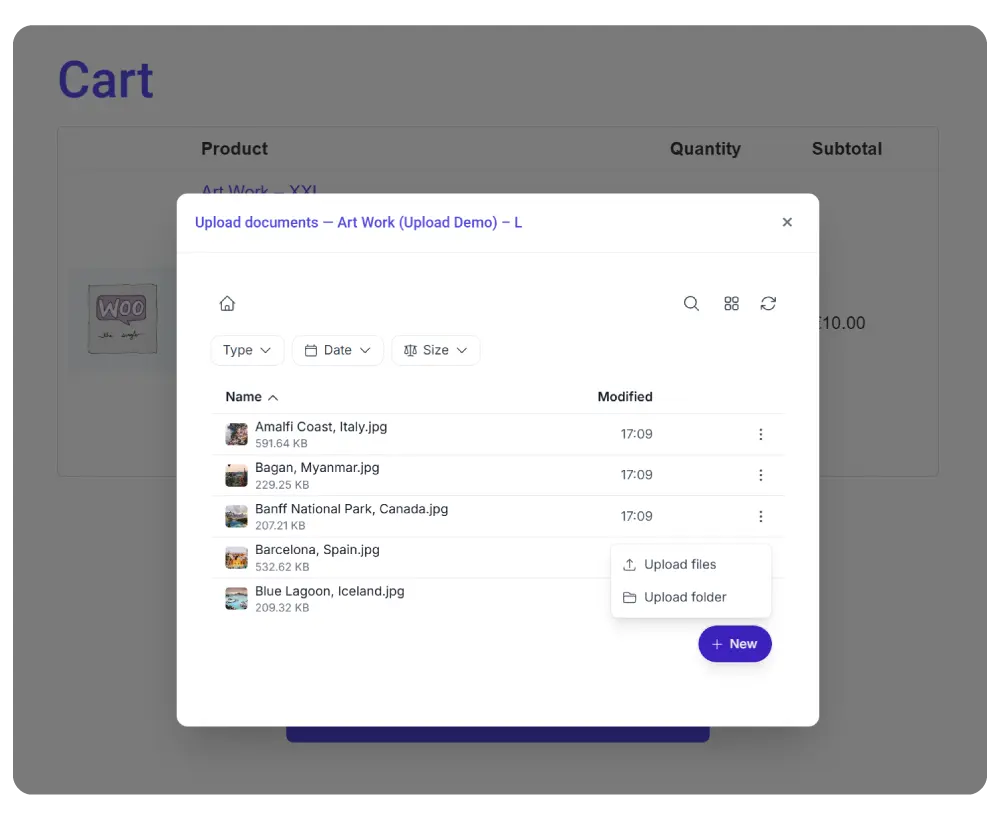
Add an Upload Box to WooCommerce order pages. Customers upload documents, images, or design files after checkout. Uploads are organized in a per-order folder in your cloud storage.
Enable it per product. Set it as optional or required. Uploaded files are accessible to both the customer and the store admin.
Who uses the Upload Box
The Upload Box works for any WordPress site that needs file uploads sent to cloud storage, not the WordPress server
Client file collection
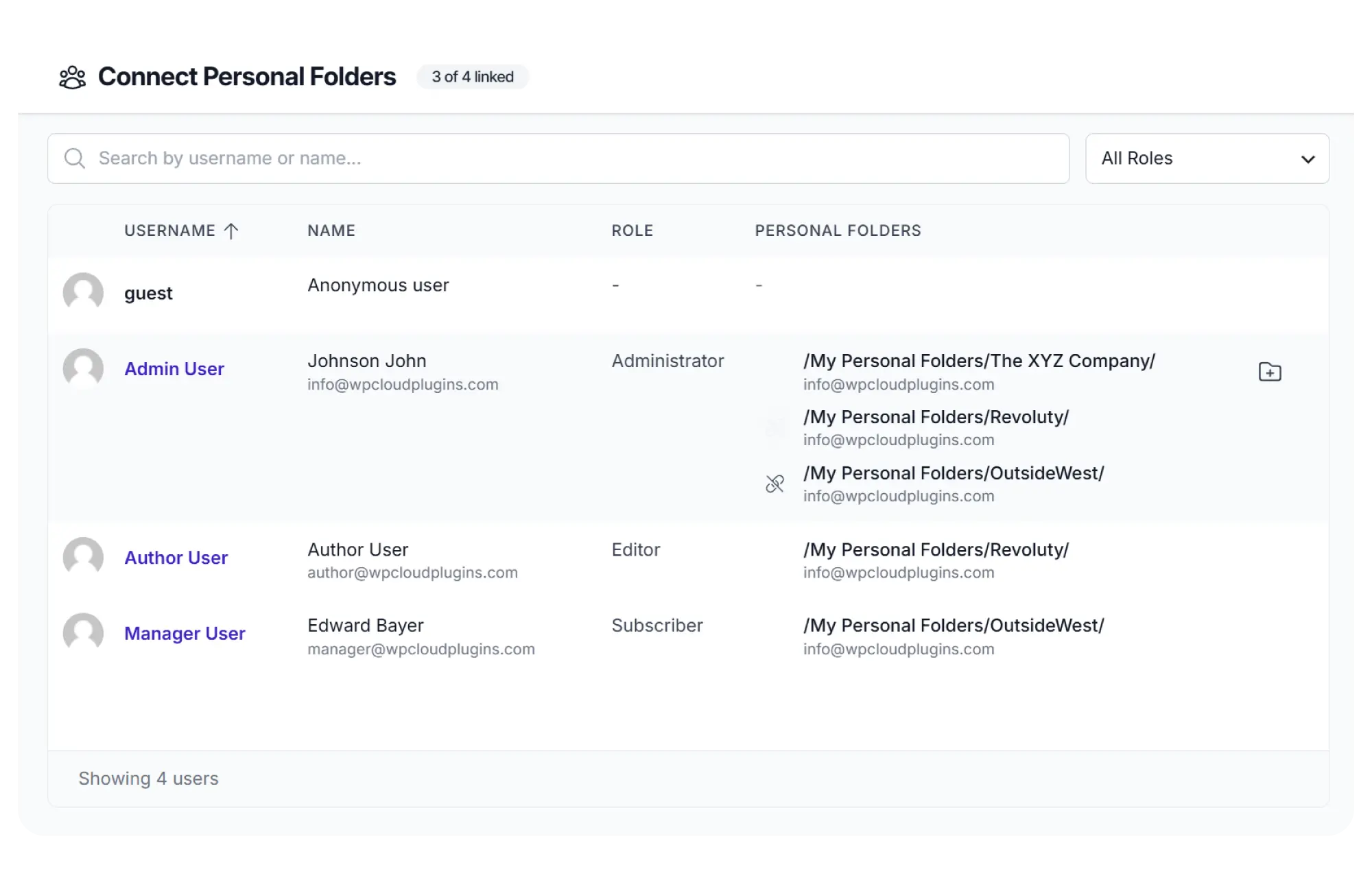
Receive contracts, briefs, source files, or approvals from clients. Each client uploads to their own folder via Personal Folders.
Job applications
Accept resumes and portfolios through a form with an embedded Upload Box. Files go straight to your cloud, organized by date or applicant name.
Print and design orders
Let customers attach artwork, logos, or print-ready files to their WooCommerce order. Files land in a per-order folder.
Student submissions
Collect homework, essays, or project files. Combine with Dynamic Folders to give each student their own upload folder.
Event registrations
Collect speaker bios, headshots, or presentation slides during event sign-up. Organize per event using folder placeholders.
Support tickets
Let customers attach logs, screenshots, or documents to a support request form.
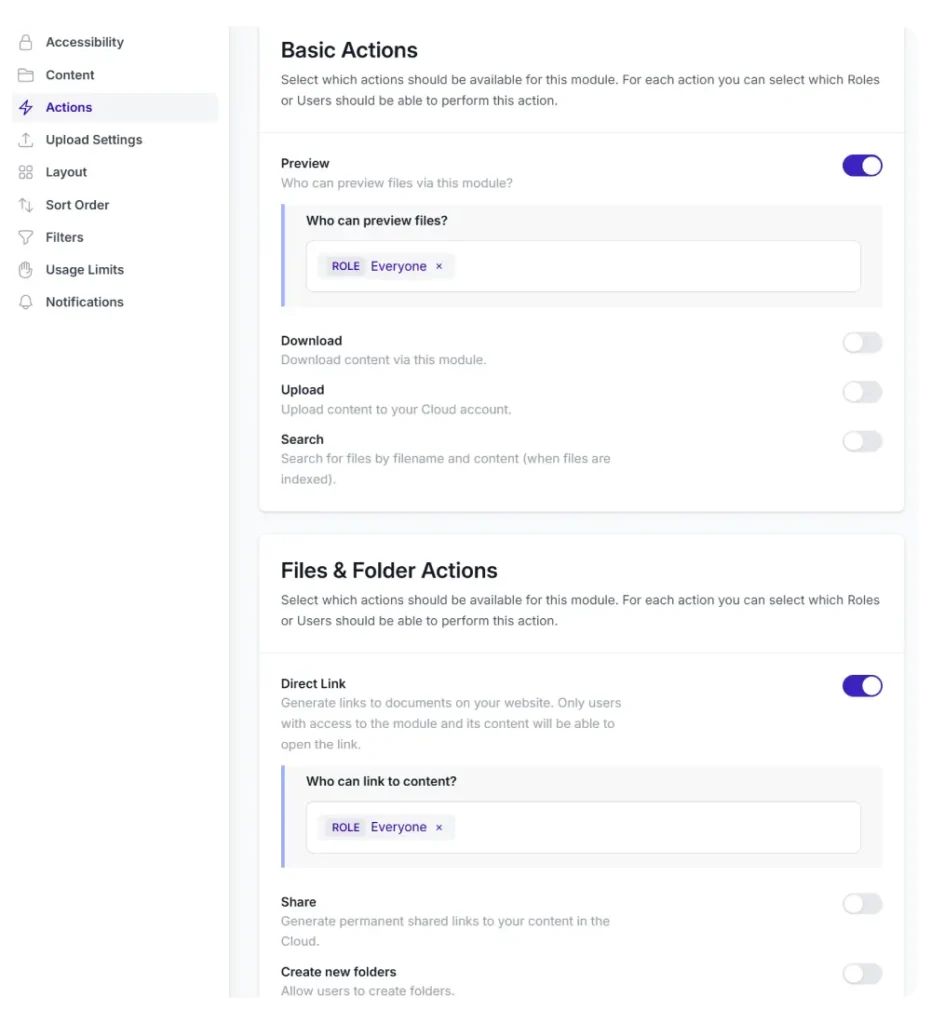
Automatically create a cloud folder for each new user, role, or WooCommerce order. Folder names use templates with placeholders like username, email, or order ID.
One Upload Box on your site. Every user uploads to their own
private folder. No overlap. No manual setup per user.
Configure visually. No code needed.
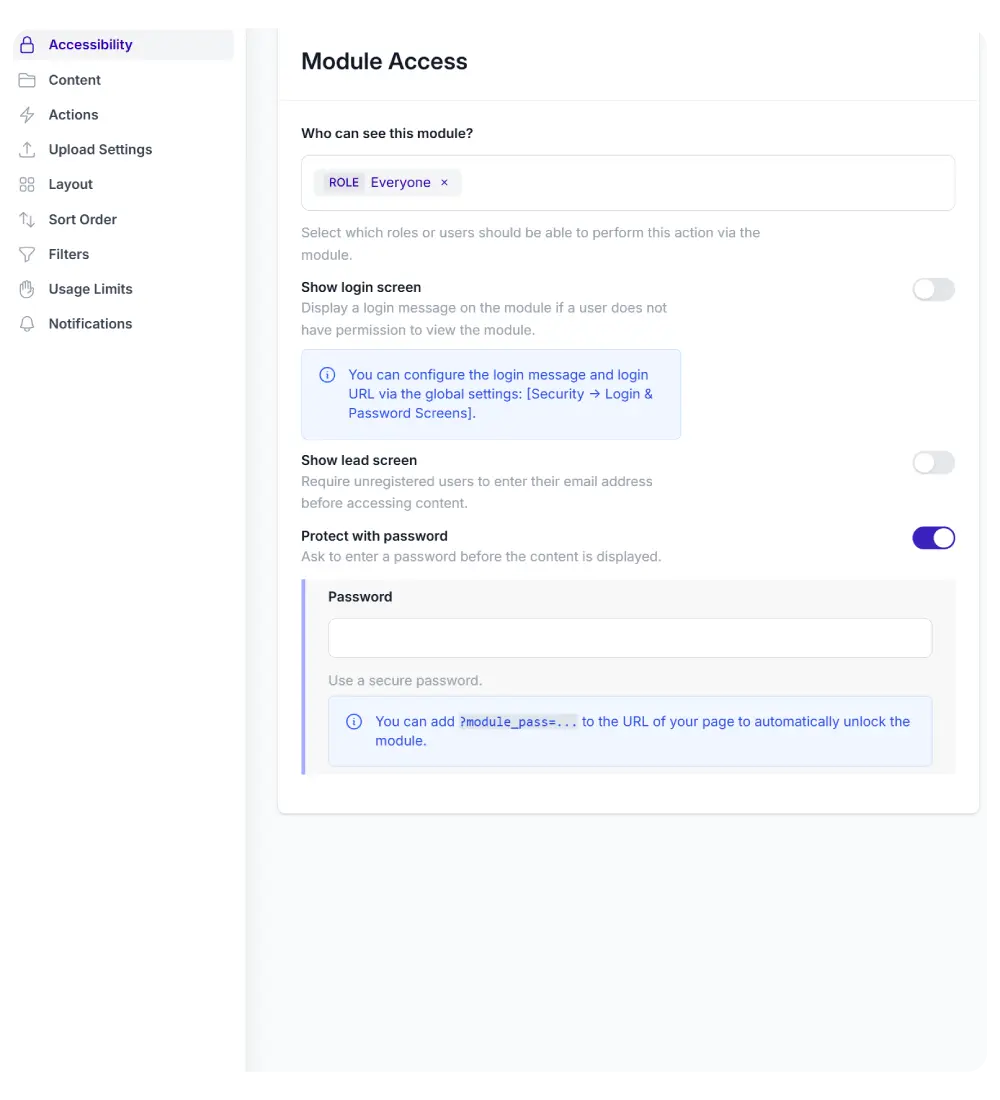
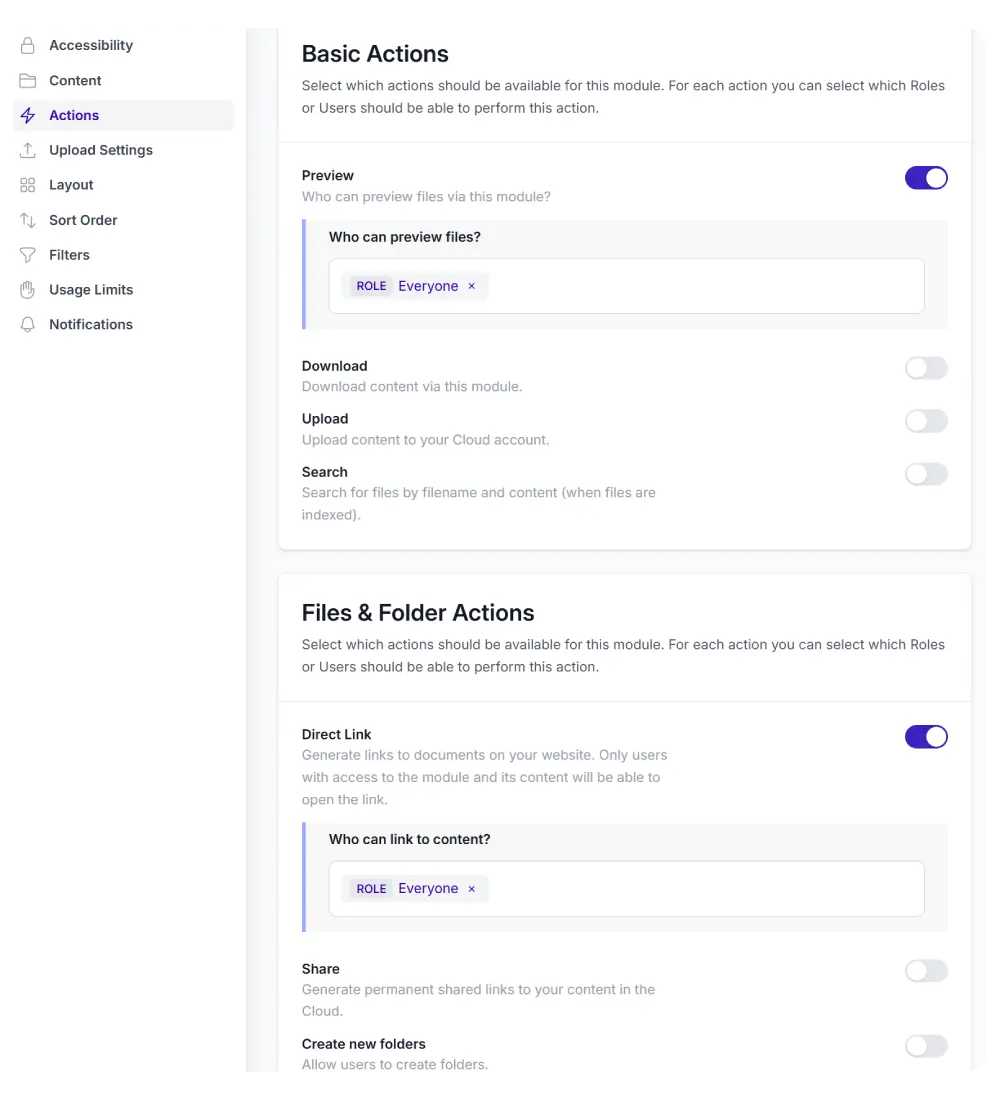
Set up your Upload Box through the Module Configurator. Select the upload destination folder, set restrictions, choose a style, and publish.
Upload destination folder
Allowed file types and size limits
Maximum file count and folder quota
Auto-start behavior
File rename templates with dynamic placeholders
Notification recipients and channels
Overwrite or keep duplicates
Place the finished module on any page using a shortcode, Gutenberg
block, or page builder widget.
Built-in with every Upload Box
Folder uploads
Visitors can upload entire folders. The folder structure is preserved in your cloud storage.
Auto-rename
Rename uploaded files using templates with placeholders like date, username, or original filename.
Notifications
Get notified when files are uploaded. Via email, Slack, or webhooks.
Light & Dark mode
The upload box adapts to your site's color scheme or the visitor's system preference.
Auto-share links
Automatically generate a public share link for each uploaded file. Available for providers that support sharing.
Responsive
Works on any screen width. Touch-optimized for mobile uploads.
Works with the tools you already use
Embed the Upload Box in any page builder: Gutenberg, Elementor, Divi 5, or WPBakery. Add it as a field in your favorite form plugin. Connect it to WooCommerce for order-based customer uploads.