
The WordPress plugin for OneDrive
Your files stay in your Microsoft OneDrive account.
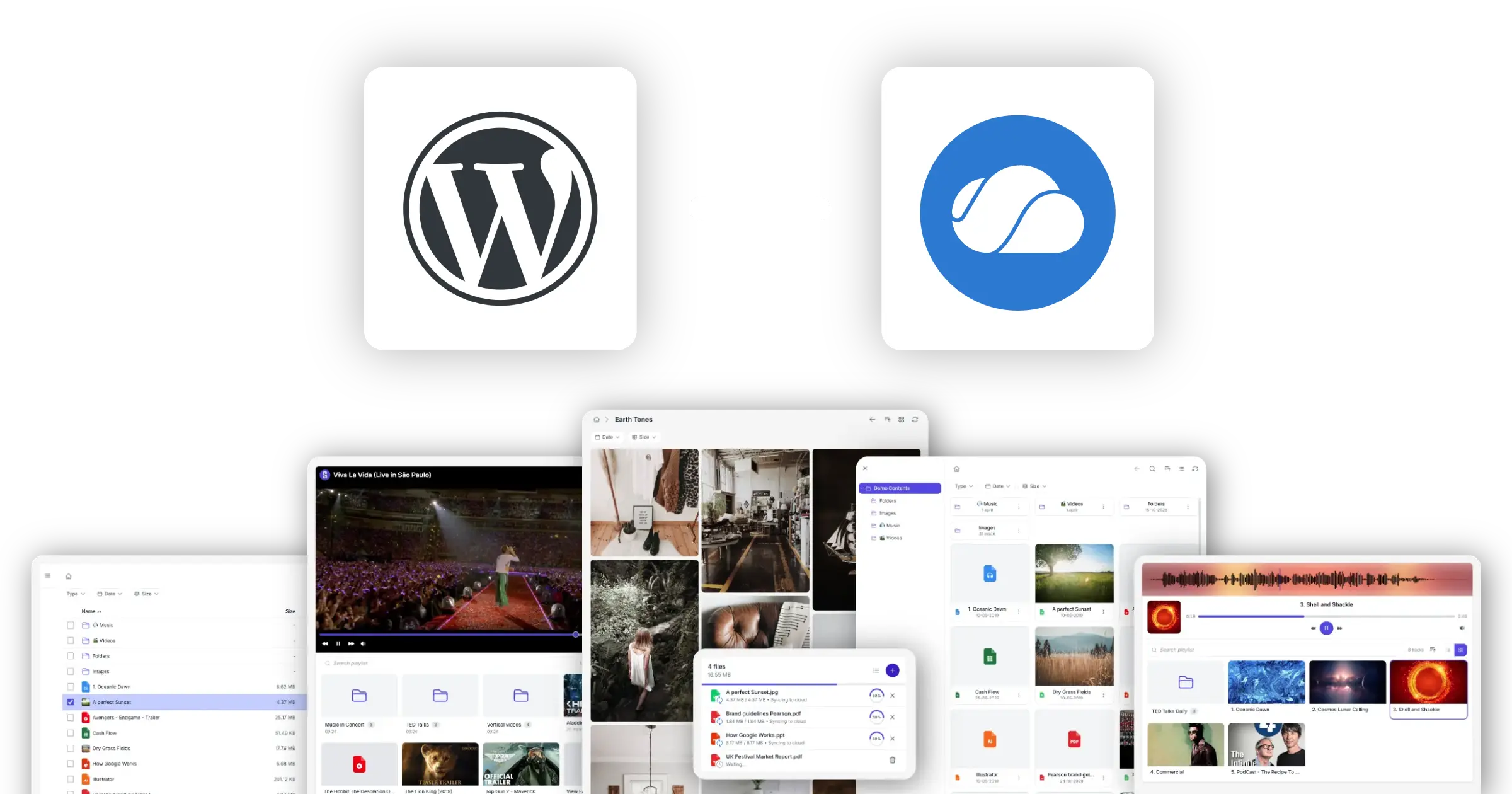
Your OneDrive files, on your WordPress site
Show OneDrive files on WordPress pages. The files stay in your Microsoft account.
Synkivo connects OneDrive to WordPress. Once connected, any page can browse, display, or accept files from your OneDrive account, Personal or Business. The files stay in OneDrive. WordPress is where visitors see them.
Three examples: a designer sells templates from OneDrive through WooCommerce; a photographer’s portfolio pulls from OneDrive Personal; a small team runs a paid course platform where lessons live in OneDrive for Business.
Both account types use the Microsoft Graph API. Personal Microsoft accounts (outlook.com, hotmail.com, live.com) sign in through the consumer OAuth flow. Microsoft 365 Business accounts sign in through Azure AD. Synkivo handles both inside the same plugin.
What you can do with OneDrive on WordPress
What you can build with OneDrive content on a WordPress page.
Browse OneDrive folders
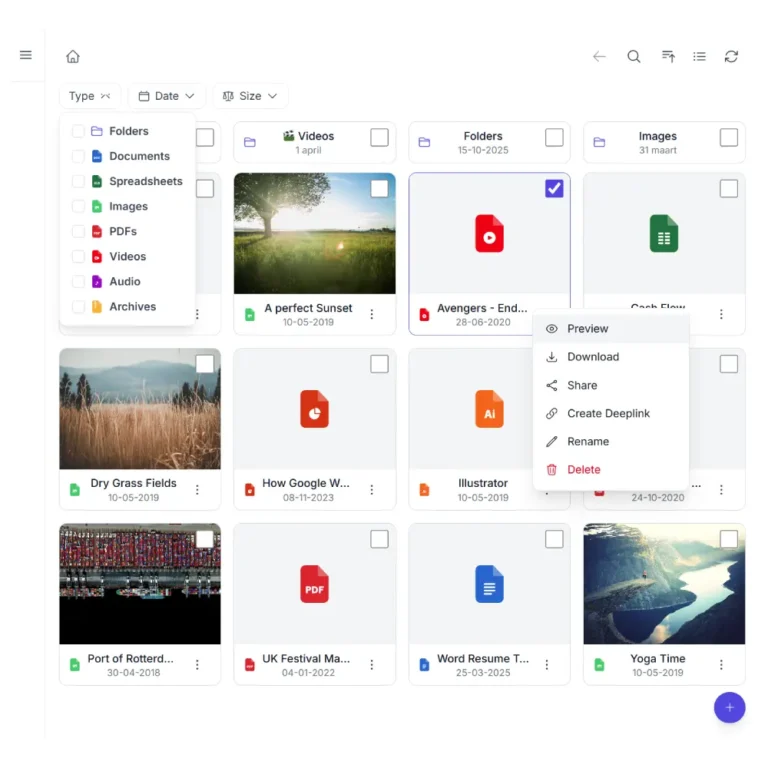
Show a file browser on any page that lists files from your OneDrive. Visitors navigate folders, preview, and download.
Search across OneDrive
Search files from your connected OneDrive accounts through a single WordPress interface. Visitors find content without leaving the page.
Previews and Thumbnails
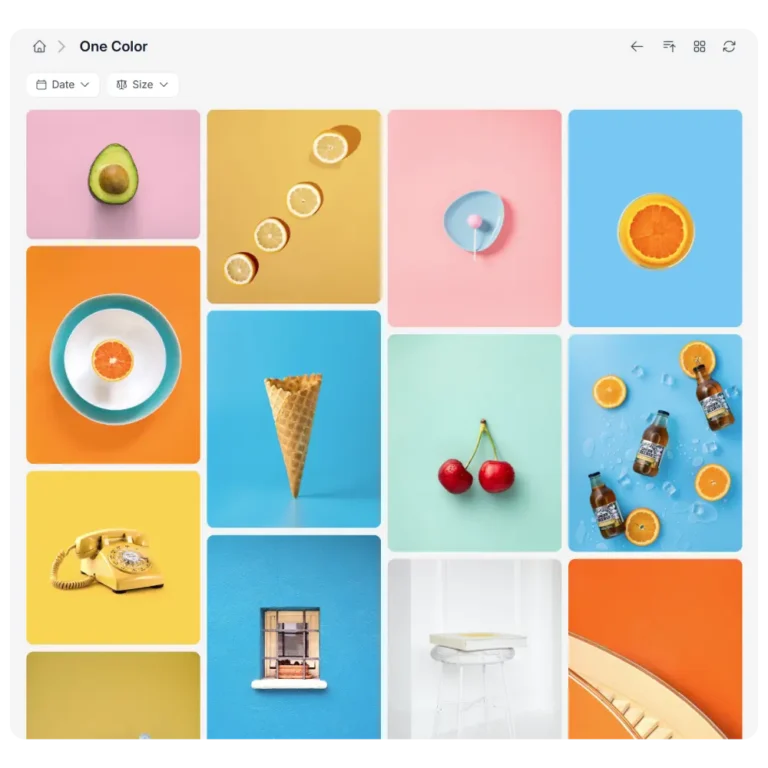
Quick image previews for photos, Office documents, and PDFs. Galleries and file browsers stay fast even on large OneDrive folders.
Direct uploads to OneDrive
Visitors upload files straight from their browser to your OneDrive. Chunked transfer; no practical size limits imposed by the plugin.
Stream audio and video
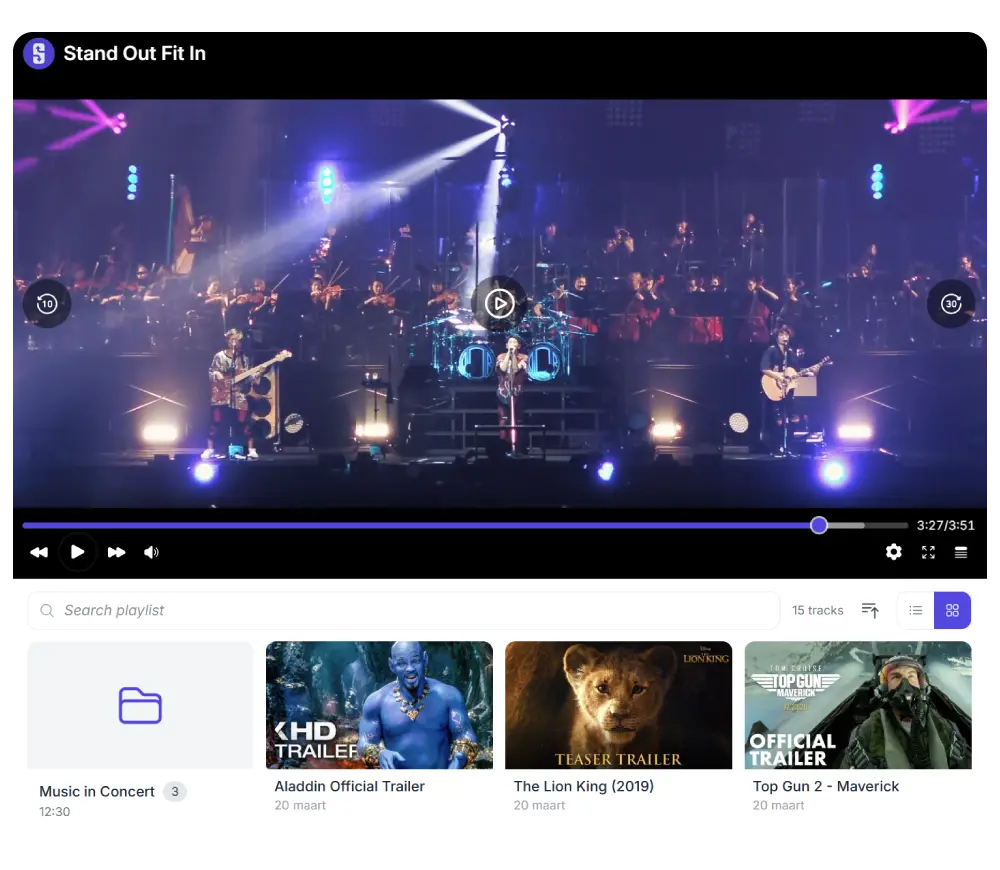
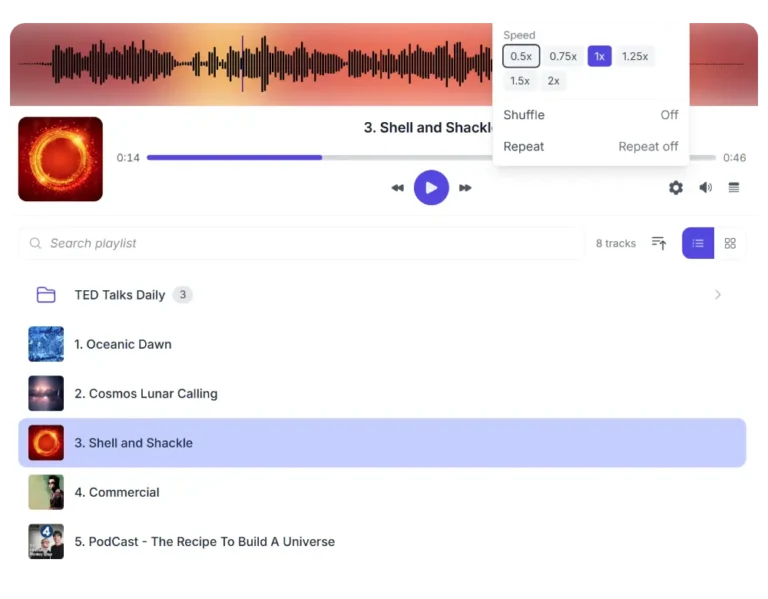
Embed audio and video players that stream MP3, MP4, WebM, and other common formats directly from OneDrive servers.
Offload WordPress media hosting
Move media files out of your WordPress uploads folder into OneDrive. Your WP host disk usage stays flat; OneDrive streams the content.
How Synkivo connects OneDrive to WordPress
No syncing. No duplication.
1.
Connect your cloud
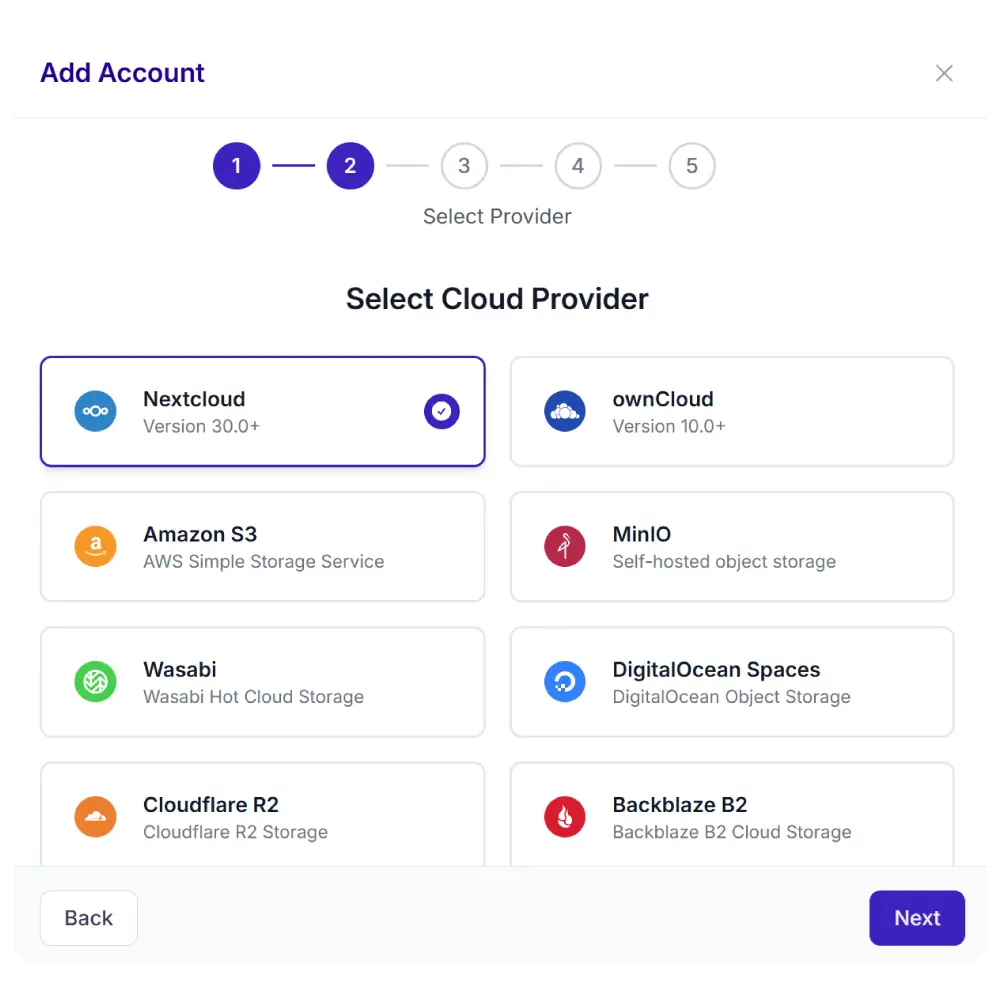
Click “Add Account” in Synkivo and pick OneDrive. Sign in with your Personal Microsoft account or your Microsoft 365 Business account.
2.
Pick a module
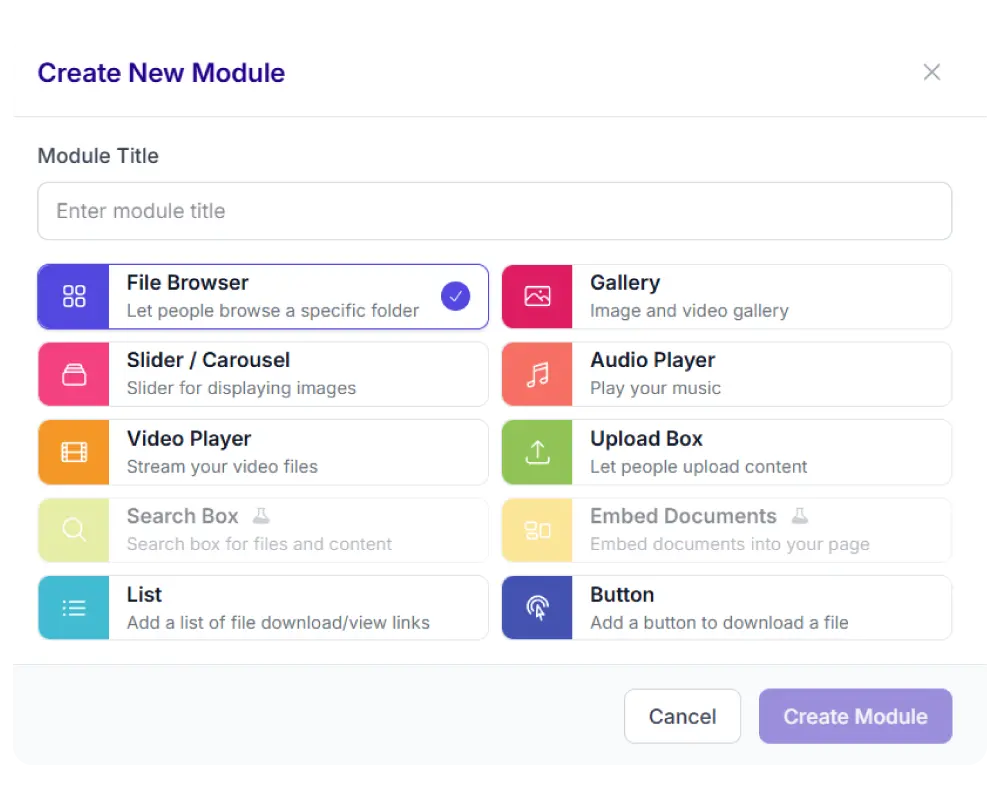
Choose from 8 display types: file browser, gallery, upload box, player, and more.
3.
Configure visually
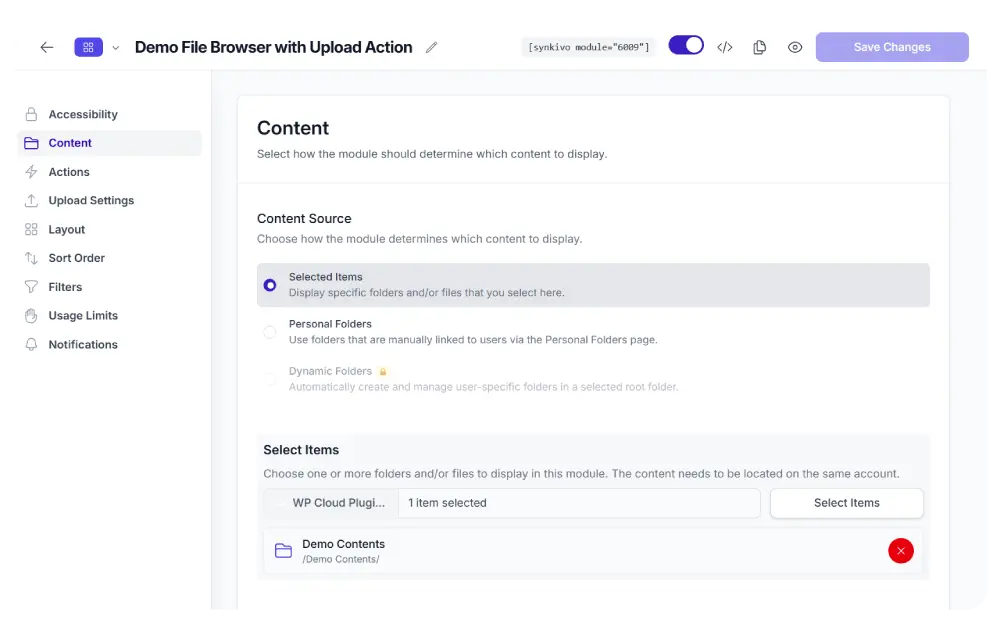
Assign a folder and user permissions and configure the layout.
4.
Publish
Drop the module on any page or post. Visitors interact with OneDrive files directly.
Sell digital products from your OneDrive
Connect WooCommerce to OneDrive. Customers buy; the cloud delivers; your WordPress disk never holds the file.
Sell digital products from your cloud
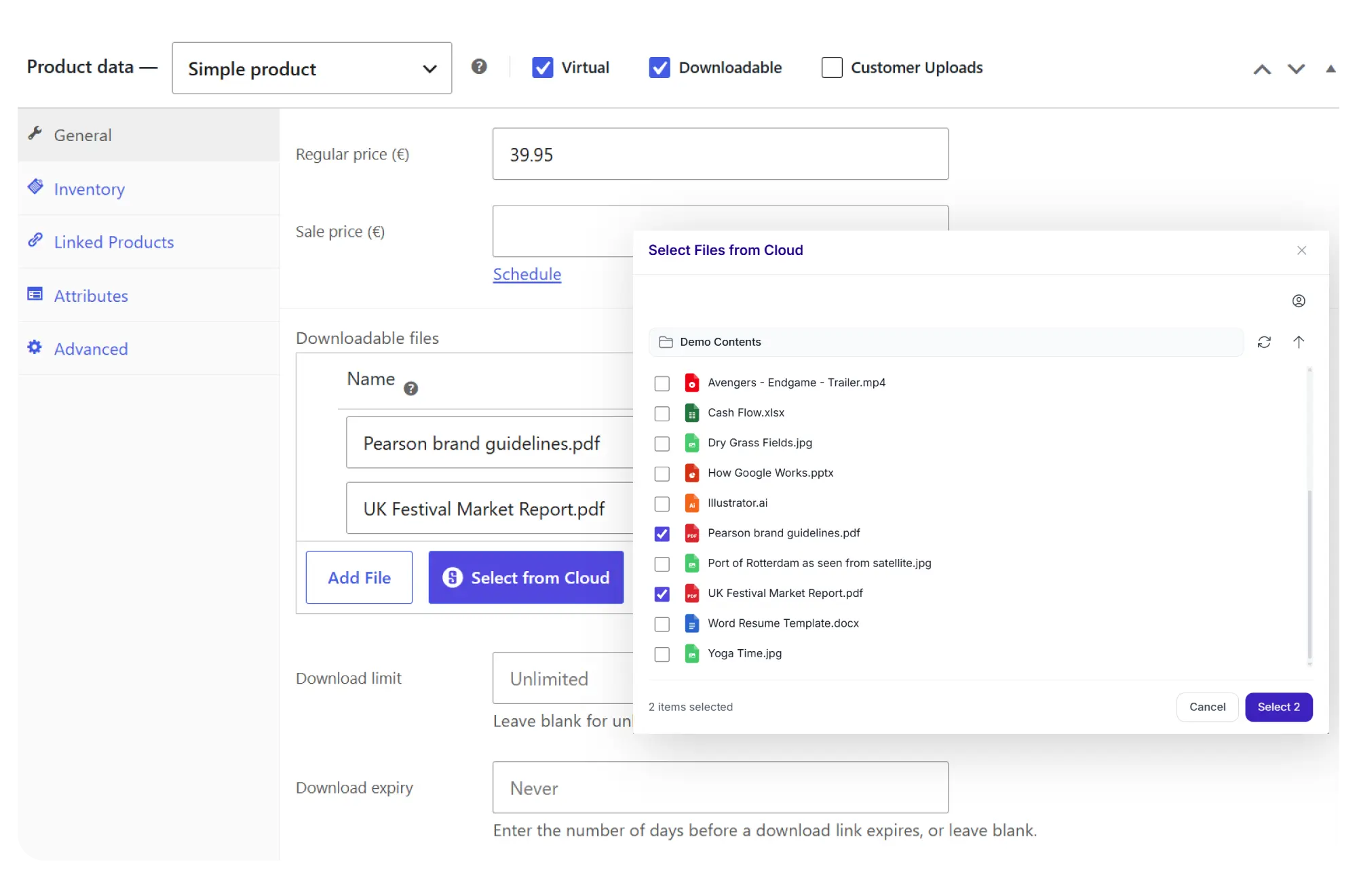
Add OneDrive files to any WooCommerce downloadable product. After checkout, customers receive a secure, temporary download link that serves the file directly from OneDrive. The file is never copied to your WordPress server.
Update the file in OneDrive once; every future order gets the latest version. No re-uploads, no duplicates, no bandwidth from your WordPress hosting.
- Pick files using the cloud file picker in the WooCommerce product editor
- Secure download links generated per order
- Files served directly from OneDrive
- Update files once, all future downloads get the new version
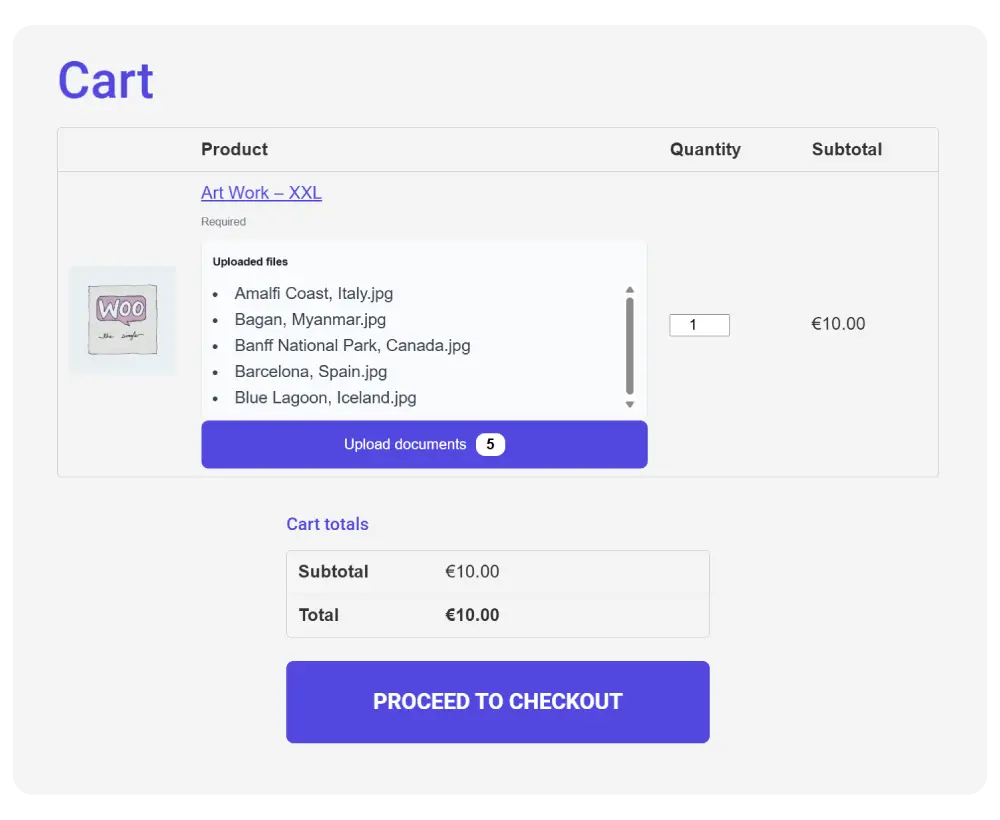
Let customers upload files to your OneDrive per order
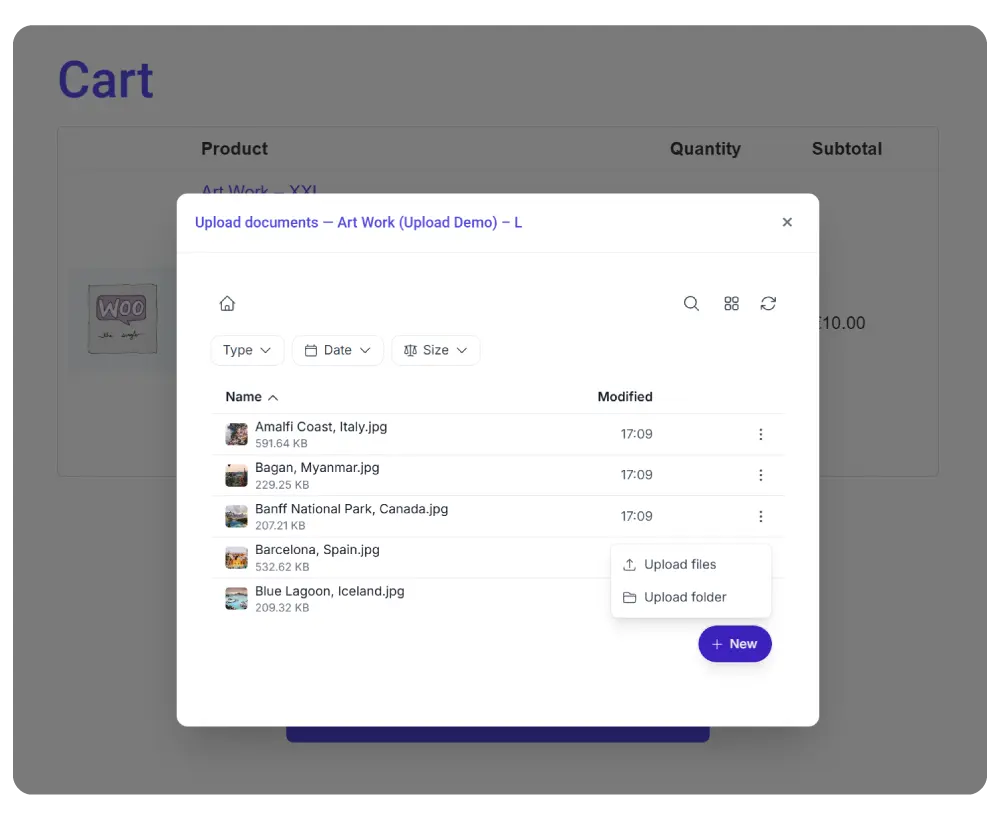
Add a cloud upload box to your product page, cart, checkout, or order detail page. Customers attach designs, documents, briefs, or any file your workflow requires.
Each order gets its own folder in OneDrive, organized automatically. Dynamic Folders builds the per-customer or per-order folder structure for you.
- Upload box on product, cart, checkout, or order detail pages
- Per-order folders created automatically in OneDrive
- File type and size restrictions
- Works with Dynamic Folders for automated organization
Useful for: print shops accepting artwork submissions, design studios collecting briefs, template stores selling InDesign or PSD files, ebook sellers, course providers handing out materials.
OneDrive files in the WordPress Media Library
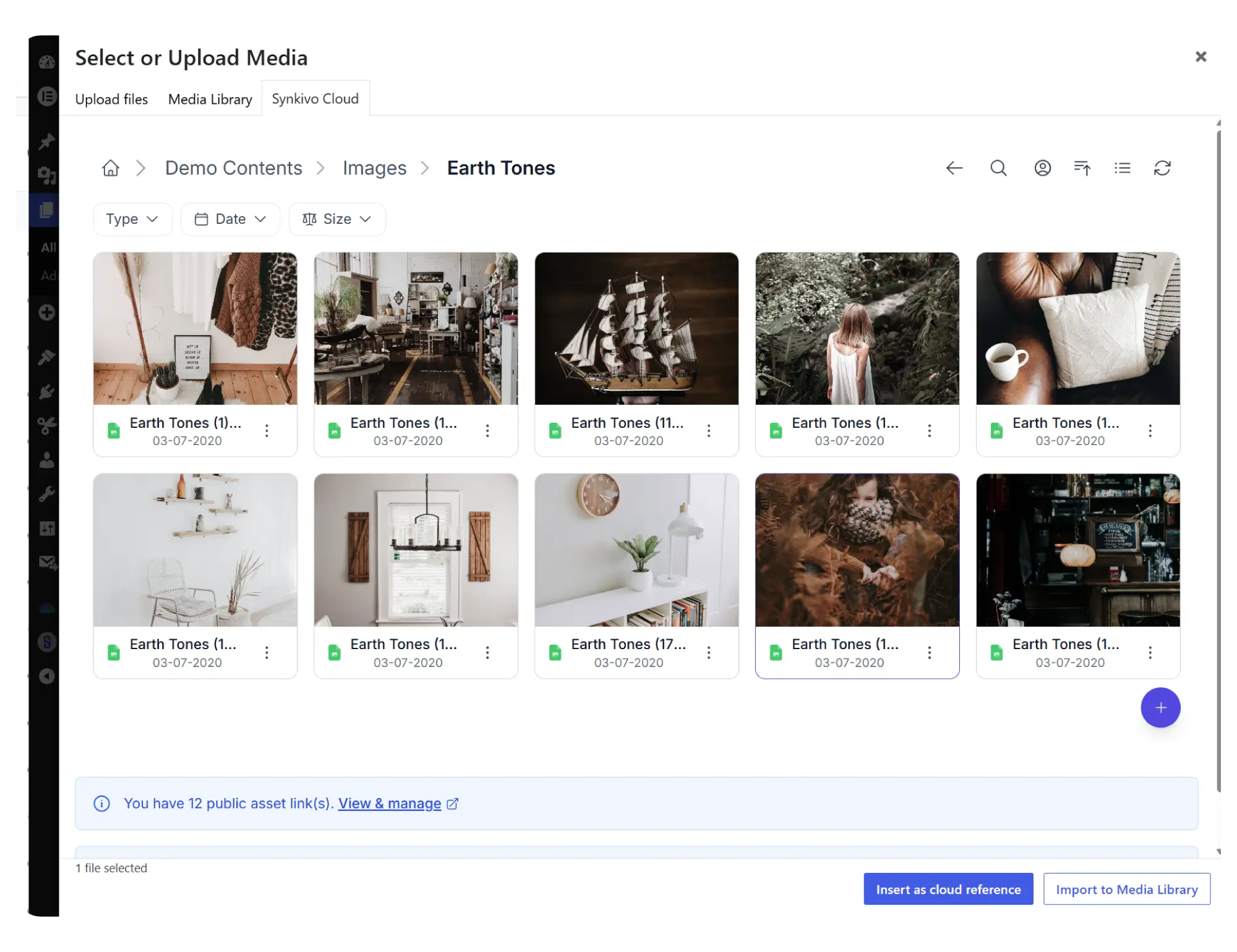
Pick a OneDrive file. Insert it on any page or post. The file stays in OneDrive.
Synkivo adds a OneDrive tab to the WordPress Media Library dialog. Click “Add Media” in the editor, browse your OneDrive, pick a file, and insert it. No download. No re-upload.
When you insert a file, you choose Embed or Import. Embed links to the file in OneDrive; the WordPress page references it live, and any update in OneDrive reflects on your site immediately. Import copies the file once into WordPress uploads, useful when you want a local copy that survives even if the OneDrive connection is unavailable.
Every embedded file gets a permanent WordPress-hosted URL through Synkivo’s Public Assets system. Rename or move the file in OneDrive later, and the WordPress URL stays valid.
See the WordPress Media Library cloud storage page for the broader pattern.
Everything you need to share files on your site.
Each module is visually configured — no code required. Place it anywhere with a shortcode, Gutenberg block, or page builder widget.
Every Synkivo module works with OneDrive
Pick the module that fits your page. The same OneDrive connection powers all of them.

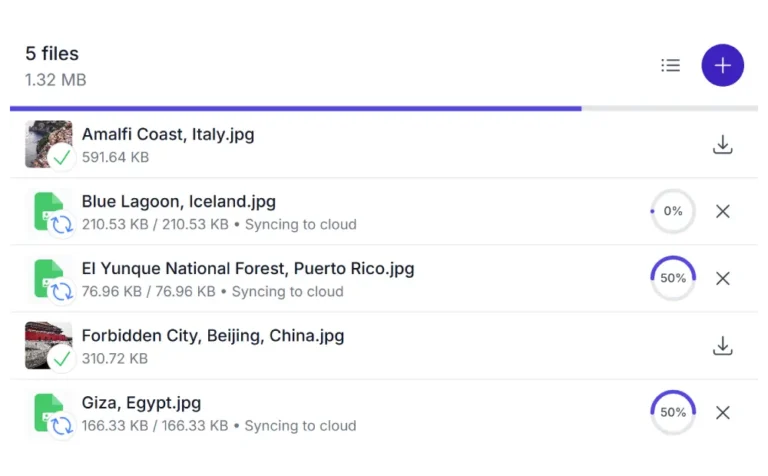

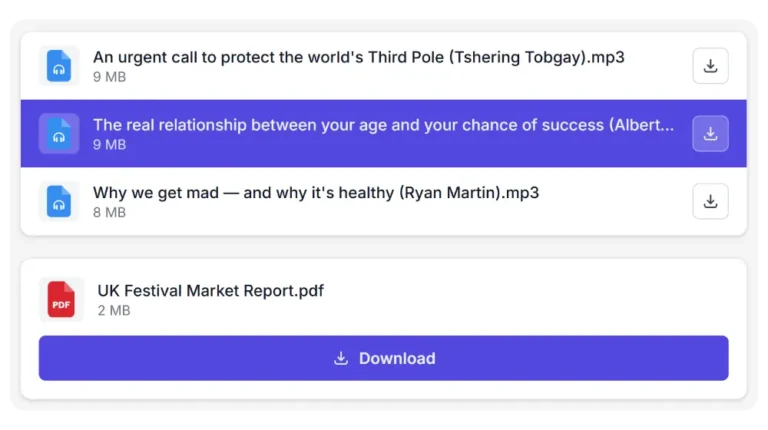
Secure by default
Microsoft authenticates the connection. You decide what Synkivo can access. WordPress respects both.
Microsoft OAuth authentication
Sign-in goes through Microsoft directly, with whatever authentication rules your Microsoft account requires.
Scoped to your OneDrive folders
Synkivo accesses only the OneDrive folders you point modules at. The token does not grant broader access to your Microsoft account.
Role-based actions
Define what each WordPress role can do per module: browse, upload, download, rename or delete. Access is enforced inside WordPress before requests reach OneDrive.
Personal folder
Link individual WordPress users to specific OneDrive sub-folders. Each visitor sees only the folder linked to their account. Pro plan and above.
Signed URLs
Files served through short-lived signed URLs issued by Microsoft. A shared link cannot be reused beyond its lifetime.
Files never copied to WordPress
Synkivo passes file requests to OneDrive in real time. The WordPress server never stores OneDrive files unless you use Media Library Import.
Use cases for OneDrive and WordPress
What Synkivo customers most commonly build with OneDrive.
Personal portfolios and creator sites
A photographer, designer, or writer whose work lives in OneDrive Personal. Synkivo's Gallery and File Browser display the files on WordPress; the originals stay in OneDrive at full resolution.
WooCommerce digital products
A creator selling templates, ebooks, design assets, or downloadable courses. OneDrive stores the products; WooCommerce sells them; Synkivo delivers each file through a temporary signed URL after checkout.
Small team file portals
A small business or freelance studio with files in OneDrive for Business. Synkivo surfaces team files on a private WordPress site, with Personal Folders mapping individual roles to specific OneDrive sub-folders.
Paid course platforms
An online course where lessons (videos, PDFs, exercise files) live in OneDrive. Synkivo streams the videos and serves the downloads. Students access only the lessons they paid for.
Connect OneDrive to WordPress today
Why OneDrive?
OneDrive is already included in millions of Microsoft accounts. For many WordPress site owners, that means no new cloud platform to learn, no extra storage account to manage, no additional workflow to introduce.
Whether you use a Personal Microsoft account or a Microsoft 365 Business subscription, Synkivo lets WordPress work directly with the files already in your OneDrive.
Creators use OneDrive for portfolios and digital products. Freelancers use it for client downloads and file collection. Small teams use it for shared media libraries and document distribution. The files stay in OneDrive; WordPress is the front end.
Built around your account
Personal Microsoft accounts and Microsoft 365 Business both connect through standard OAuth. Same setup, same modules.
Multiple OneDrive accounts
Connect multiple Personal and Business accounts to the same WordPress site and manage them all from one place.
Strong media handling
Fast thumbnails for photos, Office documents, and PDFs. Smooth audio and video streaming via Microsoft signed URLs.
Microsoft ecosystem fit
Works with the same Microsoft account, Microsoft 365 tenant, and Microsoft Graph APIs you already use.
Need SharePoint document libraries instead?
If your files live in SharePoint sites and document libraries rather than OneDrive accounts, see the SharePoint integration. The same Synkivo license supports both providers.
Common Questions Answered
Does Synkivo work with both Personal and Business OneDrive accounts?
How is the connection authenticated and where are credentials stored?
Are my files copied to WordPress, or do they stay in OneDrive?
Can I sell digital products from OneDrive through WooCommerce?
Yes. Add OneDrive files to any WooCommerce downloadable product using the Synkivo file picker. After checkout, customers receive a secure, temporary download link that serves the file directly from OneDrive. The Pro plan covers selling digital products; the Business plan adds the customer-upload-per-order feature for workflows like print shops or design services. See the WooCommerce integration page.
What is the difference between OneDrive and SharePoint in Synkivo?
OneDrive is built around personal and team accounts; SharePoint is built around organizational document libraries with site permissions and metadata. The OneDrive plugin in Synkivo is for showing files from your OneDrive account on WordPress. For SharePoint document libraries, use the SharePoint integration instead. One Synkivo license covers both providers; pick the one that matches where your files live.