
The WordPress plugin for AWS S3 storage
Works with AWS S3 and S3+ compatible. Files stay on your S3 server.
What AWS S3 integration means
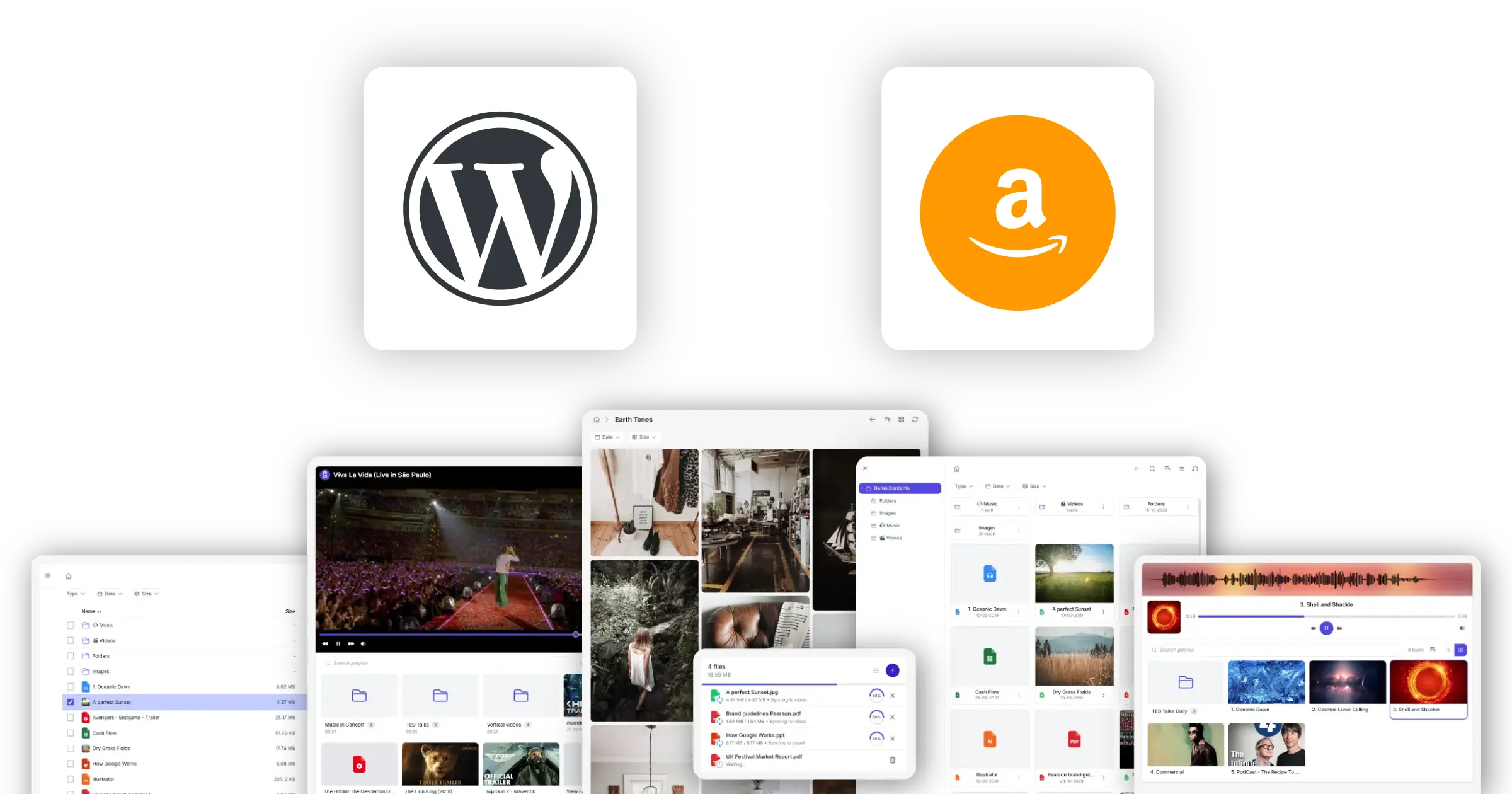
Browse files, accept uploads, display galleries, and stream media. All from your AWS S3
AWS S3 is object storage, not a traditional file server. Files are stored as objects inside buckets and accessed through API requests instead of a filesystem.
Synkivo connects WordPress directly to these buckets so you can display, stream, and manage S3 objects inside your website. WordPress acts as the interface, while S3 remains the storage system.
This approach removes the need to upload files into WordPress and allows your content to scale independently from your hosting environment.
What you can do with AWS S3 and Synkivo
Synkivo turns AWS S3 into a usable content layer for WordPress websites.
Browse files
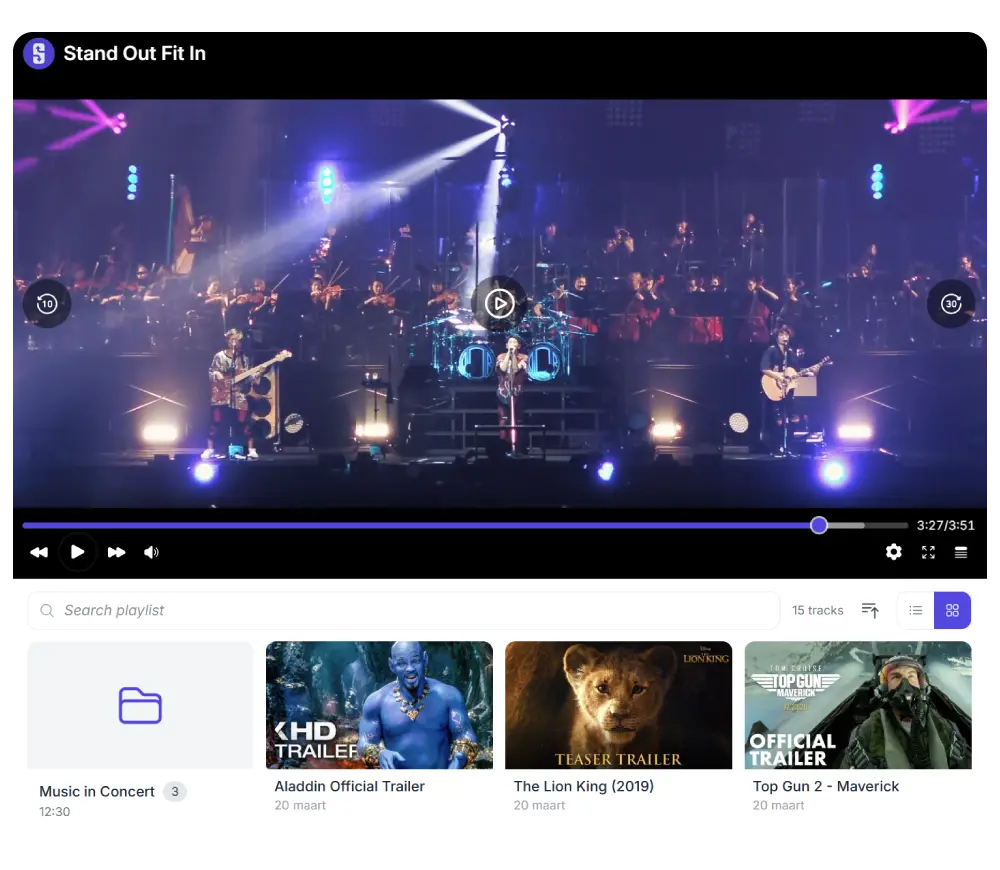
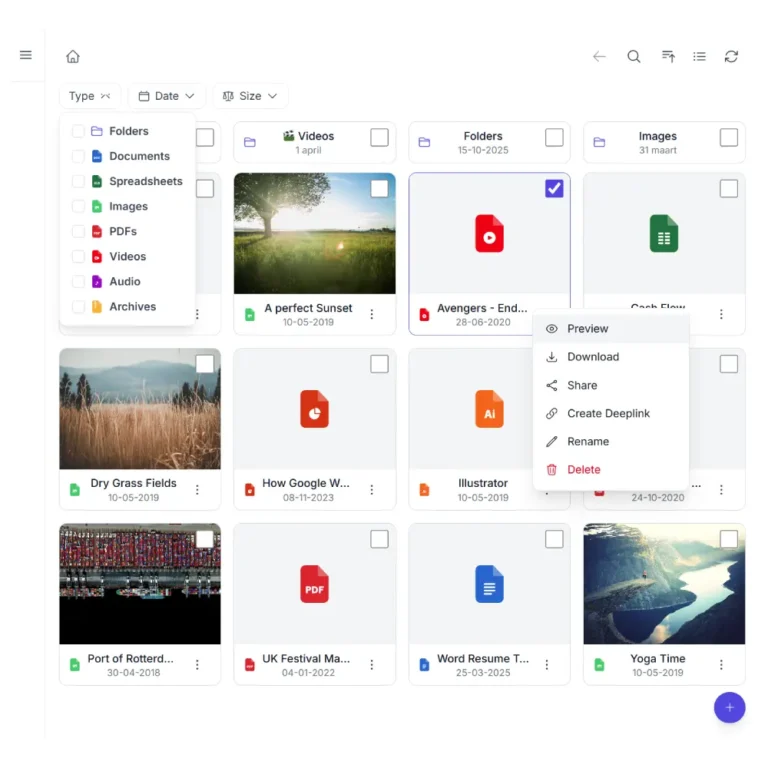
Show a file browser on any page or post. Visitors navigate folders, preview files, and download what they need.
Display galleries
Turn an ownCloud folder of images into a responsive gallery, masonry grid, or justified layout.
Accept uploads
Let staff, members, or visitors upload files directly to an S3 bucket from a WordPress page. Files arrive in directly in your bucket; WordPress is never the storage.
Stream audio and video
Embed audio and video players that stream directly from your S3 server. Supports MP3, MP4, WebM, and other common formats
Share files publicly
Generate shareable links for individual files. Combine with Synkivo's Public Assets management for permanent WordPress-hosted URLs.
Search files
Search your S3 files from the WordPress front-end.
How Synkivo connects AWS S3 to WordPress
Four steps. No file copying. No syncing.
Synkivo communicates with AWS S3 using secure API requests. Each interaction is signed and authorized using IAM credentials. Files are never imported into WordPress unless explicitly configured. This keeps storage centralized in S3 while WordPress handles presentation and access control.
1.
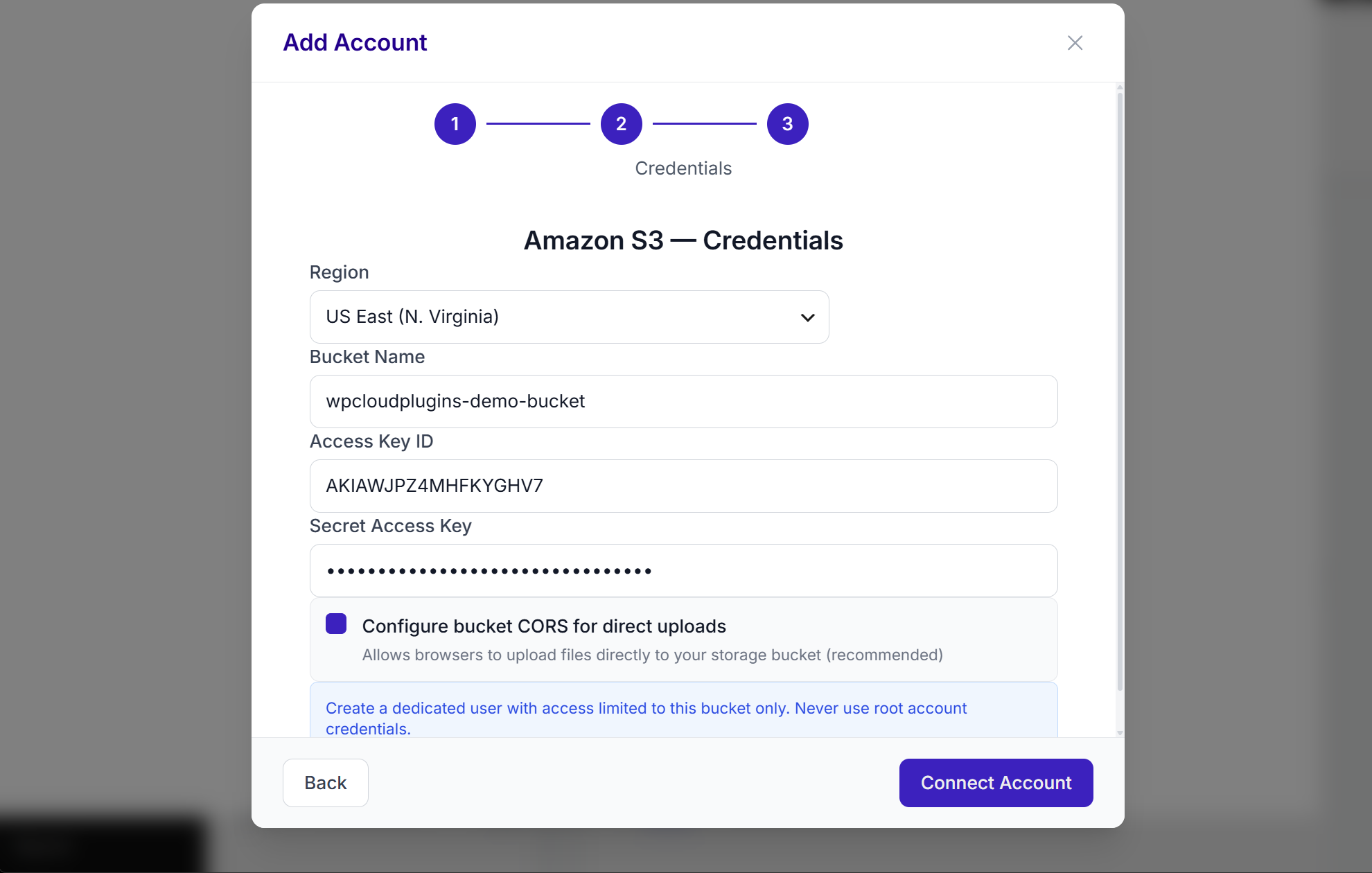
Connect your cloud
Add your S3 Bucket information and credentials in the Synkivo admin. Synkivo verifies the connection and lists your content.
2.
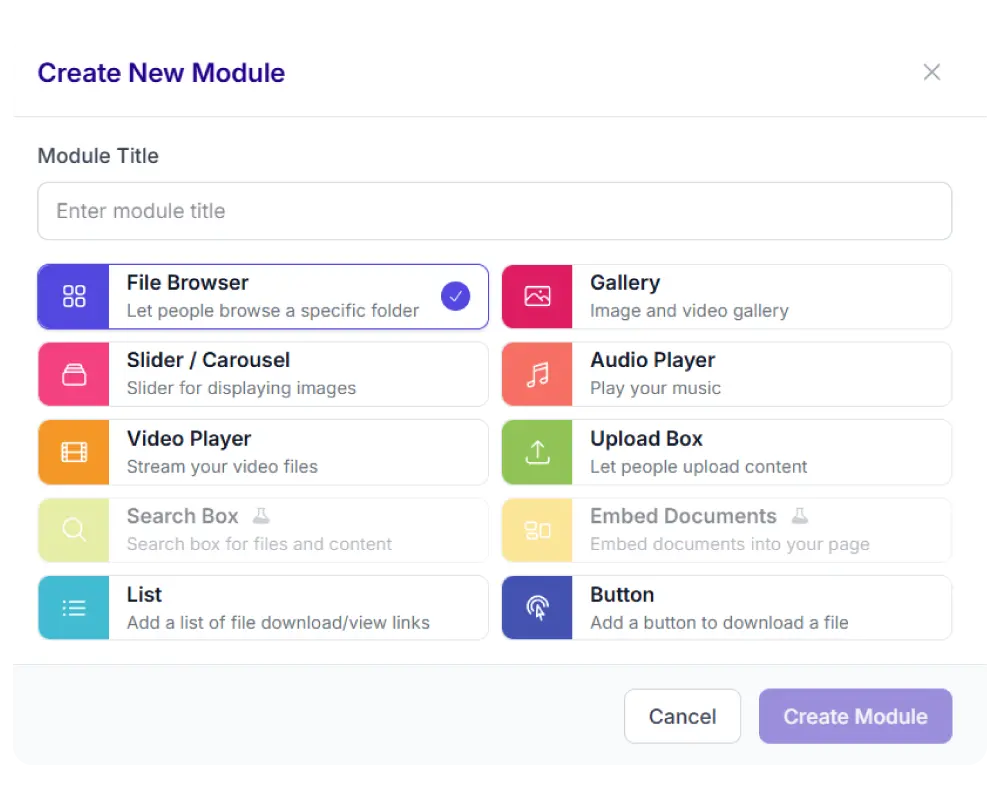
Pick a module
Choose from 8 display types: file browser, gallery, upload box, player, and more.
3.
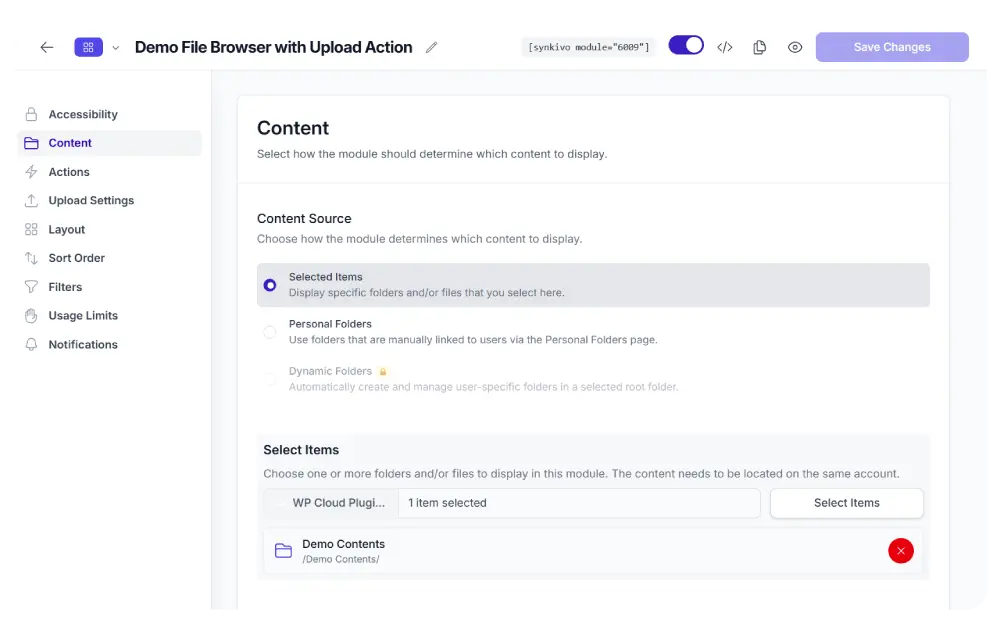
Configure visually
Set the source, permissions, appearance, and behavior. No code needed.
4.
Publish
Insert the module on any page or post using a shortcode or page builder block. Your visitors interact with S3 files directly.
Synkivo communicates with AWS S3 using secure API requests. Each interaction is signed and authorized using IAM credentials. All credentials are encrypted at rest in your WordPress site. For detailed setup instructions, including troubleshooting common issues see our documentation.
Use AWS S3 files directly in the WordPress Media Library
When editing a page, post, product, or custom field, you can browse your S3 buckets and select files without downloading or re-uploading them.
Instead of maintaining separate copies of your files, WordPress can reference objects directly from AWS S3.
Images can be inserted into posts, videos can be embedded into pages, and downloadable files can be attached to products or content areas. The original files remain stored in S3 while WordPress manages the presentation.
This integration works with the Block Editor, Elementor, WooCommerce, Advanced Custom Fields, and most plugins that use the standard WordPress media picker.
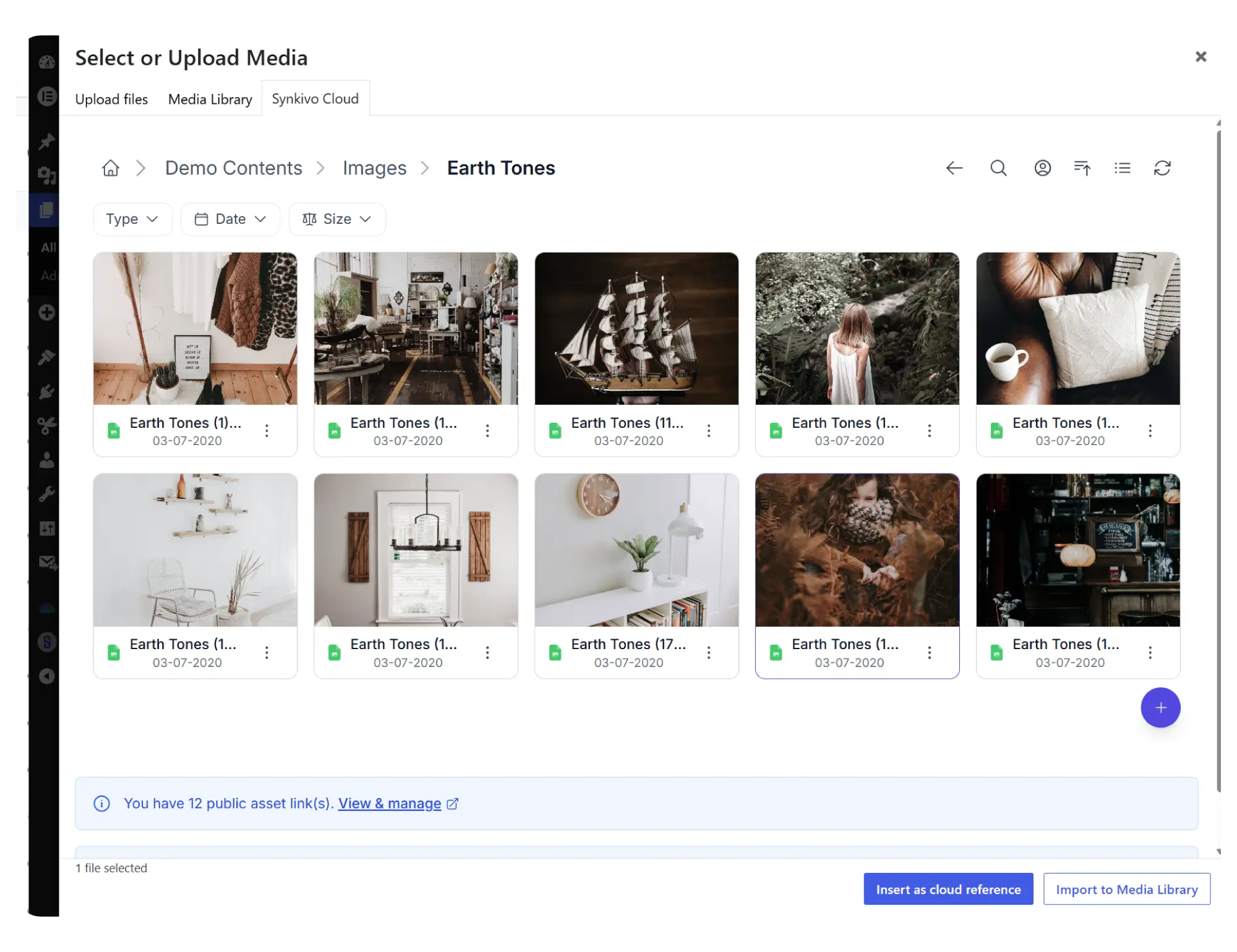
Browse S3 from WordPress
Open your S3 buckets directly from the Media Library and select files without leaving the editor.
Embed without importing
Reference files directly from S3 while keeping storage centralized and avoiding duplicate copies.
Always use the latest version
Replace files in S3 and keep existing WordPress references working without updating content.
Stable public URLs
Generate permanent WordPress-friendly asset URLs for files that need to be shared publicly
Everything you need to share files on your site.
Each module is visually configured — no code required. Place it anywhere with a shortcode, Gutenberg block, or page builder widget.
Modules that work with AWS S3
What you can do with AWS S3 and Synkivo
Synkivo turns AWS S3 into a usable content layer for WordPress websites.
You can browse S3 buckets directly from WordPress and display files in structured layouts. Media such as images, audio, and video can be streamed without downloading them to your server.
You can also build download portals where files are served directly from S3, reducing load on WordPress hosting and improving scalability.
Upload modules allow users to send files directly into S3 from your website, making it suitable for user-generated content systems.

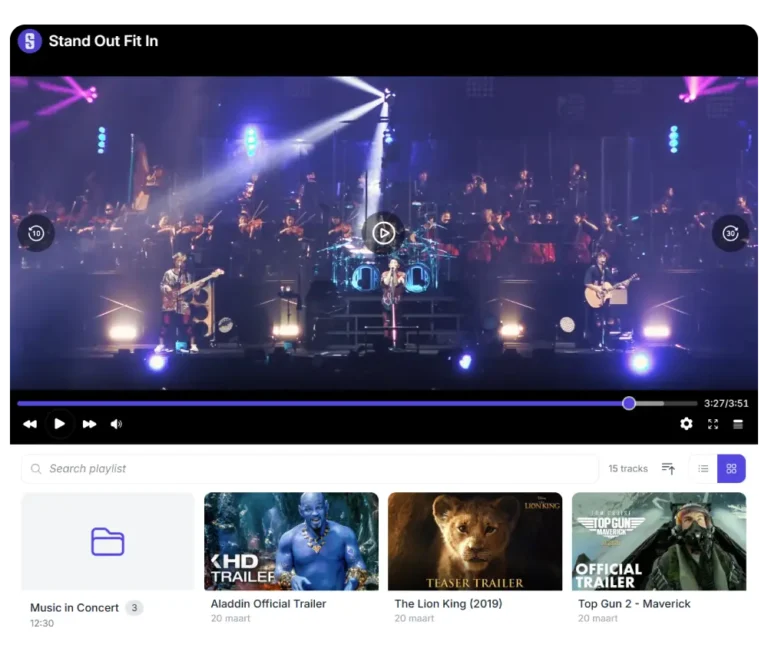
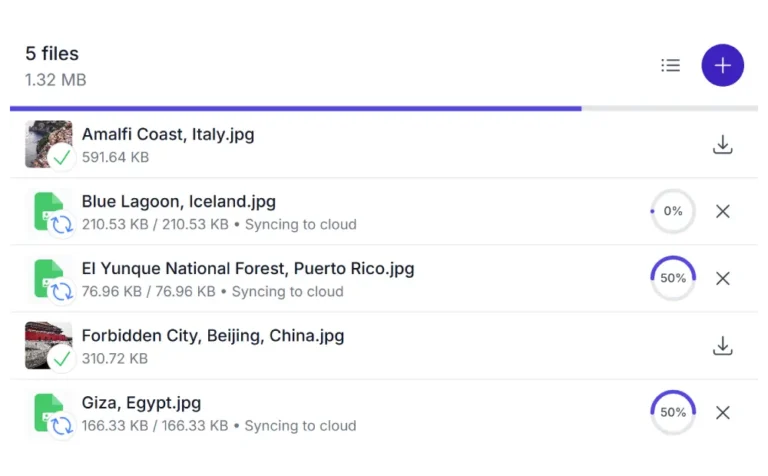

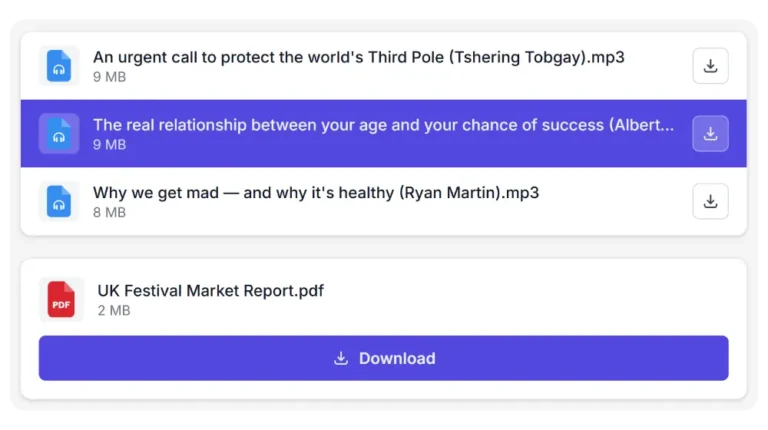
List and Buttons
Secure access to your S3 storage
Synkivo uses IAM-based authentication to connect to AWS S3. Permissions are scoped at the bucket or prefix level to ensure least-privilege access.
All requests are signed and validated before accessing S3 resources. Credentials are encrypted in the WordPress database and are never exposed on the frontend.
You can also control whether files are served directly from S3 or proxied through WordPress for additional access control.
Role-based permissions allow you to define who can view, upload, or manage content inside each module.
IAM-based access
Connect using AWS IAM credentials with permissions limited to specific buckets or prefixes. Apply the principle of least privilege and expose only the storage areas your website needs.
Role-based permissions
Control who can browse, upload, download, delete, or manage files based on WordPress user roles and module-specific permissions.
Personal folders
Link individual WordPress users to specific S3 prefixes/folders. See the personal folders feature for details.
Scope enforcement
Visitors can never browse outside the configured root folder. Every request is checked against the module scope.
Encrypted file IDs
File and folder identifiers are encrypted per session. Visitors cannot guess or manipulate IDs to access other files.
Proxy downloads
Serve files directly from S3 using signed URLs or proxy requests through WordPress for additional control over access and download behavior.
For a full breakdown of Synkivo’s security architecture, including nonce validation, password-protected modules, and usage restrictions, see the security features page.
Stream media directly from S3
Synkivo allows WordPress to stream this content directly from S3 without importing large files into your hosting environment.
Video streaming
Stream training videos, webinars, and presentations directly from AWS S3+.
Audio libraries
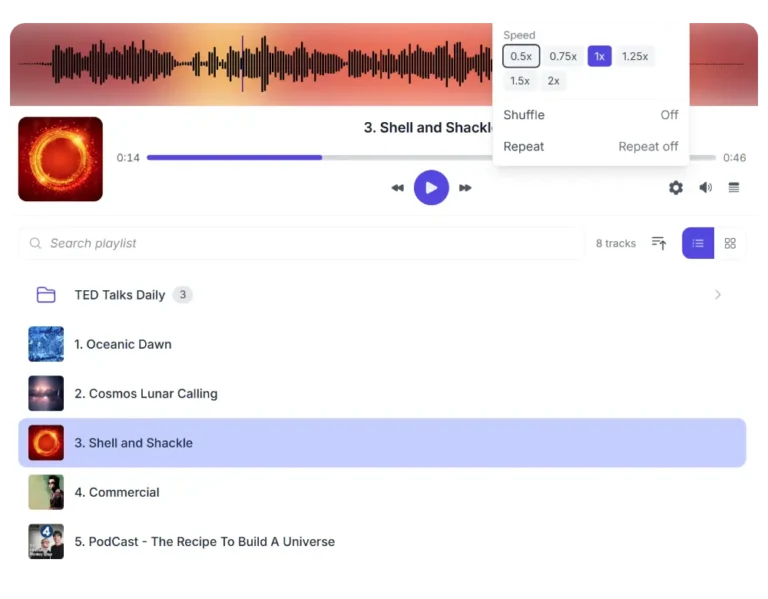
Play podcasts, recordings, and audio content stored in AWS S3+.
Reduce server load
Deliver large media files without consuming local WordPress storage.
Single source of truth
Manage media in one location while displaying it anywhere on your website.
Common use cases for AWS S3 and WordPress
AWS S3 is commonly used as a scalable storage layer for modern WordPress websites, often used for media-heavy websites that need fast global delivery.
Video streaming libraries
Store training videos, product demonstrations, webinars, or course content in S3 and stream them directly through WordPress without consuming local hosting resources.
Audio and podcast hosting
Publish podcasts, music libraries, audiobooks, and premium audio content stored in S3 while using WordPress as the listening interface.
Digital download portals
Deliver software packages, PDF libraries, documentation, CAD files, or other downloadable assets directly from S3.
Client and team portals
Build secure portals where authenticated users can access and upload documents, media, and project files stored in dedicated S3 locations.
Connect AWS S3 to WordPress today
Turn AWS S3 into a live content source for your WordPress site. Display, stream, and manage files without importing them into your media library.
Start building scalable file-driven websites with Synkivo.
Why AWS S3?
Why organizations choose AWS S3 for WordPress storage
AWS S3 is designed for scalable object storage that powers everything from small websites to global applications. It is widely used as the backbone for modern cloud infrastructure because it separates storage from hosting and scales automatically with demand.
Synkivo allows WordPress to use S3 directly as a live storage layer without importing or duplicating files.
Global performance at scale
AWS S3 is built for high throughput and low latency access across regions, making it suitable for media-heavy websites and global audiences.
Virtually unlimited scalability
Store from a few files to billions of objects without managing storage limits or server capacity.
Infrastructure separation
Decouple file storage from your WordPress hosting so your site performance is not tied to disk usage.
Pay-as-you-go model
Only pay for what you use in storage, requests, and bandwidth without upfront infrastructure investment.
Common Questions Answered
The AWS S3-specific questions we hear most often.
What is AWS S3 used for in Synkivo?
AWS S3 is used as a scalable object storage system that stores your files outside of WordPress. Synkivo connects WordPress directly to these buckets so you can display and manage files without importing them.
Does Synkivo copy files from S3 into WordPress?
Can I use private S3 buckets with Synkivo?
Yes. Synkivo supports private buckets using IAM authentication. Access is controlled through signed API requests based on your configured permissions.