
Everything your cloud-connected WordPress site needs
Synkivo does more than connect your cloud to WordPress. Give users their own private folders. Automate folder creation. Integrate with the WordPress Media Library. Track everything with reports. And keep it all secure by default.
Personal Folders
Give each user their own private cloud folder.
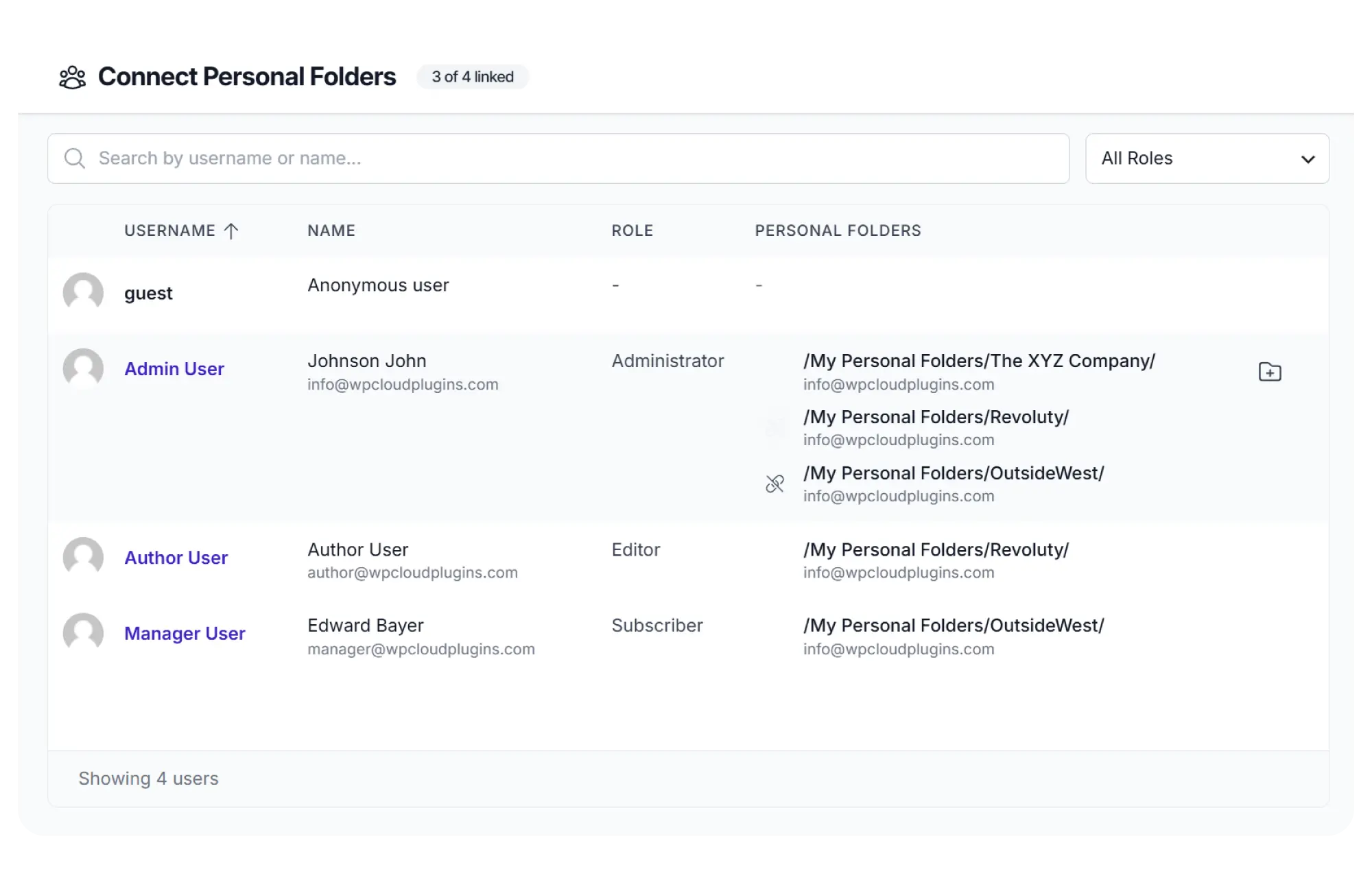
Manual folder assignment
Link any user to any folder on your cloud storage. Full admin control over who sees what.
Multiple folders per user
Link a single user to multiple folders for different purposes (invoices, contracts, deliverables).
Guest access
Share a folder with someone who doesn't have a WordPress account. Link it to the built-in Guest user.
Works with all modules
The same folder mapping works whether you use a File Browser, Gallery, Upload Box, or any other module.
Role-based actions
Control what users can do inside their folder: download, upload, delete, rename. Configured per module.
Automatic scoping
The module automatically restricts to the user's linked folder. No extra configuration needed per user.
- Use cases -
Client portals
A law firm links each client to their case folder. Clients log in and see only their own documents: invoices, contracts, correspondence.
Accountant file sharing
An accountant prepares quarterly reports per client. Each client gets access to their own folder to download tax documents and upload receipts.
Agency deliverables
A design agency creates a folder per project. The client downloads final deliverables, previews designs, and uploads feedback.
Dynamic Folders
Automatic folder creation based on users, posts, dates, and more.
Dynamic Folders automatically create and assign cloud folders based on rules you define. Folders can be created per user, per post, per category, per date, or based on any combination of user metadata and WordPress data.
You configure a name template with placeholders. The plugin handles creation, naming, and access. Set it up once in the Module Configurator, and it scales to hunderds of folders.
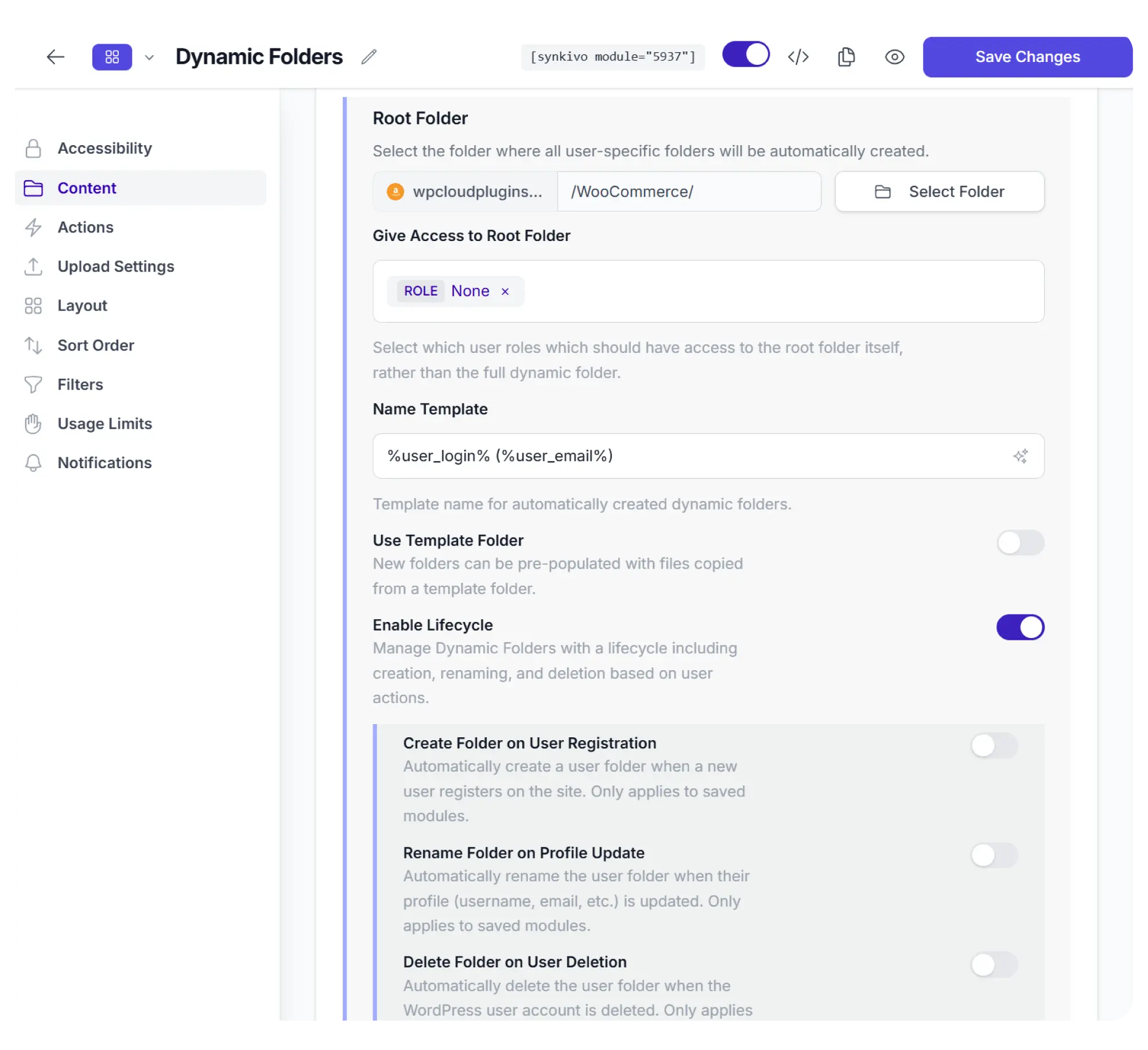
Automatic creation
Folders are created automatically based on your rules. No admin action required.
Name templates
Define folder names using placeholders: username, email, post title, category, date, custom fields, and more.
Template folder
Pre-fill every new folder with default files from a template folder you define (welcome pack, onboarding checklist).
Lifecycle management
Create folders on registration or first visit, rename on profile update, delete on user removal. Fully automated.
Per-module configuration
Each module can have its own root folder and name template and each can have with a different folder structure.
Admin override
Admins can see the full root folder with all generated folders. Regular users see only their own.
- Use cases -
Client portal with auto-onboarding
New clients get their own folder with a welcome packet the moment they sign up. No manual setup per client.
Course submissions
Each student uploads assignments to their own folder. Teachers see all folders. Students see only their own.
Order-based folders
Customers get a folder for each WooCommerce order. They can attach files, download invoices, and track deliverables.
Post or category folders
A folder is created for each blog post, product, or category. Attach cloud files to any type of WordPress content.
Date-based organization
Folders are created automatically by year, month, or custom date ranges. Ideal for archiving or periodic reporting.
Custom field routing
Route users to folders based on user metadata, roles, or custom fields. A department field routes each team to their own folder.
Media Library Integration
Use cloud files anywhere WordPress allows media.
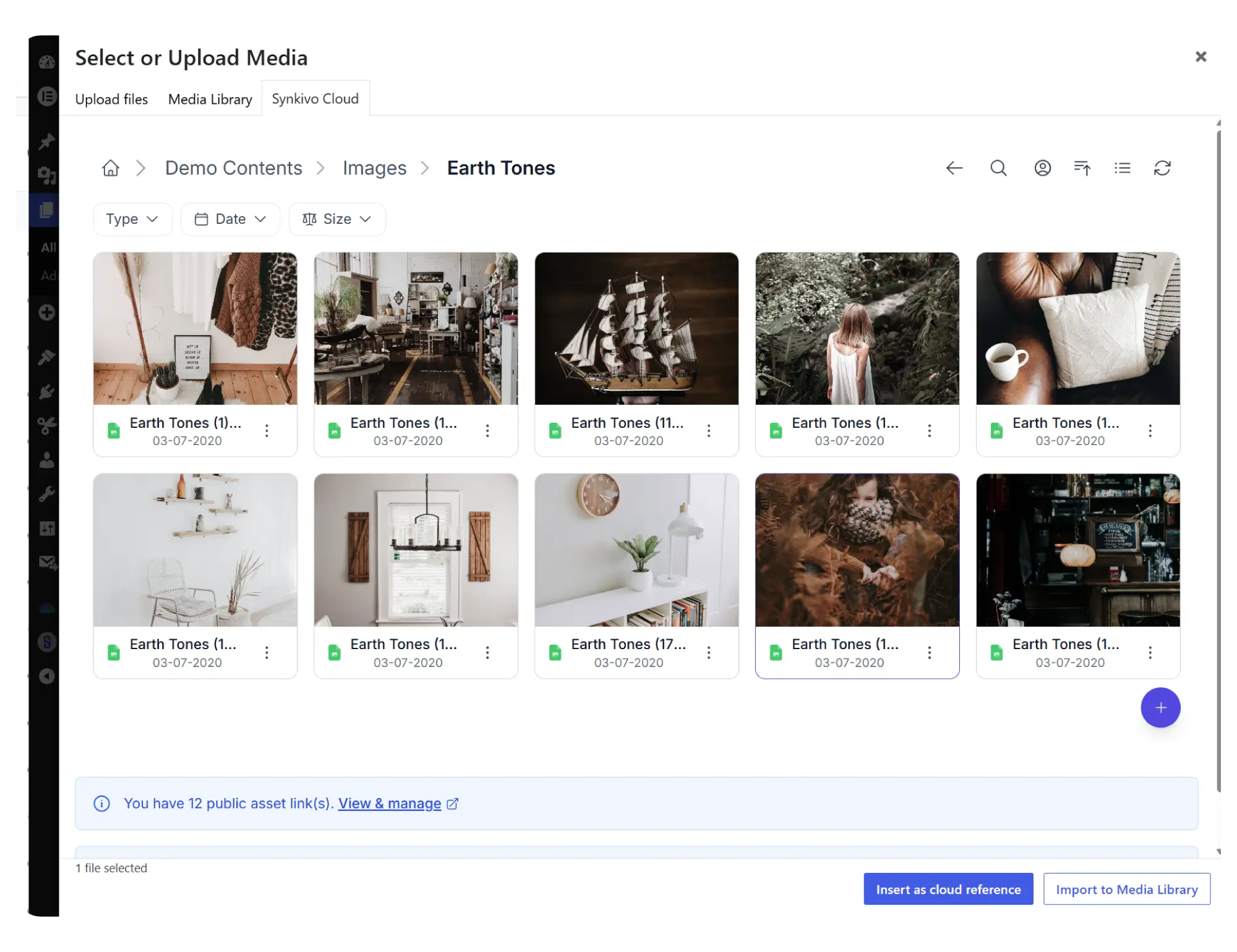
Synkivo adds a tab to the WordPress Media Library picker. Browse your connected cloud accounts, select files, and insert them into posts, pages, Gutenberg blocks, featured images, WooCommerce products, or any plugin that uses the standard media dialog.
Choose between embedding (direct link from your cloud) or importing (copy to local Media Library). Embedding is recommended: files stay in your cloud, always in sync, no local disk space used.
- Works with Gutenberg, Classic Editor, Elementor, and any plugin that uses the WordPress media picker
- Browse all connected cloud accounts from one place
- Thumbnails are loaded directly from your cloud
- No re-uploading, no manual URL copying
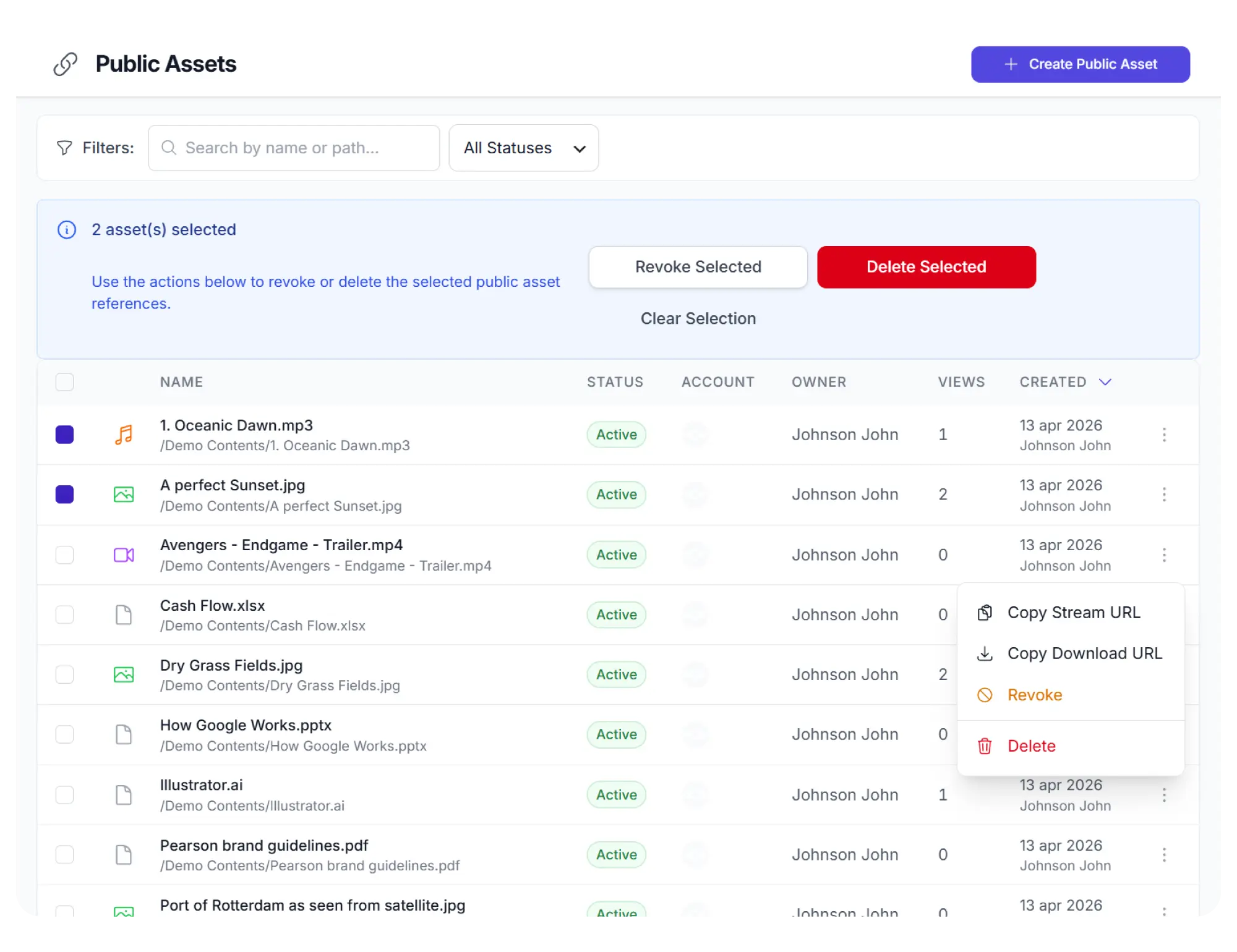
Manage all outbound cloud links in one place
Every cloud file you embed through the Media Library gets a persistent, WordPress-hosted link. These links work even when the original file requires authentication on your cloud storage.
From the Public Assets admin page, you can see every cloud file link your site uses, where it is referenced, and revoke access instantly by deleting the link. The URL stays the same even if you rename or move the file in your cloud.
- Links are created automatically when you embed files. No manual setup.
- Central admin page to view, edit, and revoke all cloud file links
- URLs stay permanent even if the file is renamed or moved
- Revoke access to any file instantly by deleting its link
Bookmarks & Likes
Let visitors save what they need and show what they love.
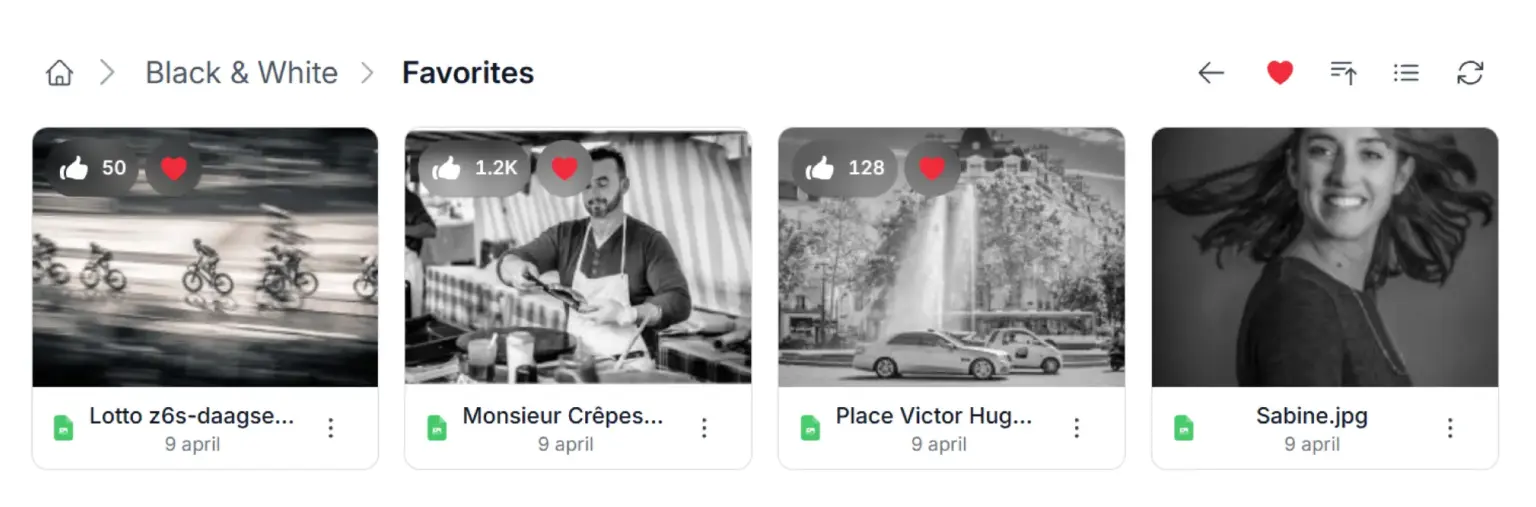
Your cloud files stop being a one-way archive. Logged-in visitors bookmark the files and folders they use most, and like the ones worth recommending. They get a personal shortlist they can open in one click. You get a clear signal about which content actually matters, without adding a second plugin, a second database, or a comment system you have to moderate.
Personal favorites
Every user builds their own list of bookmarked files and folders. Private by design: nobody sees anyone else's.
One-click favorites view
A toggle in the module toolbar switches between the folder and everything the user saved, with load-more for large collections.
Likes with counts
Visitors like individual files. Counts are shown in a compact format (1.2K) and can stay hidden until a file passes a threshold you set.
Sort by Most liked
Put popular files first, either as a user-selectable sort option or as the module's default order.
Your icon, your wording
Pick a heart, bookmark, or star, and call it Favorites, Bookmarks, or Saved across every module.
Role-based
Decide per module which roles may bookmark and which may like. Both require a logged-in user; guests see counts and a login prompt.
- Use cases -
Membership document portals
A membership site publishes hundreds of templates and guides. Members bookmark the five they actually use each week and reach them in one click, instead of walking the folder tree every time.
Crowd favorites in galleries
A photographer publishes an event gallery for the attendees. Everyone likes the shots they love, and sorting by Most liked instantly surfaces the images the room agreed on — the ones worth putting on the homepage, in the recap post, or in next year's promo material.
Internal training libraries
Employees save training videos for later with a Saved label, while HR uses the Most Liked report to see which courses are worth expanding.
Secure by default
Every request is validated. Every file is access-controlled. Every link is protected. Regardless of which cloud provider you use.
Cloud account credentials are stored encrypted. Every request is verified to come from your own domain. Module permissions are enforced on every single action. You don’t need to configure anything to be protected.
Role-based access control
Define what each WordPress role can do: browse, download, upload, delete, rename, move, copy, share. Configured per module.
Nonce and token validation
Every API request is validated with a WordPress nonce and a per-module token. Prevents CSRF attacks and unauthorized access.
Encrypted file IDs
File and folder IDs are encrypted and salted per session. Users cannot guess or manipulate IDs to access files outside their scope.
Password protection
Protect any module with a password. Visitors must enter the password before they can access the content.
Scope enforcement
Users can only access files within the configured root folder. Every request is checked against the module's scope. No path traversal possible.
Proxy downloads
Files can be served through your WordPress server instead of directly from the cloud. Hides the cloud URL entirely.
Usage restrictions
Set download limits, bandwidth caps, and ZIP download quotas per user or per file. Configure daily, weekly, or monthly periods. Exempt specific roles. Get notified when a user hits their limit.
Encrypted credentials
Cloud account credentials and tokens are encrypted at rest. Account IDs are obfuscated in the frontend. Nothing identifiable is exposed in your page source.
Upload restrictions
Control which file types and sizes are accepted. Set per-module upload quotas. Block executable file types by default.
Try it: Password-protected module
The file browser below is protected with a password. This is exactly what your visitors see when you enable password protection on any module. Enter the password demo to unlock it.

Notifications and Automation
Know what happens with your files. Get notified by email, alert your team on Slack, or trigger external systems with webhooks.
Email Notifications
Get notified when files are uploaded, downloaded, or deleted. Customize the email template with placeholders for file name, user, date, and more. Configure separate templates, set the sender name, reply-to address, and add an anti-phishing code for authenticity.
- Separate templates for upload, download, delete, move, copy
- Customizable sender name, email, and reply-to address
- Placeholders for dynamic content (file name, user, date)
- Anti-phishing code in footer

Slack Notifications
Send real-time alerts to your Slack channels when file events occur. Choose which events trigger messages: uploads, downloads, deletions, and more. Customize the notification template using Slack Block Kit for rich, formatted messages with file details, user info, and direct links.
- Real-time event notifications in Slack channels
- Choose which events trigger Slack messages
- Custom Slack Block Kit template
- Includes file details, user info, and links
Webhooks
Send signed JSON payloads to any URL when file events occur. Use webhooks to connect Synkivo to CRMs, project management tools, automation platforms, or your own backend. Every webhook payload is cryptographically signed so you can verify it came from your WordPress installation.
- Real-time delivery on every file event
- Connect to Zapier, Make, n8n, or custom endpoints
- 16 event types available
- Signed JSON payloads for security
Code Example
Array
Statistics and Reports
Track every download, upload, preview, and share across all your modules.
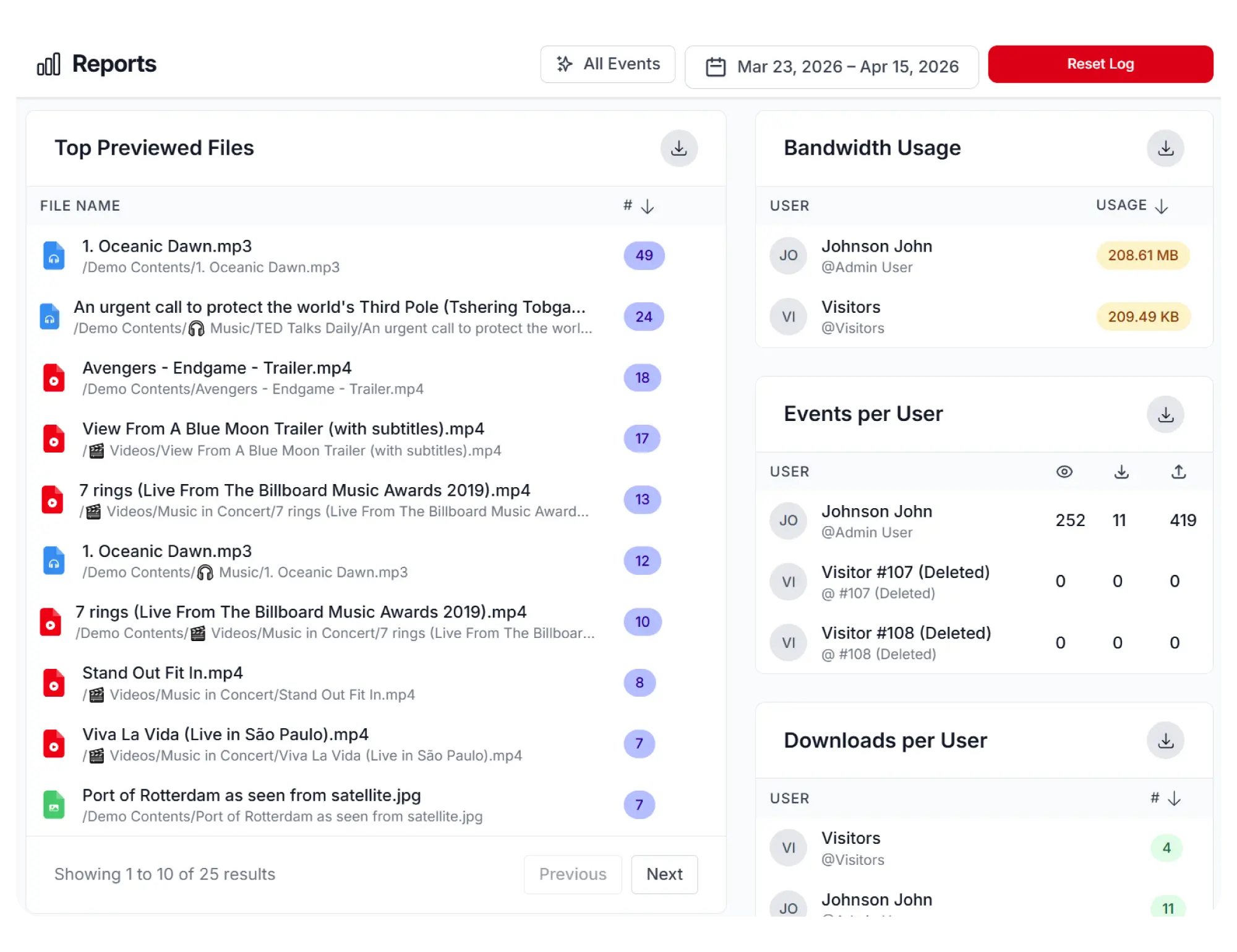
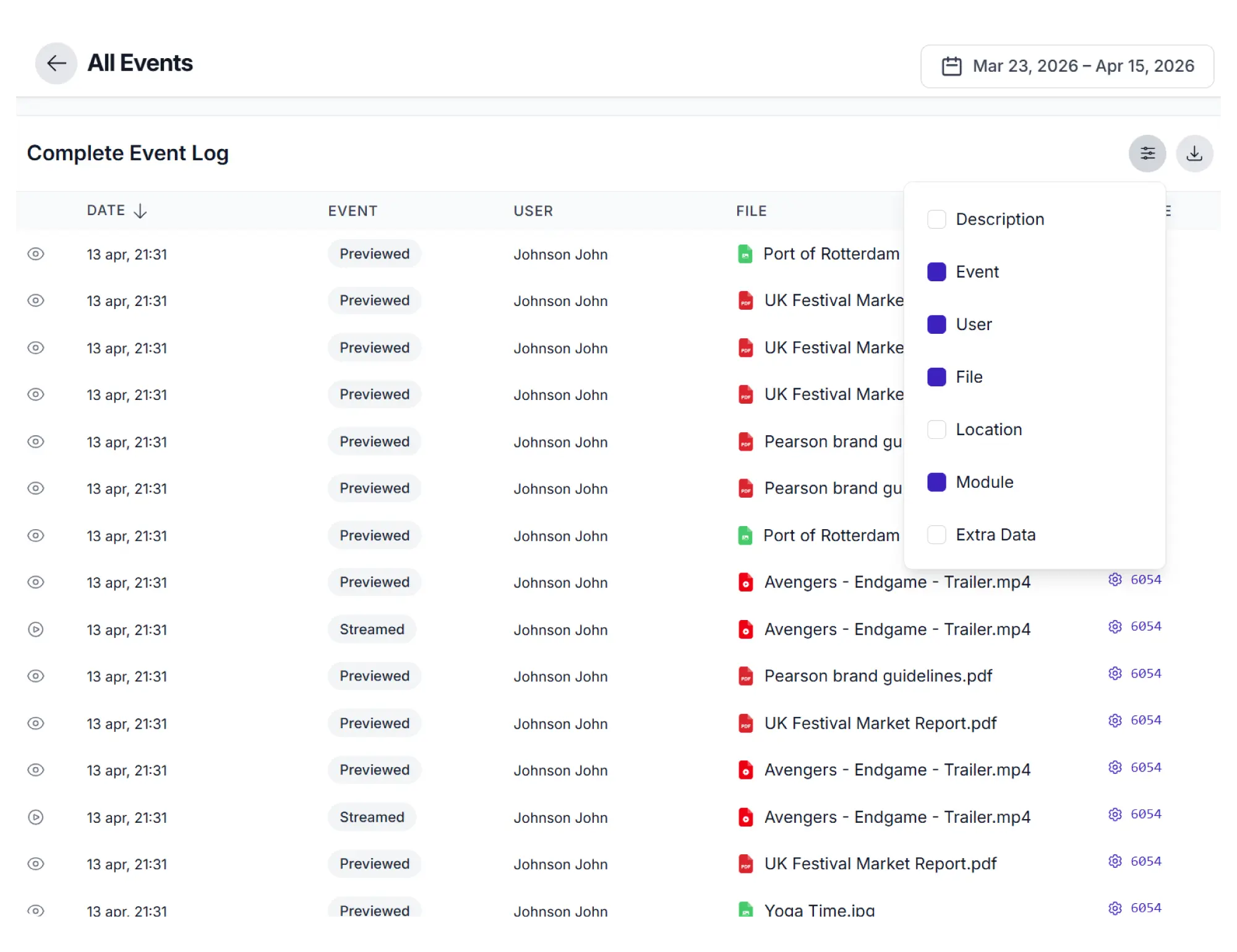
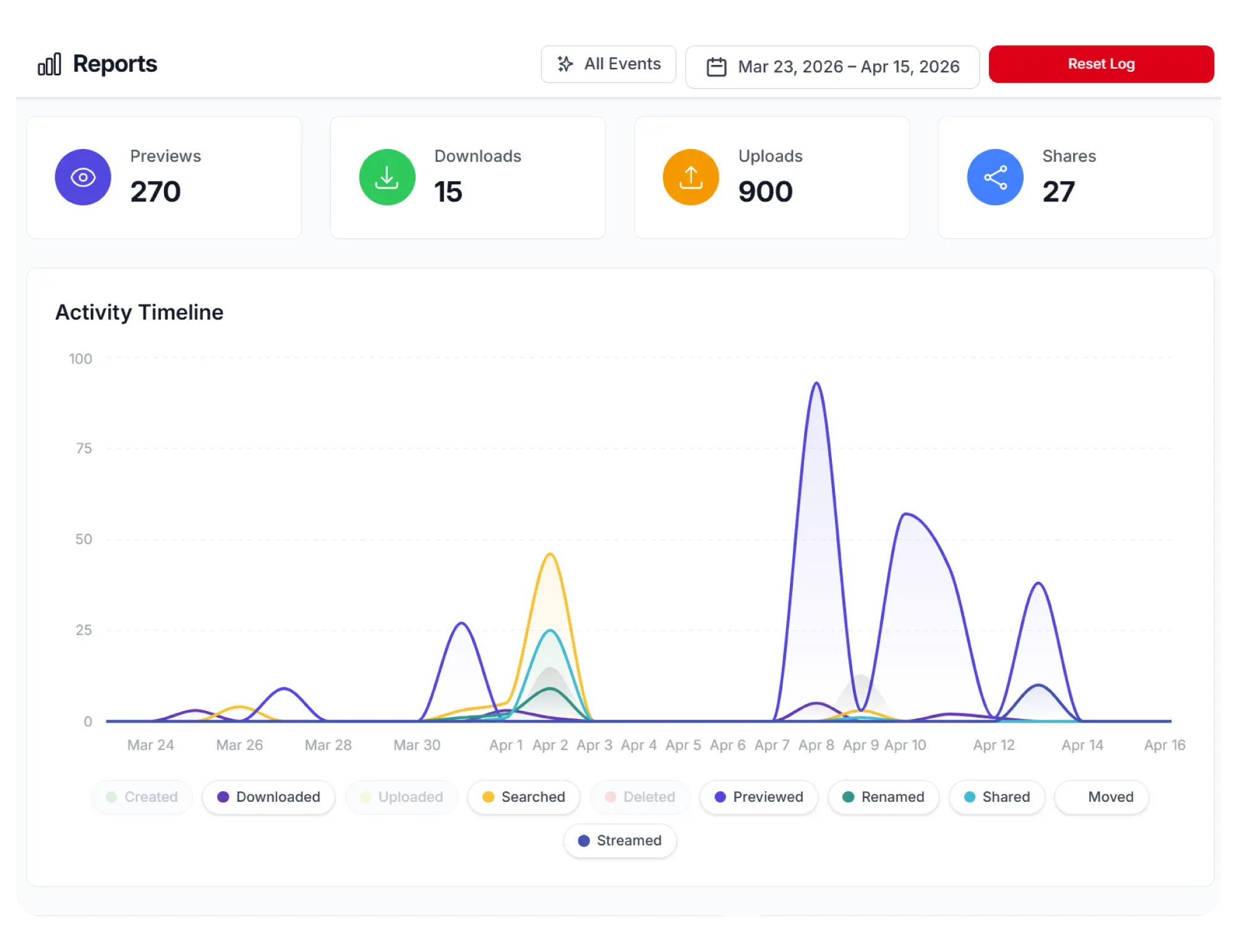
Synkivo logs all file events and presents them in a visual reports dashboard. See which files are most downloaded, which users are most active, and how your cloud storage is being used.
Filter by date range, event type, user, module, or file. The Business plan adds unlimited history retention and CSV export for external analysis.
Event logging
Every file event is logged: downloads, uploads, previews, shares, deletes, renames, moves, copies, and errors.
Visual dashboard
Charts and tables showing activity over time, top files, top users, and event breakdowns.
Filters
Filter by date range, event type, user, module, cloud account, or specific file/folder.
History retention
Pro: 90 days of event history. Business: unlimited retention.
CSV export
Export filtered event data as CSV for analysis in Excel, Google Sheets, or BI tools. Business plan only.
Webhook integration
Combine with webhooks to stream event data to external analytics or monitoring systems in real time.