
The WordPress plugin for Nextcloud.
Files stay on your Nextcloud server. Nothing is copied to WordPress.
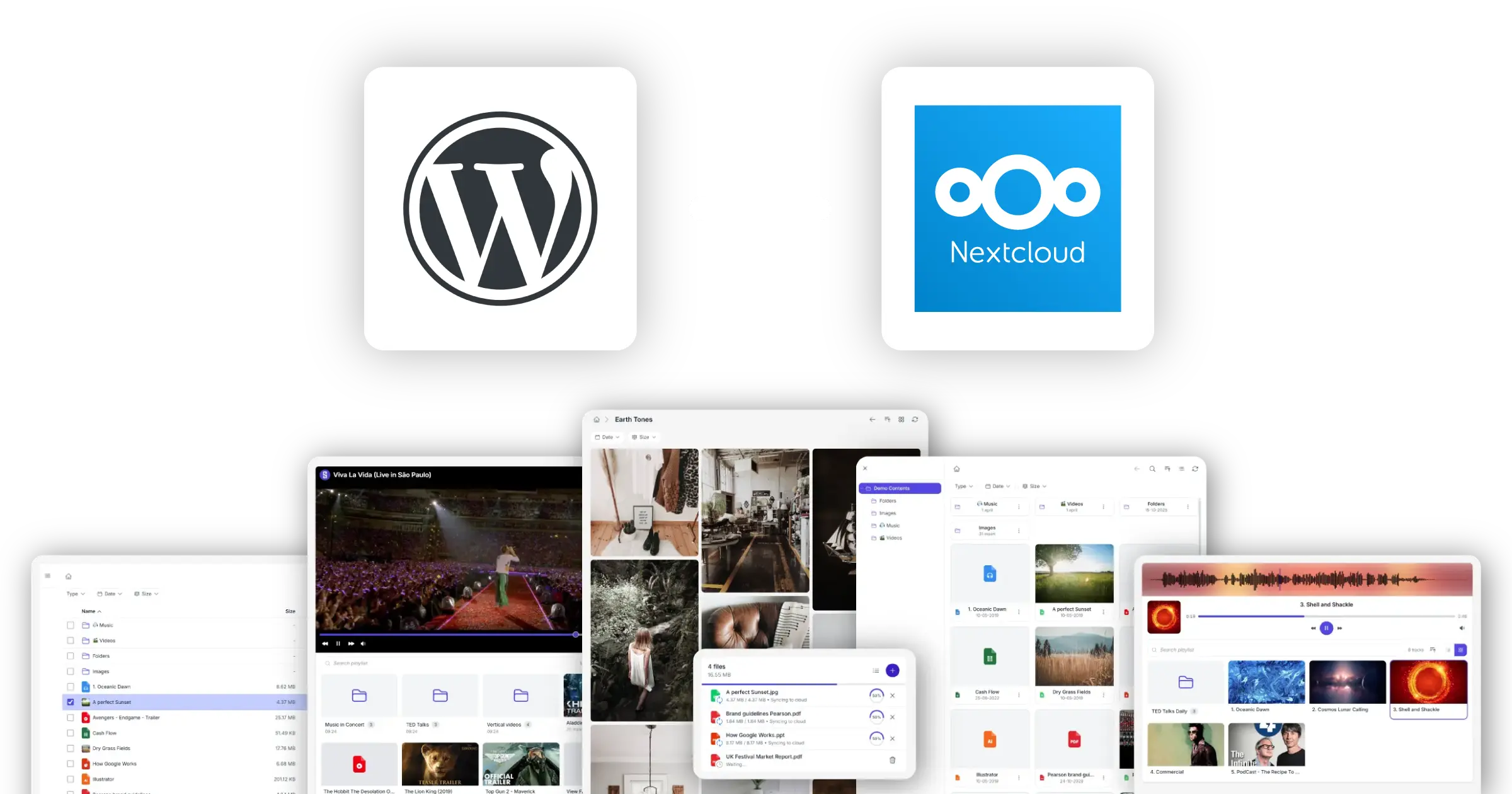
Your Nextcloud, on your WordPress site
Show files, accept uploads, display galleries, and stream media. All from your existing Nextcloud server.
Synkivo is a WordPress plugin built to do one thing well: connect your Nextcloud server to your WordPress site. Once connected, everypage on your site can show, share, or accept files that live on Nextcloud.
A client portal that shows each client their own folder. A document library that visitors can search and download from. An upload form that drops files straight into Nextcloud. A gallery built from a Nextcloud folder of photos. A video page that streams from your server. All powered by the Nextcloud you already run.
The plugin works with current Nextcloud installations and connects through Nextcloud’s standard WebDAV and OCS APIs. No add-ons or server-side changes needed. You install Synkivo on WordPress, point it at your Nextcloud, and pick which folders to expose to which visitors.
Your Nextcloud stays under your control. Files never move off your server. Synkivo respects your Nextcloud permissions and only touches the folders you configure. You decide what is exposed, to whom, and what they can do with it. The same self-hosted setup that made you choose Nextcloud in the first place is still the one in charge.
What you can do with Nextcloud on WordPress
Synkivo turns your Nextcloud into a WordPress-native experience.
Browse files
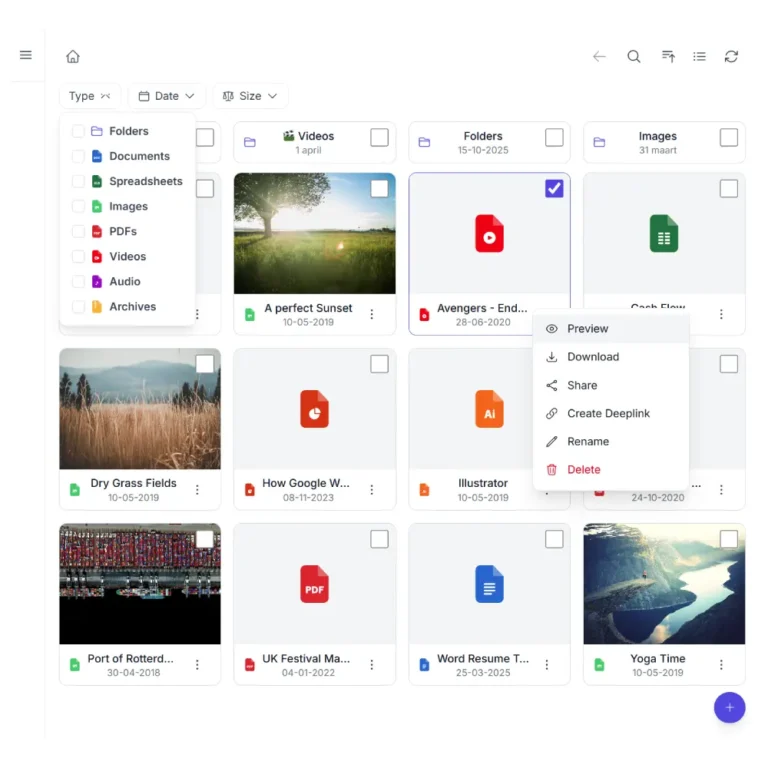
Show a file browser on any page or post. Visitors navigate folders, preview files, and download what they need. Works with any Nextcloud folder you choose.
Display galleries
Turn a Nextcloud folder of images into a responsive gallery, masonry grid, or justified layout.
Accept uploads
Let logged-in users or visitors upload files directly to a Nextcloud folder from a WordPress page.
Stream audio and video
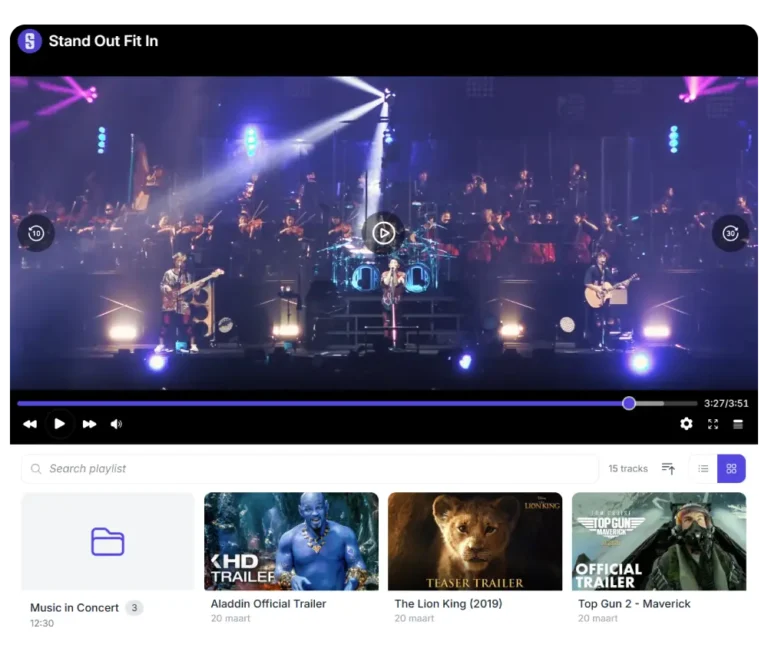
Embed audio and video players that stream directly from your Nextcloud server. Supports MP3, MP4, WebM, and other common formats.
Share files publicly
Generate shareable links for individual files. Combine with Synkivo's Public Assets management for permanent WordPress-hosted URLs.
Search files
Search your Nextcloud files from the WordPress front-end. Full-text search inside files is available when the Nextcloud Full Text Search app is installed.
How Synkivo connects Nextcloud to WordPress
Four steps. No file copying. No syncing.
Synkivo connects to your Nextcloud server through Nextcloud’s native WebDAV and OCS APIs. Once the connection is set up, every Synkivo moduleon your site reads directly from Nextcloud. There is no scheduled sync, no duplicate storage, and no manual file copying. When a file changes on Nextcloud, your site reflects it immediately.
1.
Connect your cloud
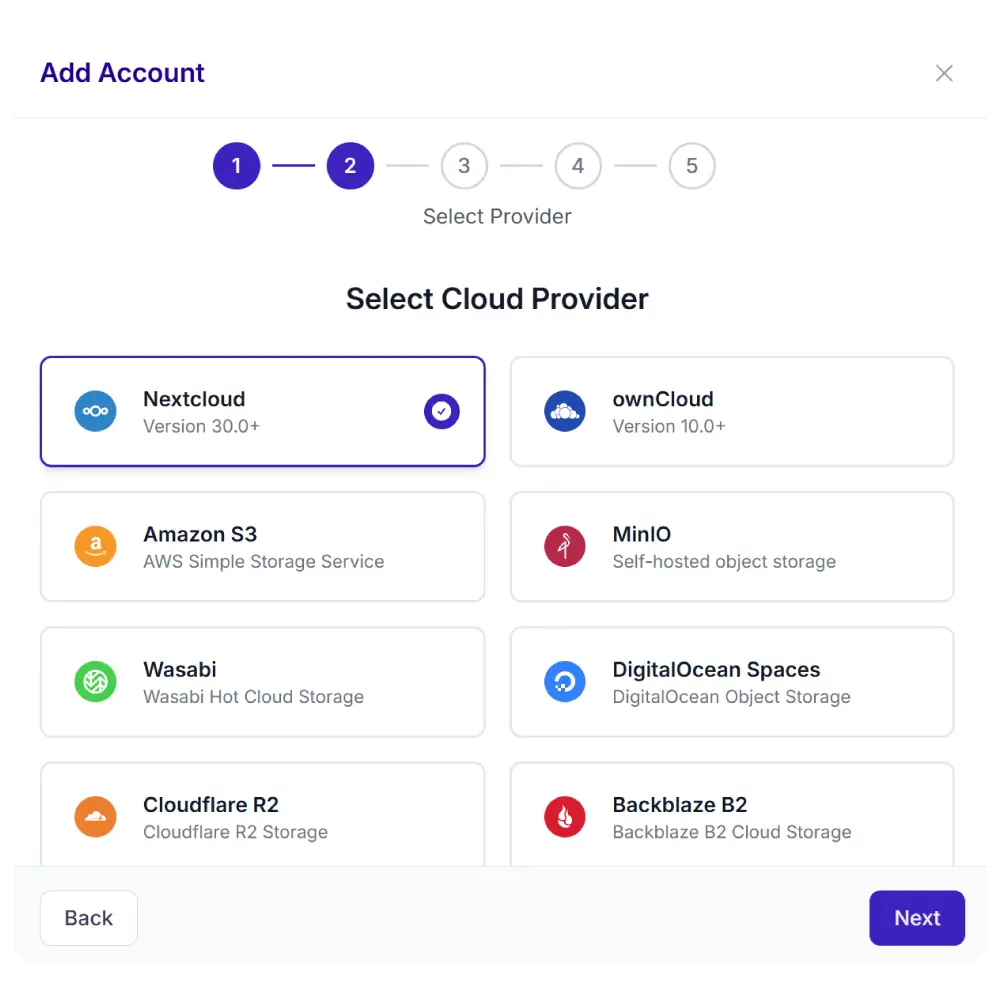
2.
Pick a module
Choose from 8 display types: file browser, gallery, upload box, player, and more.
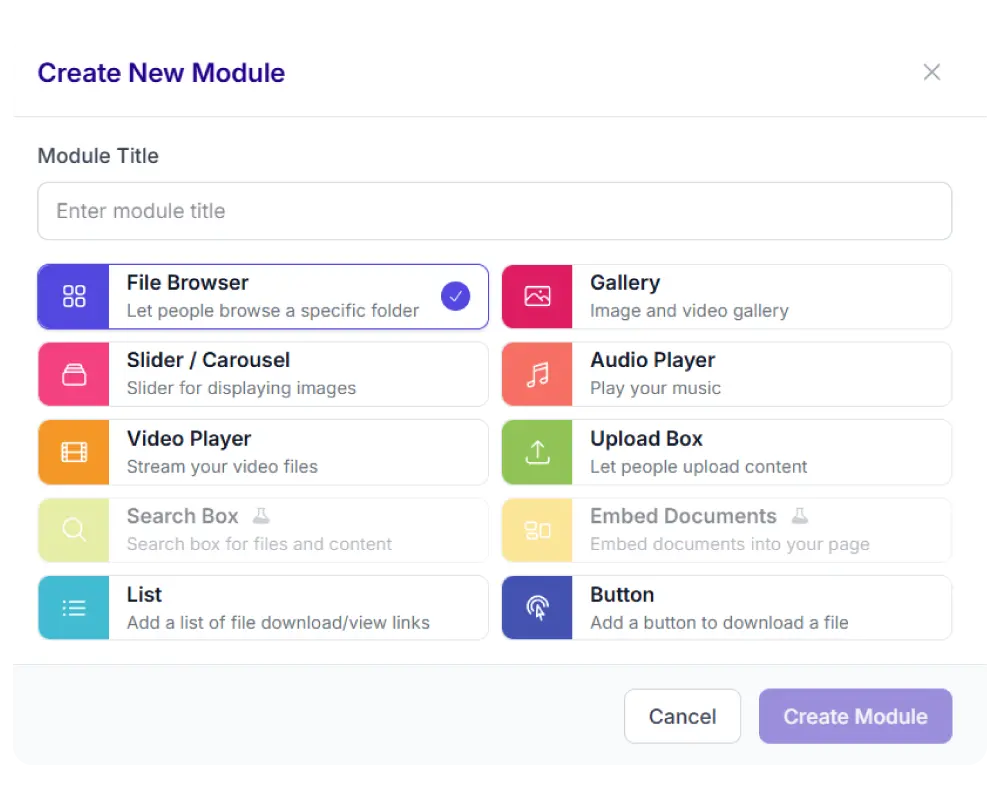
3.
Configure visually
Set the source, permissions, appearance, and behavior. No code needed.
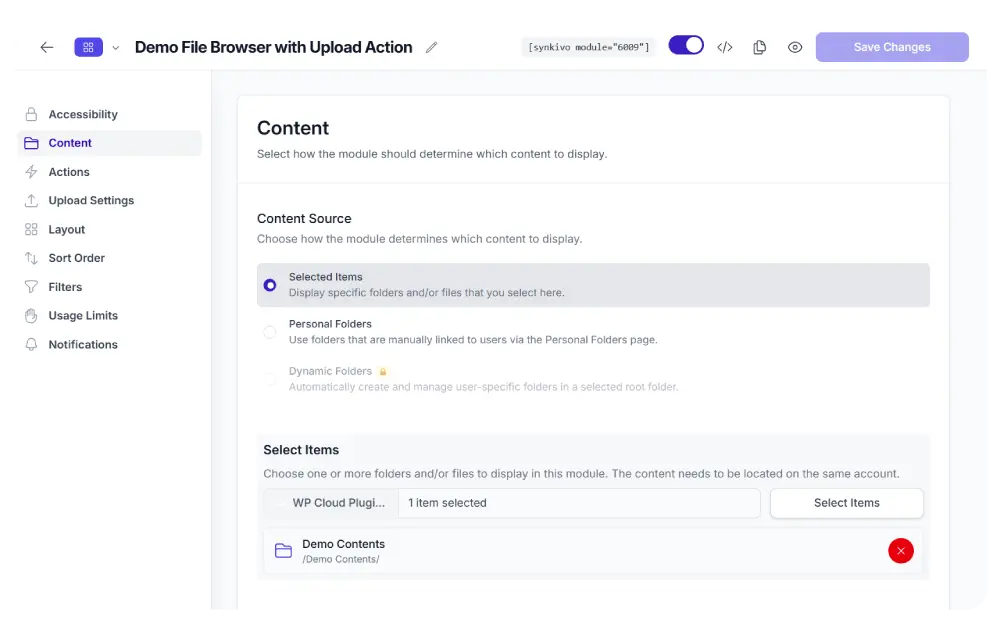
4.
Publish
Place the module on any page with a shortcode, Gutenberg block, or page builder widget. Your visitors interact with Nextcloud files directly.

For detailed setup instructions, including troubleshooting common
issues like reverse proxy configuration and self-signed certificates,
see our documentation.
Use Nextcloud files in the WordPress Media Library
Insert Nextcloud files into pages, posts, products, and any WordPress plugin that uses the media picker.
Synkivo adds a tab to the WordPress Media Library dialog. When you click “Add Media” in the editor or any plugin that uses the standard media picker, you can browse your Nextcloud server, select a file, and insert it. No copy. No download. No re-upload.
When you insert a file, you choose between two modes. Embed inserts a direct link to the file on your Nextcloud server. The file stays in Nextcloud, your WordPress page references it, and any change in Nextcloud (a newer version, a different file in the same path) is reflected on your site immediately. Import copies the file to your WordPress uploads folder; useful when you want a permanent local copy, but you lose the sync with Nextcloud.
Every embedded file gets a permanent WordPress-hosted URL through Synkivo’s Public Assets system. Even if you rename or move the file on Nextcloud later, the URL stays valid. You can also revoke access to any embedded file with one click in the Public Assets admin page
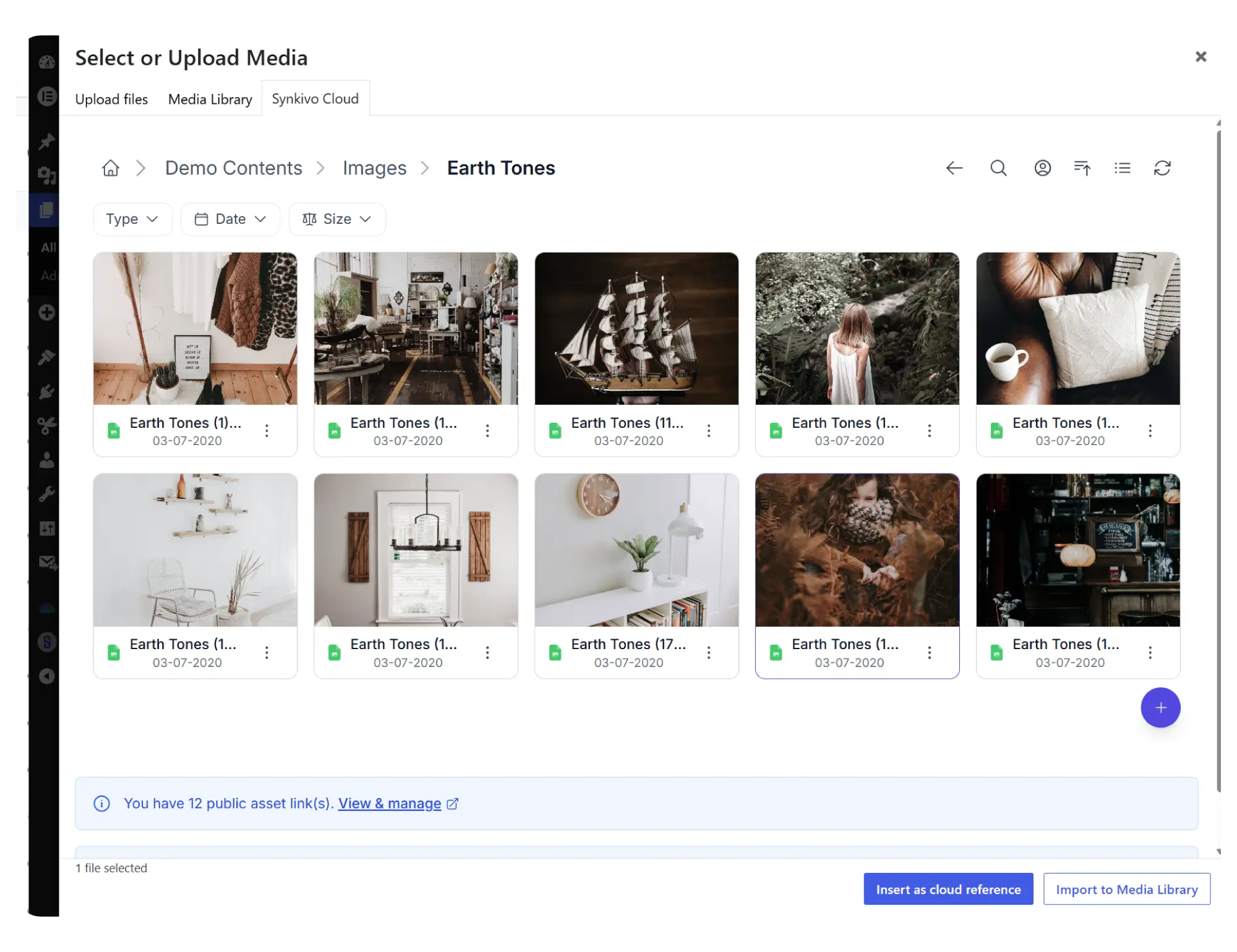
Embed vs Import
| Embed (recommended) | Import | |
|---|---|---|
| What it does | References the file on Nextcloud | Copies the file to WordPress uploads |
| Local disk usage | None | Full file size on your WP server |
| Sync | Always the latest version on Nextcloud | One-time copy; no further sync |
| Best for | Any file you manage on Nextcloud | Files you want guaranteed to stay even if Nextcloud is offline |
Everything you need to share files on your site.
Each module is visually configured — no code required. Place it anywhere with a shortcode, Gutenberg block, or page builder widget.
Every Synkivo module works with Nextcloud
Pick the module that fits your page. The same Nextcloud connection powers all of them.

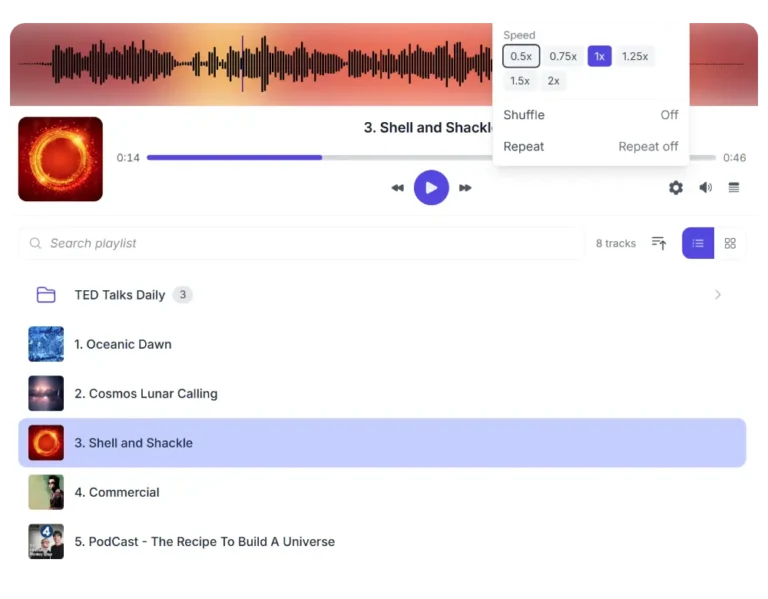
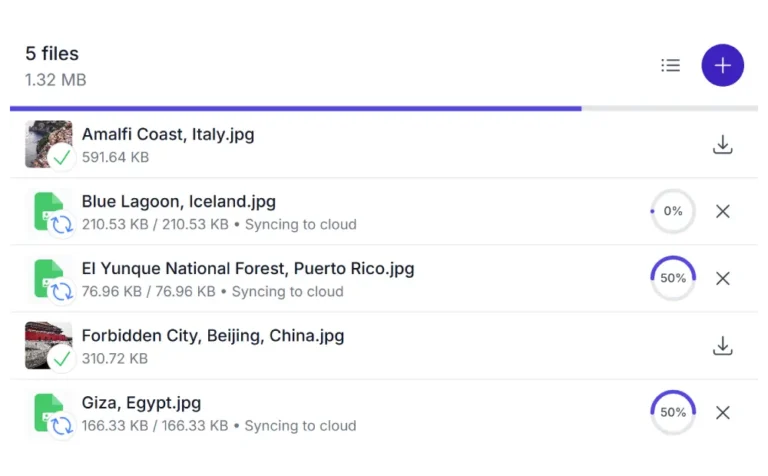
Audio Player
Stream audio files directly from Nextcloud. Playlists, single tracks, custom themes.

List and Buttons
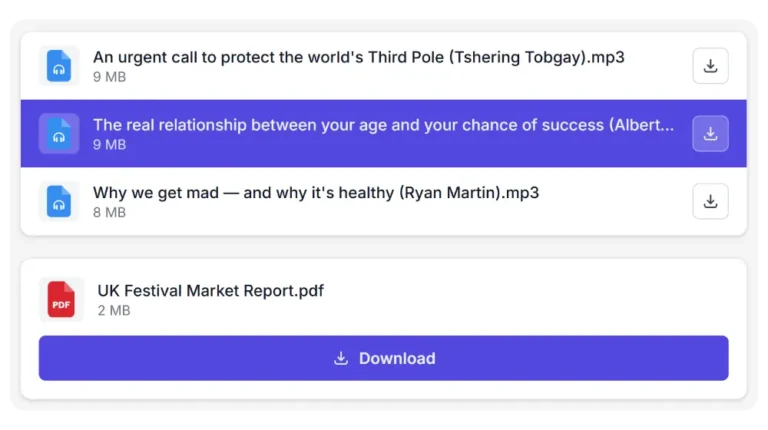
Display Nextcloud files in a minimal file list with download and/or preview links.
Personal Folders
Give each user their own private cloud folder.
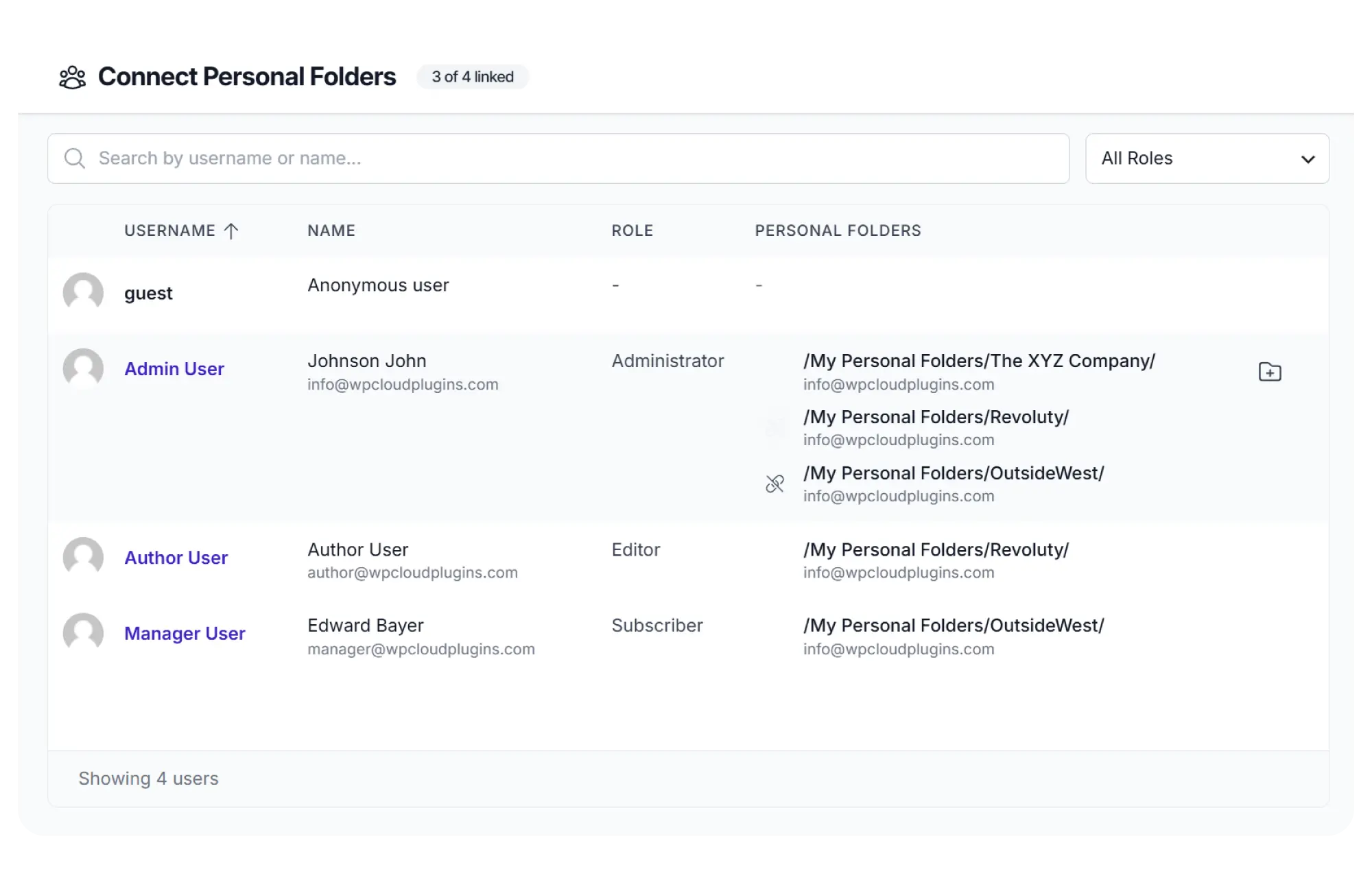
Personal Folders allow WordPress users to access their own area inside Nextcloud without exposing other files or folders.
This is one of the most popular features for membership websites, client portals, educational platforms, and internal company systems.
User-specific folders
Link individual WordPress users to dedicated Nextcloud folders.
Isolated access
Users only see their own files and cannot browse other folders.
Personal uploads
Allow users to upload files directly into their assigned folder.
Automatic folder mapping
Create and manage folder assignments directly from WordPress.
Build secure client portals
Many organizations use Nextcloud as their secure document repository while WordPress powers their public website or customer portal.Synkivo connects both systems so users can access files stored in Nextcloud through a familiar WordPress interface.
Client document access
Give clients access to project files, contracts, invoices, or reports stored in Nextcloud.
Role-based visibility
Show different files and folders to different WordPress user groups.
Private file sharing
Keep sensitive files inside your own infrastructure instead of using third-party file sharing services.
Branded user experience
Deliver a professional portal experience while Nextcloud remains the storage backend.
Secure by default
Your Nextcloud credentials never leave your WordPress server. Your visitors only see what you let them see.
Encrypted credentials
Your Nextcloud app password is encrypted in the WordPress database. Account IDs are obfuscated in the page source.
Role-based access control
Configure per-module what each WordPress role can do: browse, download, upload, delete, rename, move.
Personal folders
Link individual WordPress users to specific Nextcloud folders. See the personal folders feature for details.
Scope enforcement
Visitors can never browse outside the configured root folder. Every request is checked against the module scope.
Encrypted file IDs
File and folder identifiers are encrypted per session. Visitors cannot guess or manipulate IDs to access other files.
Proxy downloads
Optionally serve files through your WordPress server instead of revealing the Nextcloud URL. Hides the storage location entirely.
For a full breakdown of Synkivo’s security architecture, including nonce validation, password-protected modules, and usage restrictions, see the security features page.
Use cases for Nextcloud and WordPress
Where self-hosted storage and a public-facing website meet.
Legal and consulting firms
Share case files, contracts, and client documents through secure WordPress portals.
Education platforms
Distribute course materials and collect student assignments through Nextcloud-powered pages.
Healthcare organizations
Keep sensitive files under organizational control while providing secure web access.
Client workspaces
Give each customer their own secure area for project files and collaboration.
Training and media libraries
Stream videos, presentations, and learning materials directly from Nextcloud.
Document repositories
Publish reports, manuals, technical documentation, and downloadable resources.
Connect your Nextcloud to WordPress today
Why Nextcloud?
Why would you choose Nextcloud over public cloud storage?
Unlike public cloud storage platforms, Nextcloud gives you full control over your infrastructure, storage location, and access policies.
For many organizations, this is the primary reason to choose Nextcloud in the first place.
Self-hosted storage
Store files on infrastructure you control instead of relying on a third-party cloud provider.
Data sovereignty
Keep files in specific countries or jurisdictions to meet regulatory requirements.
Privacy-focused architecture
Maintain control over file access, retention, and security policies.
Predictable costs
Scale storage without paying per-download or per-request cloud fees.
Common Questions Answered
The Nextcloud-specific questions we hear most often.
What versions of Nextcloud does Synkivo support?
Synkivo supports Nextcloud 30+ installations. If you run a current stable Nextcloud, you are supported. Nextcloud Hub, ownCloud forks of Nextcloud, and managed Nextcloud services from hosting providers all work the same way, since Synkivo uses the standard WebDAV and OCS APIs that ship with every Nextcloud installation.
How is the connection authenticated and where are credentials stored?
Synkivo authenticates to Nextcloud using app passwords. App passwords are generated in Nextcloud's security settings and can be revoked at any time without
changing your main Nextcloud password. All credentials are encrypted at rest in your WordPress database. The Nextcloud URL, username, and app password are never exposed in your site's page source or JavaScript.
Can I use Nextcloud files in the WordPress Media Library?
Yes. Synkivo adds a Nextcloud tab to the WordPress Media Library dialog. You can insert Nextcloud files into posts, pages, products, ACF fields, Gutenberg blocks, and any plugin that uses the standard media picker.
Are my files copied to WordPress, or do they stay on Nextcloud?
Files stay on Nextcloud. Synkivo does not copy, mirror, or sync files to your WordPress server in the default Embed mode. When a visitor browses, downloads, or previews a file, Synkivo retrieves it from Nextcloud in real time. If you choose Import mode when inserting a file through the Media Library, that specific file is copied to WordPress uploads; everything else stays on Nextcloud.
Can I give different WordPress users access to different Nextcloud folders?
Yes, with the Personal Folders feature. You link each WordPress user to one or more specific Nextcloud folders. When a user visits a page with a Synkivo module, they see only the folders linked to their account. The Business plan adds Dynamic Folders, which create per-user or per-post folders automatically. See the personal folders feature for the full breakdown.
Does full-text search inside files work with Nextcloud?
Yes, with a prerequisite. Synkivo can search inside files (PDFs, Word documents, etc.) when the Nextcloud Full Text Search app is installed and configured on your Nextcloud server, with a backend such as Elasticsearch. Without that app, Synkivo can still search filenames and folder names, but not the text content of the files themselves. This is a Nextcloud capability, not a Synkivo limitation; the same applies to all cloud connectors.
Does Synkivo with Nextcloud work alongside WooCommerce, Elementor, and Gutenberg?
Yes. Synkivo integrates with the Gutenberg block editor, Elementor, Divi, WPBakery, and other major page builders through dedicated blocks and widgets. For WooCommerce, you can attach Nextcloud files to digital downloads, allow customers to upload to a Nextcloud folder per order, or display Nextcloud files on product pages. See the integrations page for the full list.
What happens if I cancel my Synkivo subscription?
If your question is not listed, please contact us!