
The WordPress plugin for Cloudflare R2
Built for media libraries, download portals, client areas, and high-traffic websites.
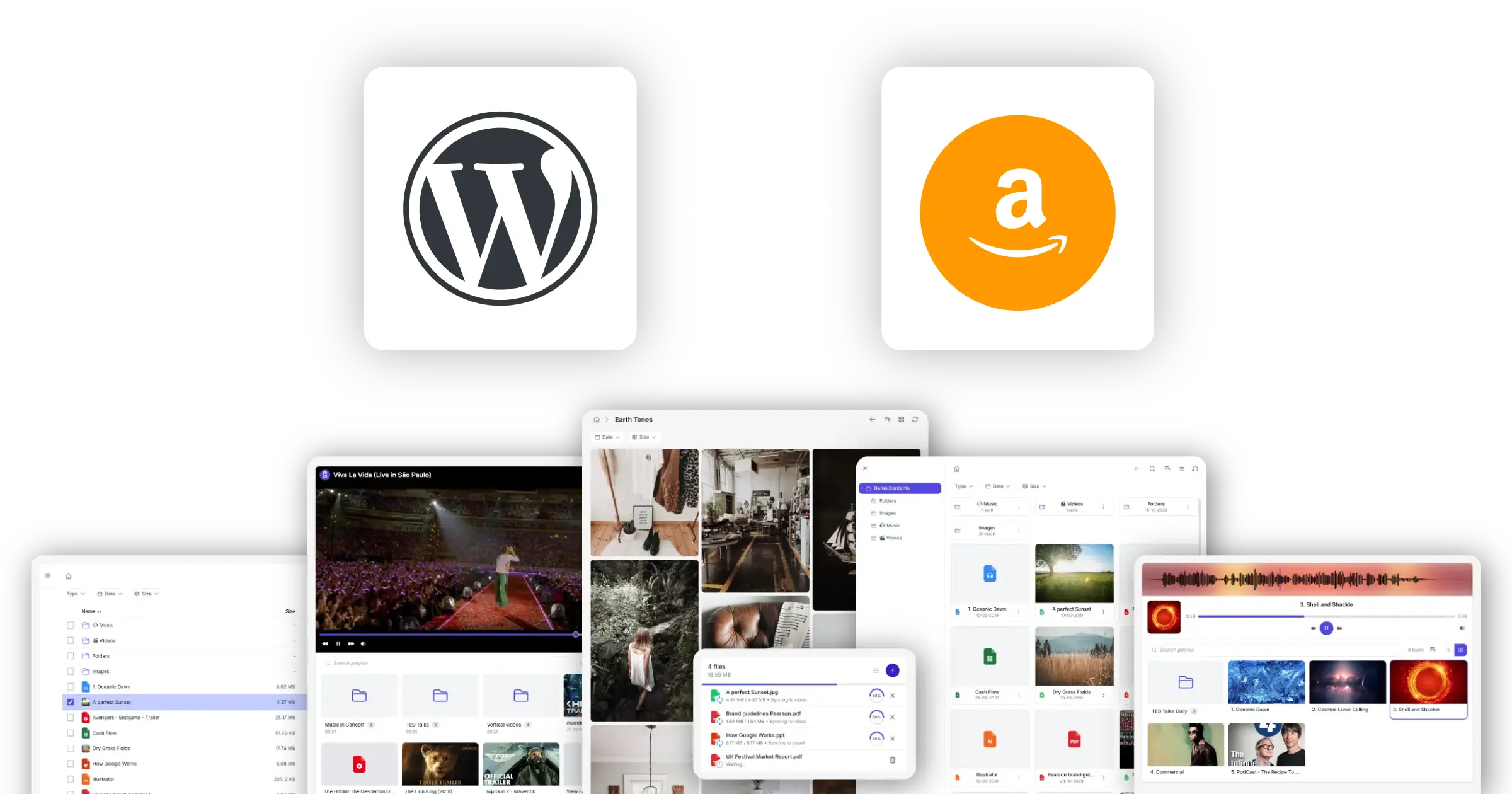
Use Cloudflare R2 as your WordPress storage layer
Manage files in Cloudflare R2 while keeping WordPress as the front end for your visitors.
Synkivo connects WordPress directly to your Cloudflare R2 buckets. Once connected, you can display files, create galleries, stream audio and video, accept uploads, and build secure document portals using content that already lives in R2.
Unlike traditional media workflows, Synkivo does not require a separate sync process. Files remain in your R2 bucket and are retrieved when visitors access them. Changes made in R2 become available immediately on your website.
This approach keeps your WordPress hosting environment lean while allowing storage to scale independently. Whether you manage a few gigabytes or millions of files, WordPress remains focused on delivering the user experience while R2 handles the storage.
Because Cloudflare R2 uses an S3-compatible API, setup is simple and familiar for anyone already working with cloud object storage.
What you can do with Cloudflare R2 on WordPress
Every Synkivo capability works on R2 the same way it does on any S3-compatible storage. These are the patterns R2 customers use most.
Browse files
Display an interactive file browser that lets visitors navigate, preview, and download content stored in R2.
Stream audio and video
Create media experiences that play directly from files stored in your R2 buckets.
Build image galleries
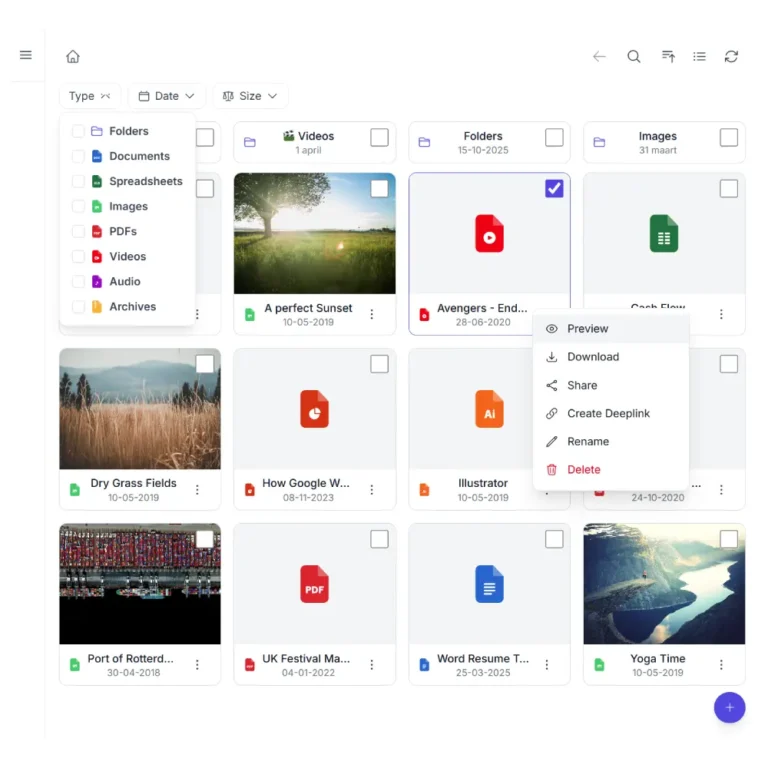
Convert folders in R2 into responsive galleries, masonry layouts, sliders, and portfolios
Accept uploads
Allow users to upload files directly to R2 from your WordPress site.
Create secure client portals
Control access with user permissions, personal folders, and protected downloads.
Deliver large downloads
Software releases, design assets, document packs, datasets. Visitors download directly from R2 through Cloudflare's network.
Three steps to connect Cloudflare R2 to WordPress
Four steps. No file copying. No syncing.
1.
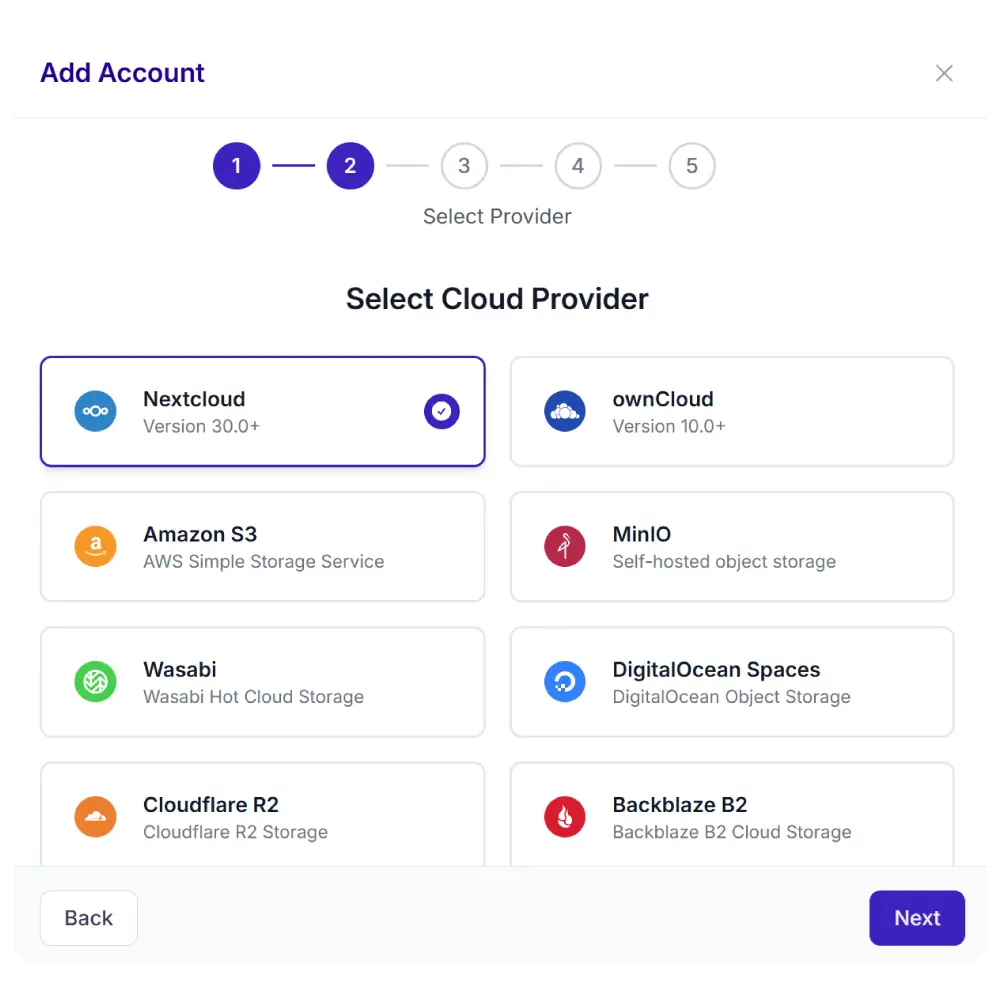
Connect your cloud
2.
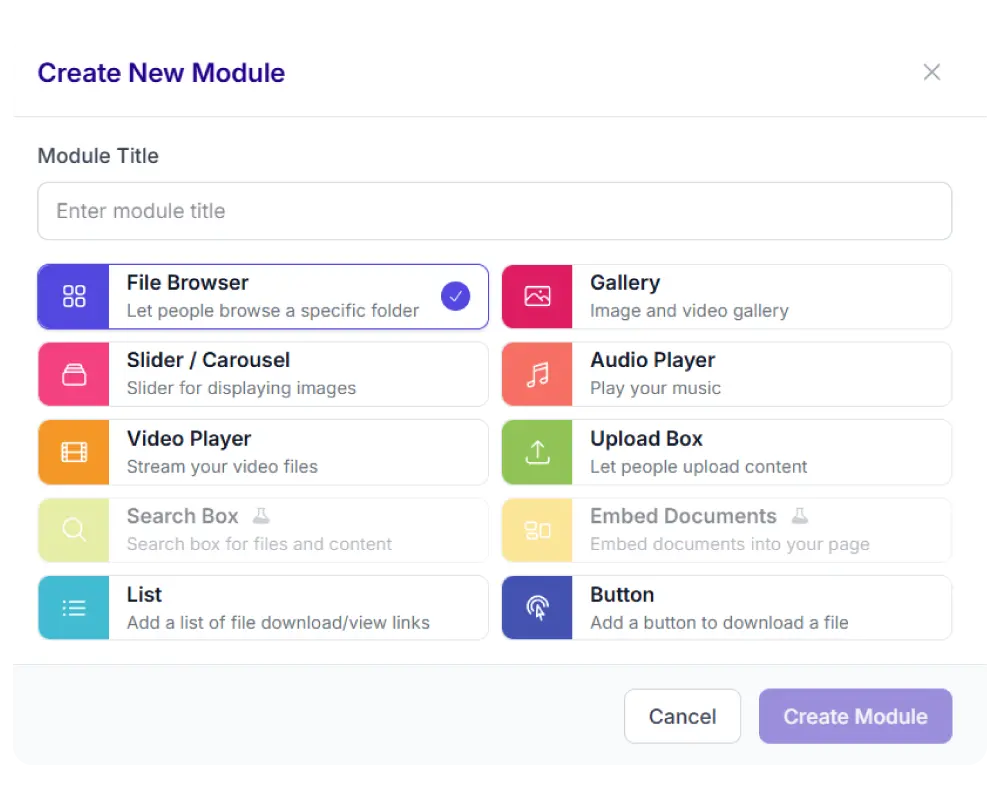
Pick a module
Choose from 8 display types: file browser, gallery, upload box, player, and more.
3.
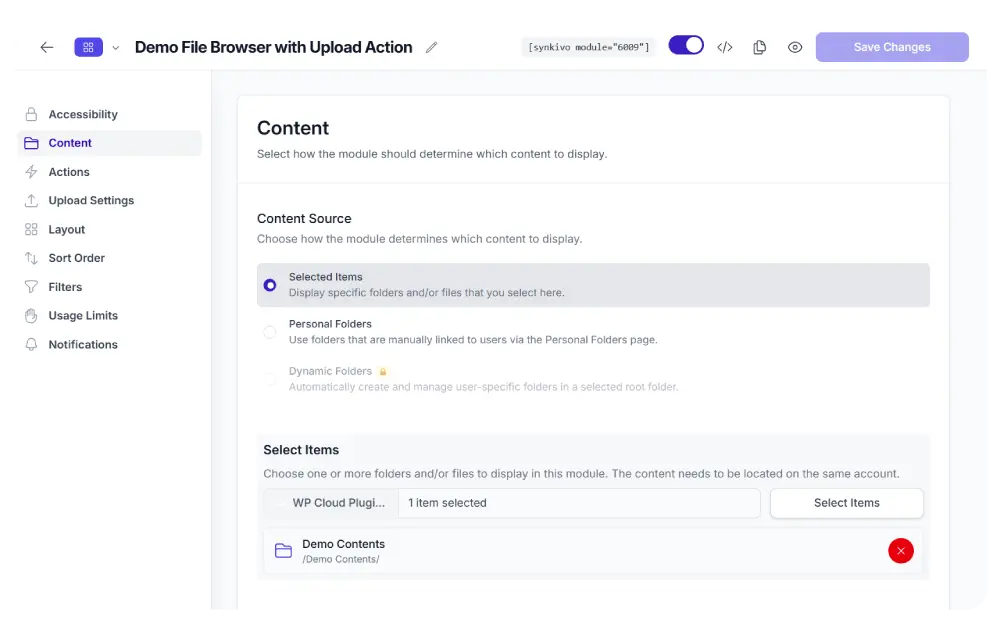
Configure visually
Set the source, permissions, appearance, and behavior. No code needed.
4.
Publish
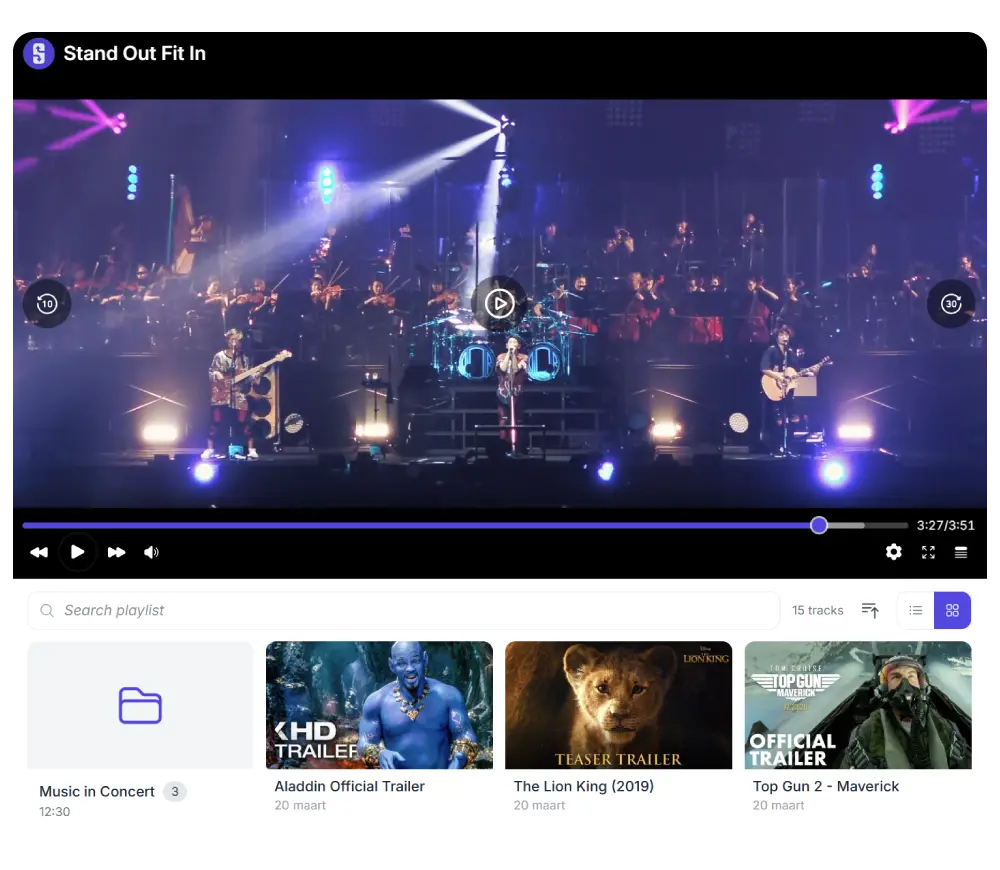
Cloudflare R2 in the WordPress Media Library
Insert R2 files into pages, posts, products, and any plugin that uses the WordPress media picker. WordPress stays lightweight; R2 handles the storage.
Synkivo adds a Cloudflare R2 tab to the WordPress Media Library dialog. Click “Add Media” in the editor or any plugin using the standard media picker, pick a file from your R2 bucket, and insert it. No download, no re-upload.
When you insert a file, you choose Embed or Import. Embed links to the file in R2 and serves it through Cloudflare’s network on every page load; the file stays in your bucket. Import copies the file once into WordPress uploads; useful when you want a local copy that survives if the R2 connection is unavailable.
Every embedded file gets a permanent WordPress-hosted URL through Synkivo’s Public Assets system. Rename or move the file in R2 later, and the URL stays valid. Revoke access with one click in the Public Assets admin page.
For high-download sites this is the main reason to move to R2: your WordPress hosting bill stops scaling with bandwidth because the bandwidth is no longer happening on your WordPress host. For a broader look at offloading media to cloud storage, see the dedicated WordPress Media Library cloud storage page.
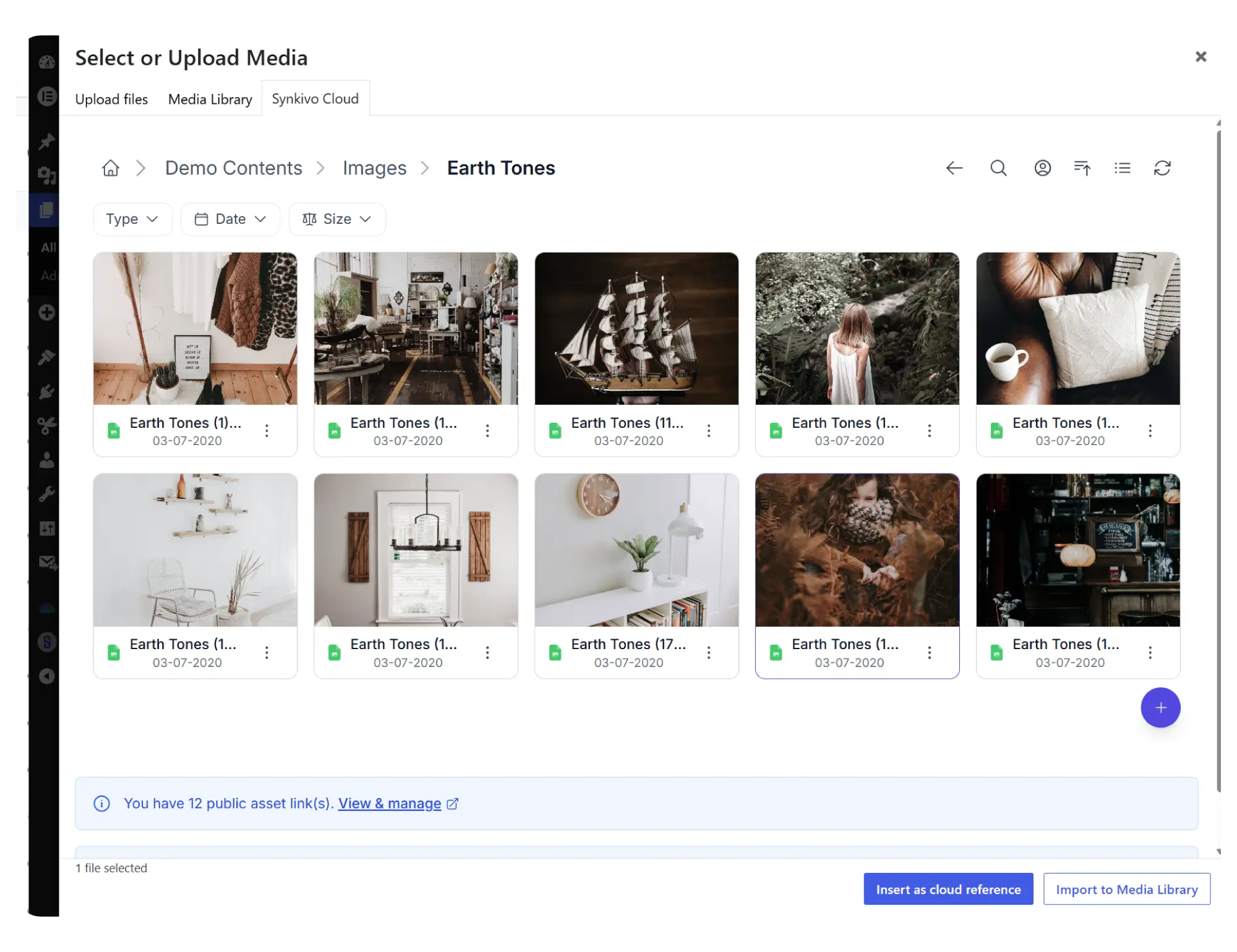
Embed vs Import
| Embed (recommended) | Import | |
|---|---|---|
| Where the file lives | Cloudflare R2 | WordPress uploads folder |
| Local disk usage | None | Full file size on your WP server |
| Bandwidth path | Through Cloudflare’s network from R2 | Through your WordPress host |
| Best for | Any file you manage in R2 | Files you want guaranteed locally |
Everything you need to share files on your site.
Each module is visually configured — no code required. Place it anywhere with a shortcode, Gutenberg block, or page builder widget.
Every Synkivo module works with Cloudflare R2
Pick the module that fits your page. The same R2 connection powers all of them.
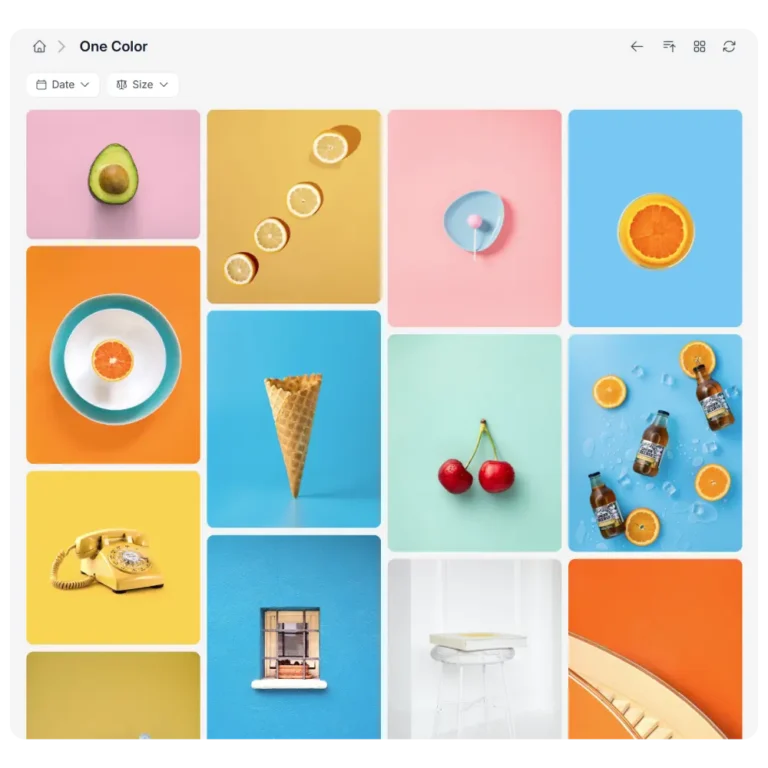
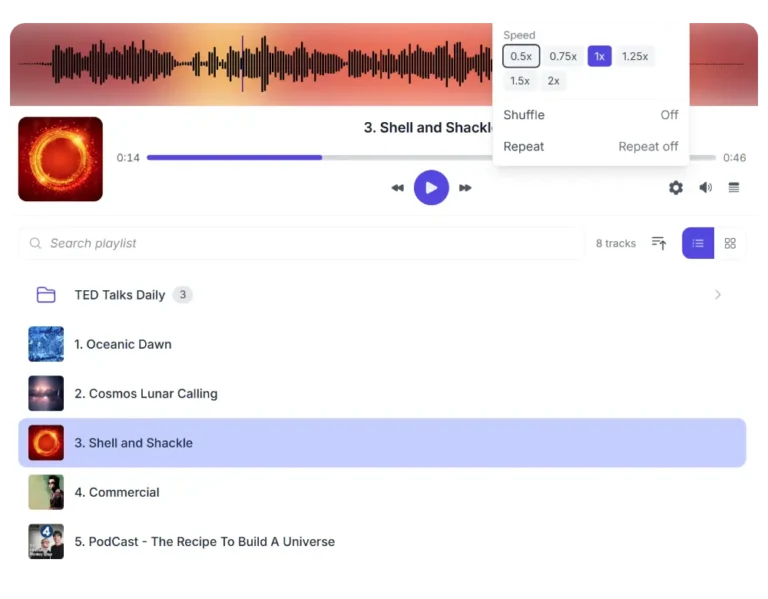
Audio Player
Play audio files directly from Cloudflare R2. Playlists, single tracks, custom themes.
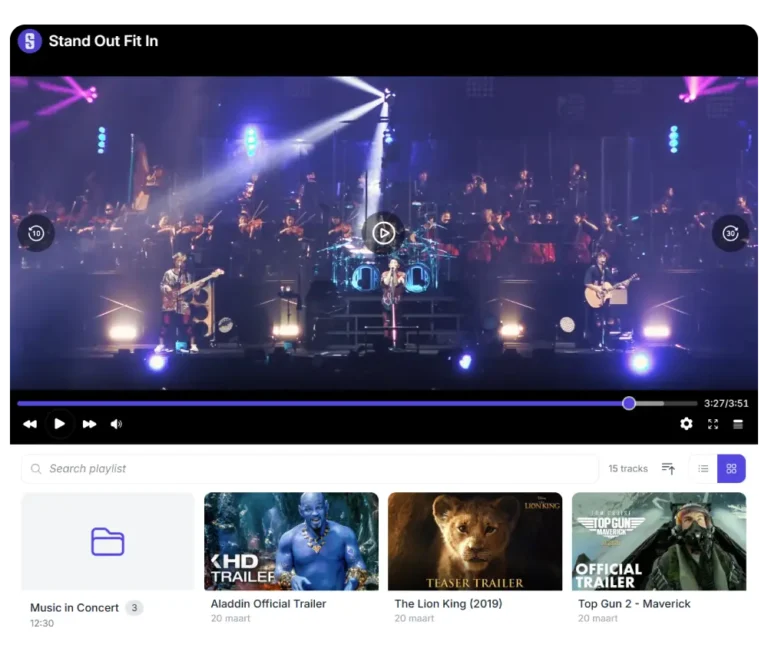
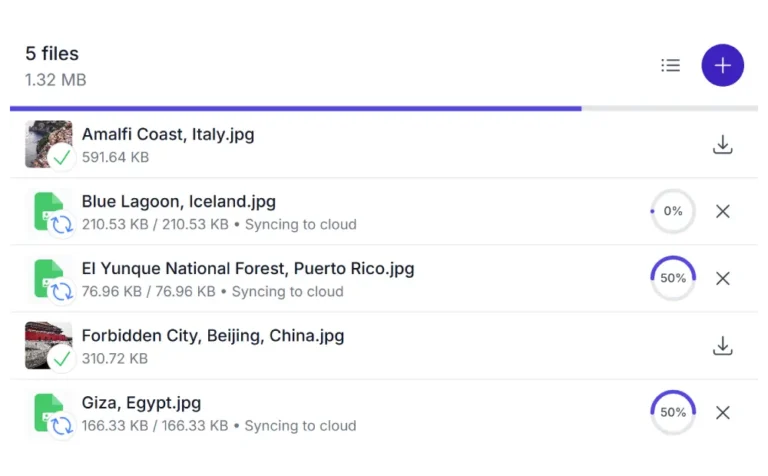

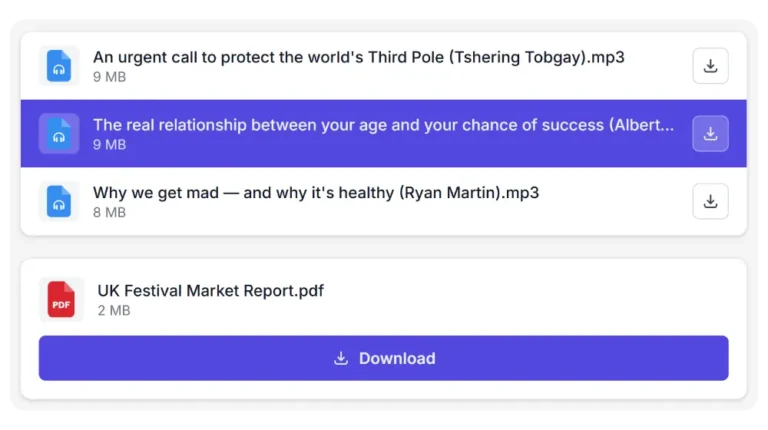
List and Buttons
Create structured download lists from Cloudflare R2 objects and add direct download buttons.
Secure by default
Your R2 credentials never leave your WordPress server. Visitors only see what you let them see.
Encrypted credentials
Your R2 Access Key and Secret are encrypted in the WordPress database. Account details do not appear in the page source.
Role-based actions
Configure per module what each WordPress role can do: browse, download, upload, delete, rename, move.
Personal folders
Link individual WordPress users to specific R2 prefixes. See the personal folders feature for details.
Scope enforcement
Visitors cannot browse outside the configured bucket and prefix. Every request validates against the module scope.
Signed URLs
Files are served through signed, expiring URLs. The R2 location is not exposed to visitors.
Proxy downloads
Optionally serve files through your WordPress server instead of the R2 URL, hiding the storage location entirely.
Where Cloudflare R2 fits into WordPress
Real WordPress setups where Synkivo replaces traditional media hosting and file workflows.
Download libraries for software or digital products
You sell or distribute files through WordPress and need reliable delivery for installers, PDFs, updates, or datasets. Synkivo lets you manage all files in R2 while WordPress handles the download experience and access control.
Video or course platforms
You run a membership site or online course platform where video streaming drives most of your traffic. Synkivo streams media directly from R2 without loading your WordPress hosting.
Client portals and private file sharing
Agencies, consultants, or B2B services that need to share documents per client. With personal folders and role-based access, each user only sees their own files stored in R2.
Media-heavy WordPress sites
Blogs, magazines, or portfolios with large image libraries. Synkivo offloads media delivery to R2 while keeping WordPress focused on content and layout.
Connect Cloudflare R2 to WordPress today
Why Cloudflare R2?
Cloudflare R2 combines scalable object storage with a pricing model designed for modern web applications. It offers the compatibility of the S3 ecosystem while integrating directly with Cloudflare’s global platform.
For WordPress site owners, R2 is particularly attractive when serving large files, media libraries, downloads, or other content that generates significant traffic. Instead of relying on local server storage, files can be stored in R2 and accessed directly through Synkivo.
Designed for bandwidth-heavy workloads.
A strong option for websites that distribute large files, videos, downloads, and media assets.
Global Cloudflare infrastructure
Content is delivered through Cloudflare's worldwide network.
S3-compatible API
Works with existing tools, workflows, and integrations built around the S3 standard.
Part of the Cloudflare ecosystem
Integrates naturally with Cloudflare services such as CDN, DNS, Workers, and Pages.
Common Questions Answered
How is the connection authenticated and where are credentials stored?
Synkivo authenticates to R2 using an R2 API token (Access Key ID and Secret Access Key) plus your Cloudflare Account ID. Tokens are generated in the Cloudflare dashboard and can be scoped to specific buckets and to read-only or read-and-write permissions. All credentials are encrypted at rest in your WordPress database.
Are my files copied to WordPress, or do they stay in R2?
Files stay in R2. Synkivo does not copy, mirror, or sync files to your WordPress server in the default Embed mode. When a visitor downloads or previews a file, Synkivo retrieves it from R2 in real time. Only files explicitly imported through the Media Library Import option are copied to WordPress uploads.
Is R2's zero egress also true when files load through Synkivo?
Zero egress applies when files are delivered through Cloudflare's network. Synkivo can deliver R2 files in two ways: through signed R2 URLs that use the `r2.cloudflarestorage.com` endpoint, or through a custom domain you set up on Cloudflare's CDN.
Can I use R2 files in the WordPress Media Library?
Can I give different WordPress users access to different R2 folders?
Yes, with Personal Folders (Pro plan and above). Link each WordPress user to one or more R2 bucket prefixes; when a user visits a page with a Synkivo module, they see only the folders linked to their account. Business plan adds Dynamic Folders that create per-user folders automatically. See personal folders.