Let your visitors navigate, search, preview, and download files from your Nextcloud, ownCloud, Dropbox, OneDrive, SharePoint, AWS S3, Wasabi, DigitalOcean Spaces, Cloudflare R2, Backblaze B2, MinIO, pCloud, WebDAV servers, and S3-compatible storage. The File Browser looks and feels like a native part of your site, while files stay in your cloud.
This is a live File Browser module connected to real cloud storage.
Browse folders, preview files, and see how it works. Edit actions like rename and delete are shown but disabled in this demo.
Demo using AWS S3
One plugin. Multiple cloud providers. Your choice.
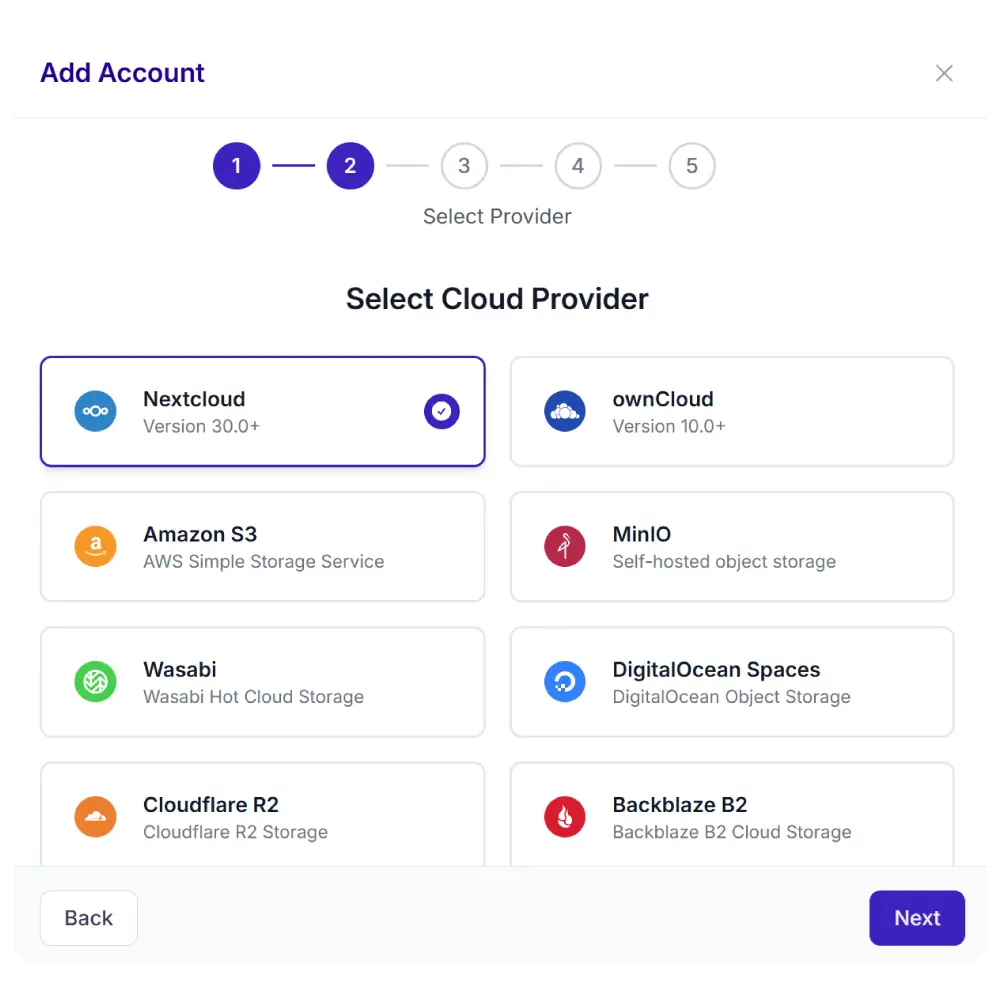
Synkivo is built for teams that care about where their files live. Whether you self-host on Nextcloud, ownCloud or your NAS for full data sovereignty on your own infrastructure, or prefer the scalability of AWS S3, Wasabi, DigitalOcean Spaces, Cloudflare R2, Backblaze B2, MinIO, and other cloud services — Synkivo connects your storage to WordPress.
Each module is visually configured — no code required. Place it anywhere with a shortcode, Gutenberg block, or page builder widget.
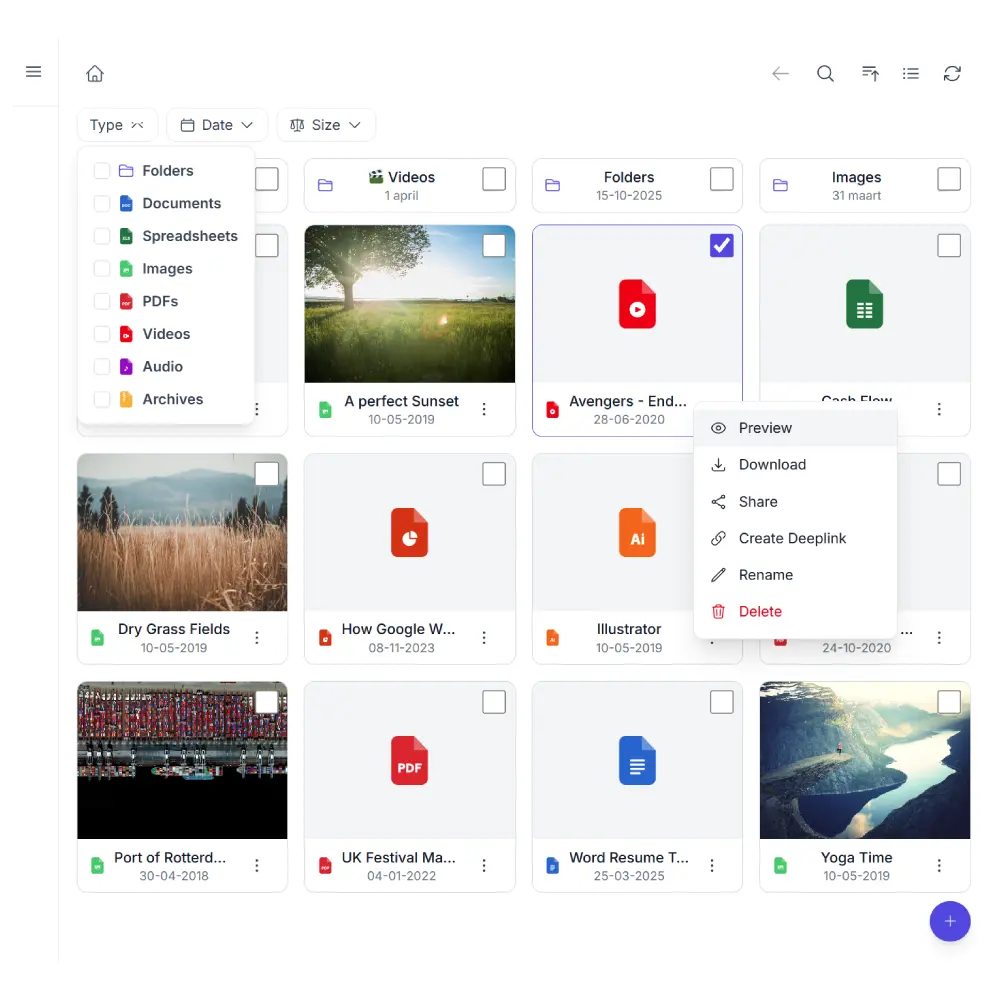
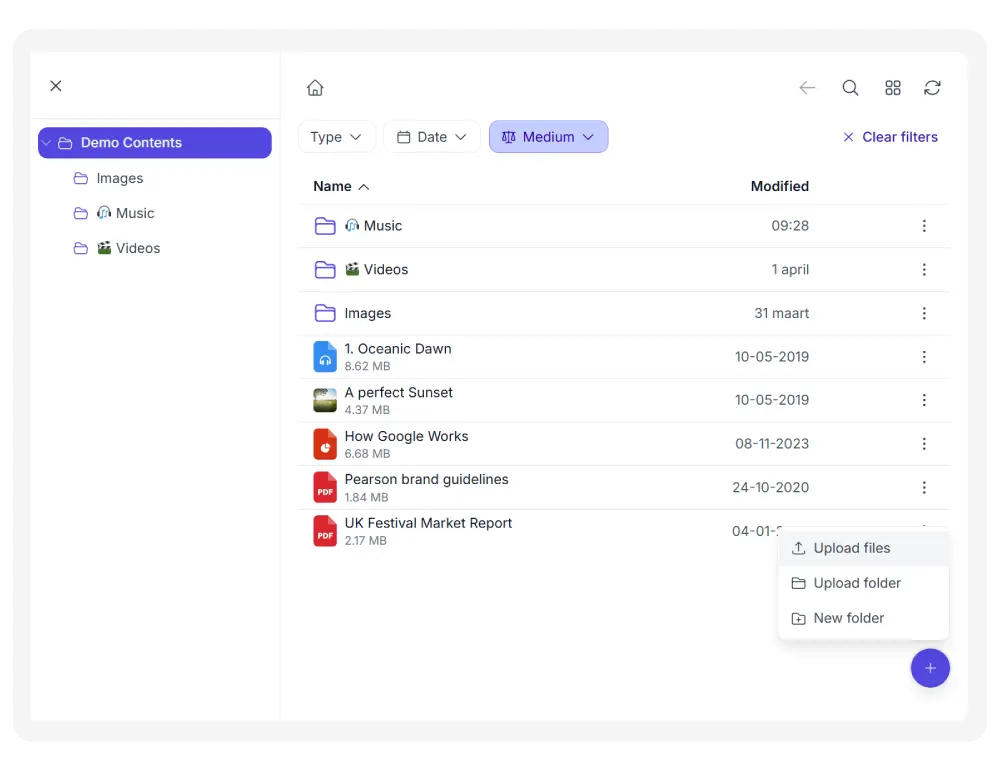
Grid and List view
Switch between thumbnail tiles for visual browsing and a detailed list view for structured overviews. Your visitors choose what works best.
Demo using AWS S3
Inline previews
View images, PDFs, video, audio, and code files in a built-in lightbox. Preview support for other formats (like Office files) depends on the cloud provider you use.
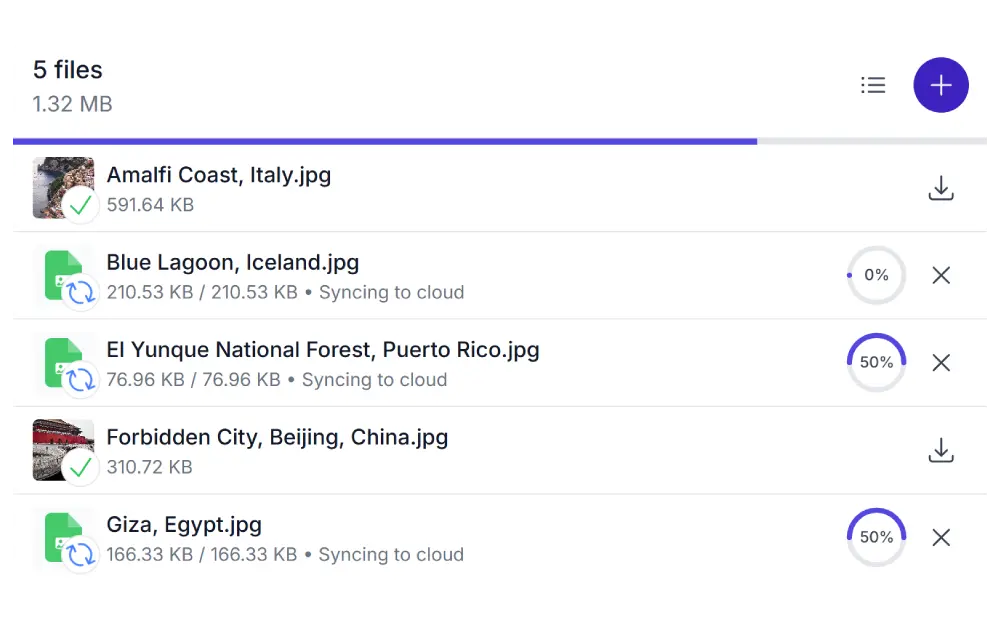
Upload
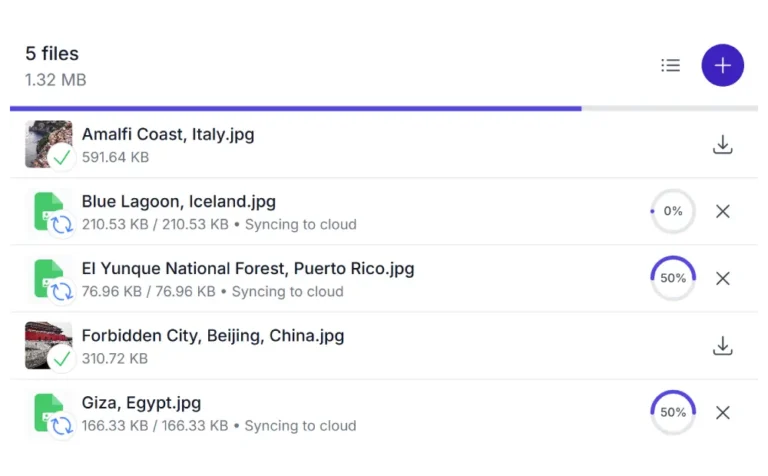
Let visitors upload files directly to your cloud storage via drag-and-drop. Set file type restrictions, size limits, and upload quotas to stay in control.
The upload functionality is even more powerful in combination with the Personal & Dynamic Folders feature. For example, you can create a client area on your cloud account where each client can upload their documents to their ‘own’ personal folder.
Demo using AWS S3
Search and filters
Find files instantly by name. Narrow results with filters for file type, size, and date. Full-text search inside document content is available for providers that support it.
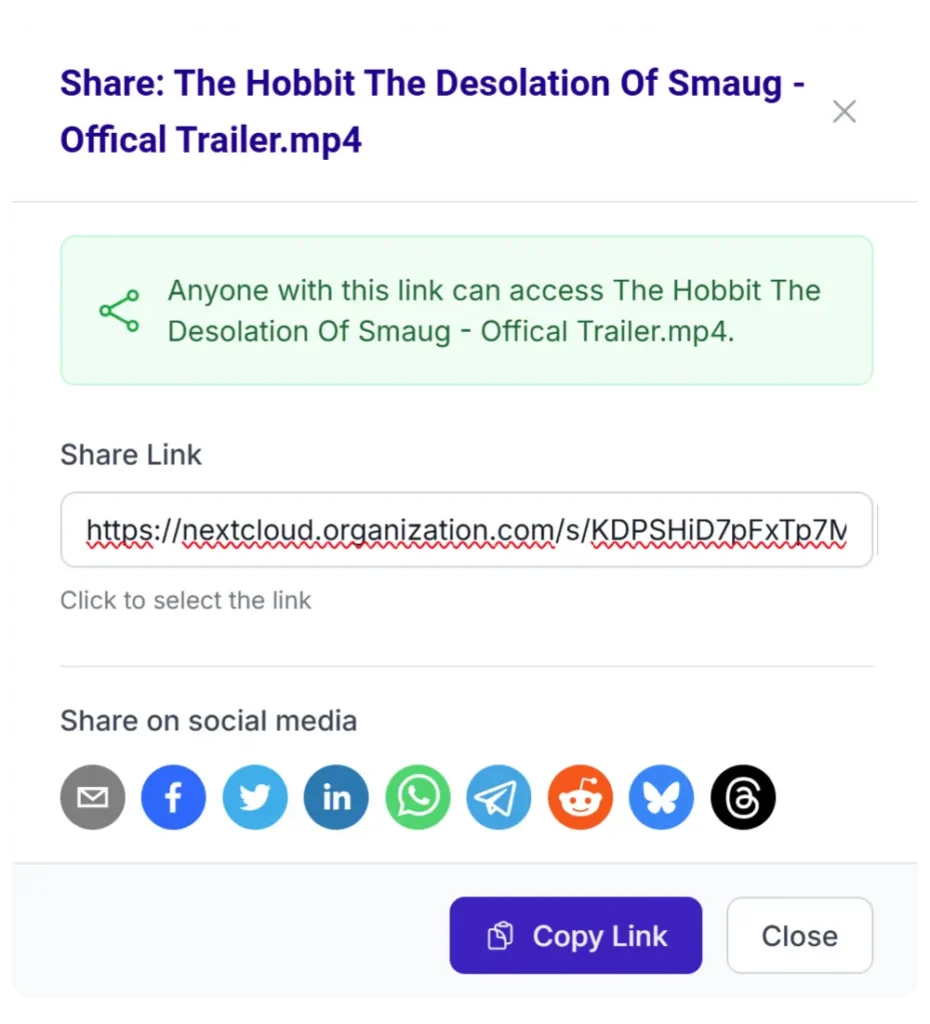
Share links
Generate public share links to specific files or folders, with optional password protection and expiration dates when the provider supports it.
Demo using AWS S3
File management
Allow users to rename, delete, and create folders. Business plans add move and copy. Each action is controlled per user role.
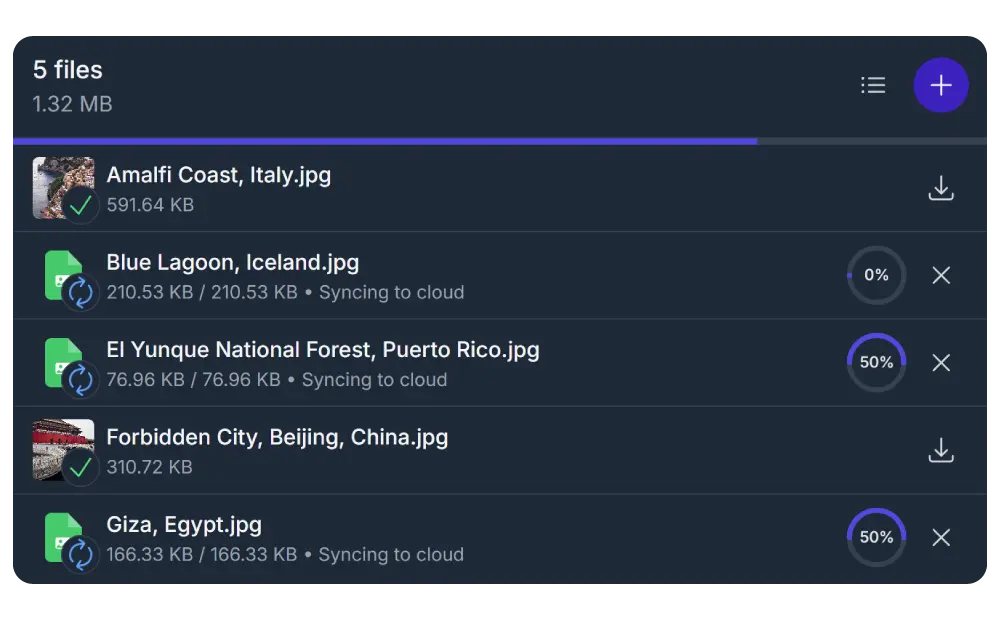
Light & Dark
Synkivo supports light, dark, and system-following themes. Match the File Browser to your site’s design or let it follow your visitor’s system preference. Every module adapts automatically
How teams use the File Browser
Client portals
Give each client access to their own folder with project documents, contracts, and deliverables. Combine with Personal Folders so clients only see their own files.
Knowledge bases
Publish internal documentation, manuals, and SOPs. Employees browse and search without leaving your intranet site.
Document libraries
Share brochures, whitepapers, reports, and templates. Organize by category in folders and let visitors self-serve.
Team workspaces
Let team members upload, rename, and organize files in shared project folders. All changes sync back to your cloud storage.
Student portals
Distribute course materials and collect assignments. Each student gets their own upload folder via Dynamic Folders.
Secure file exchange
Share confidential files with password protection, role-based access, and download tracking. Ideal for legal, finance, and healthcare.
A WordPress file manager for Nextcloud, ownCloud, Dropbox, OneDrive, SharePoint, AWS S3, Wasabi, DigitalOcean Spaces, Cloudflare R2, Backblaze B2, MinIO, pCloud, WebDAV servers, and S3-compatible storage. Your files stay where they are.
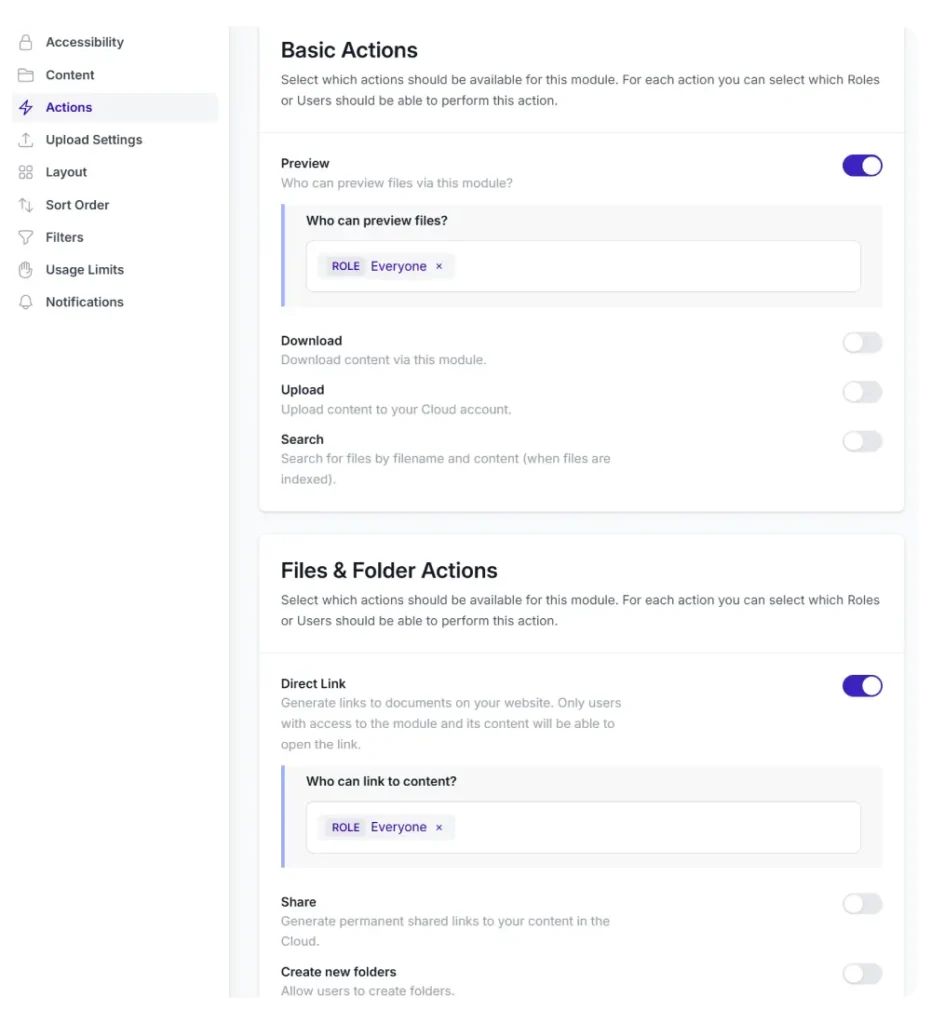
You control who can do what
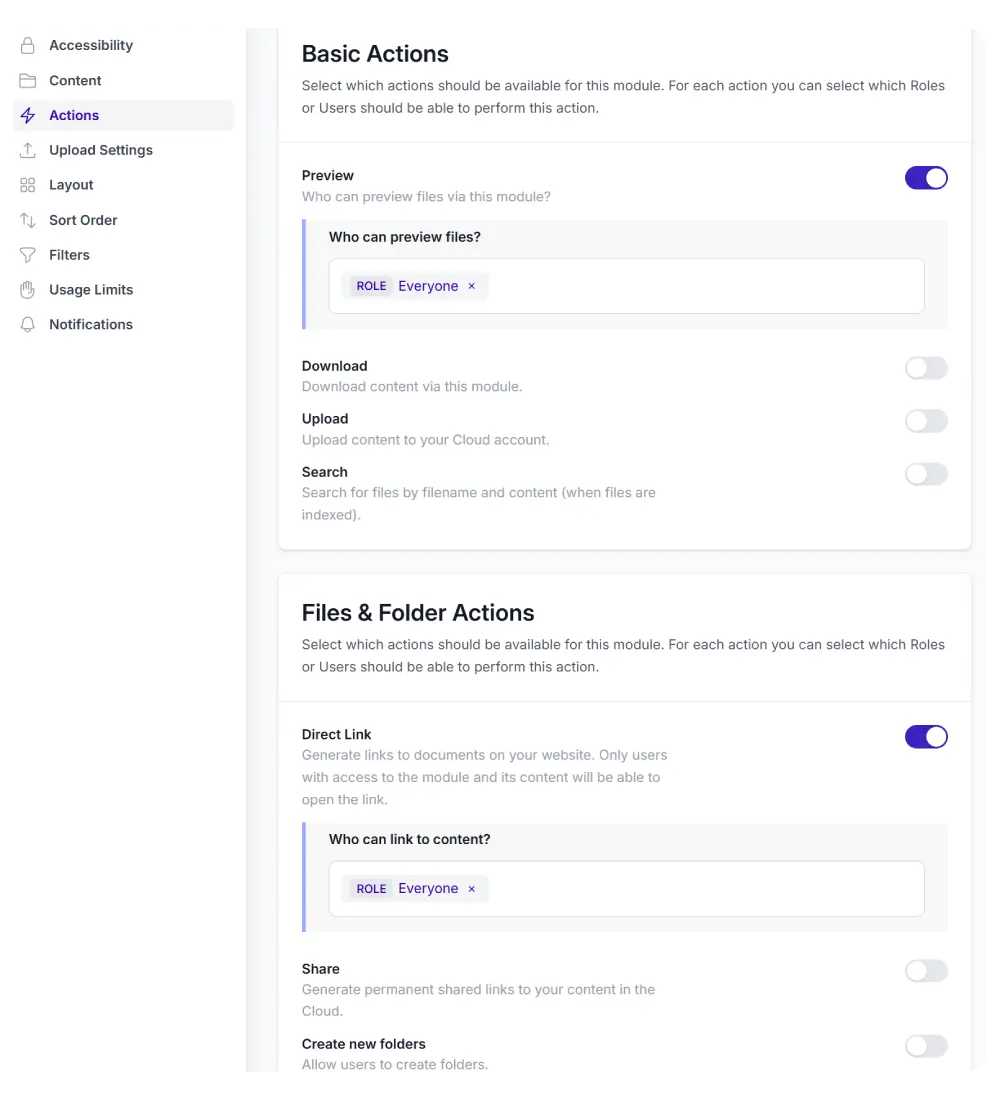
The File Browser integrates with WordPress roles and users. For each module, you control exactly which actions are allowed and for whom.
Configure permissions for:
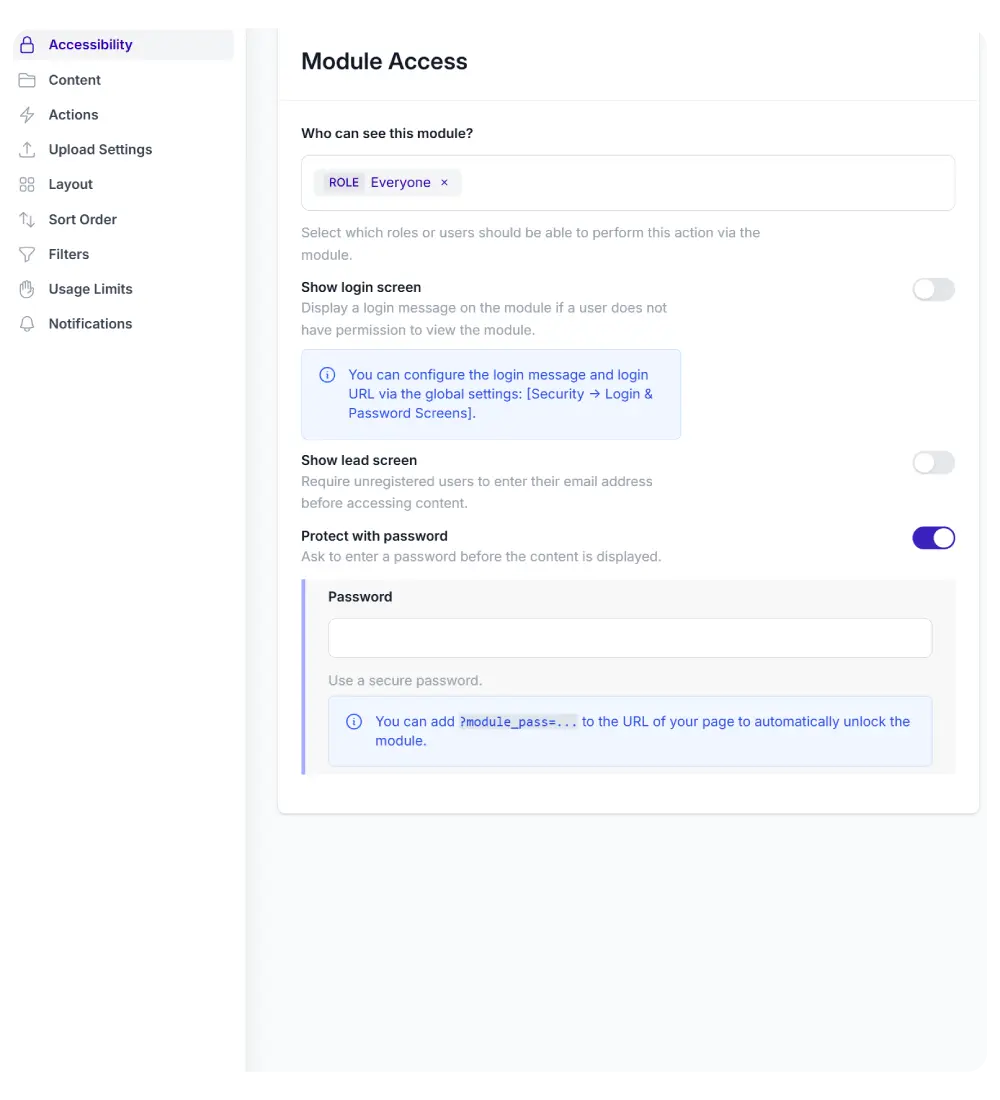
Viewing and accessing the module
Previewing files in the lightbox
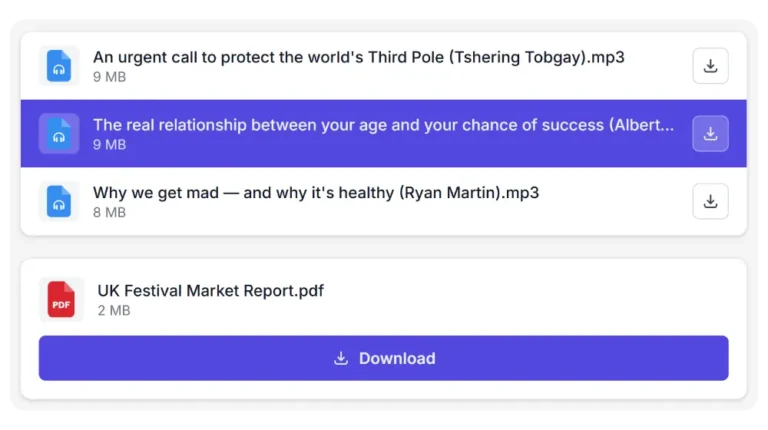
Downloading files (single and ZIP)
Uploading new files
Renaming files and folders
Deleting files and folders
Sharing links to images and folders
Creating new folders
Restrict the entire module to specific roles, or fine-tune individual actions per role. Non-logged-in visitors can be shown a login prompt or a password form.
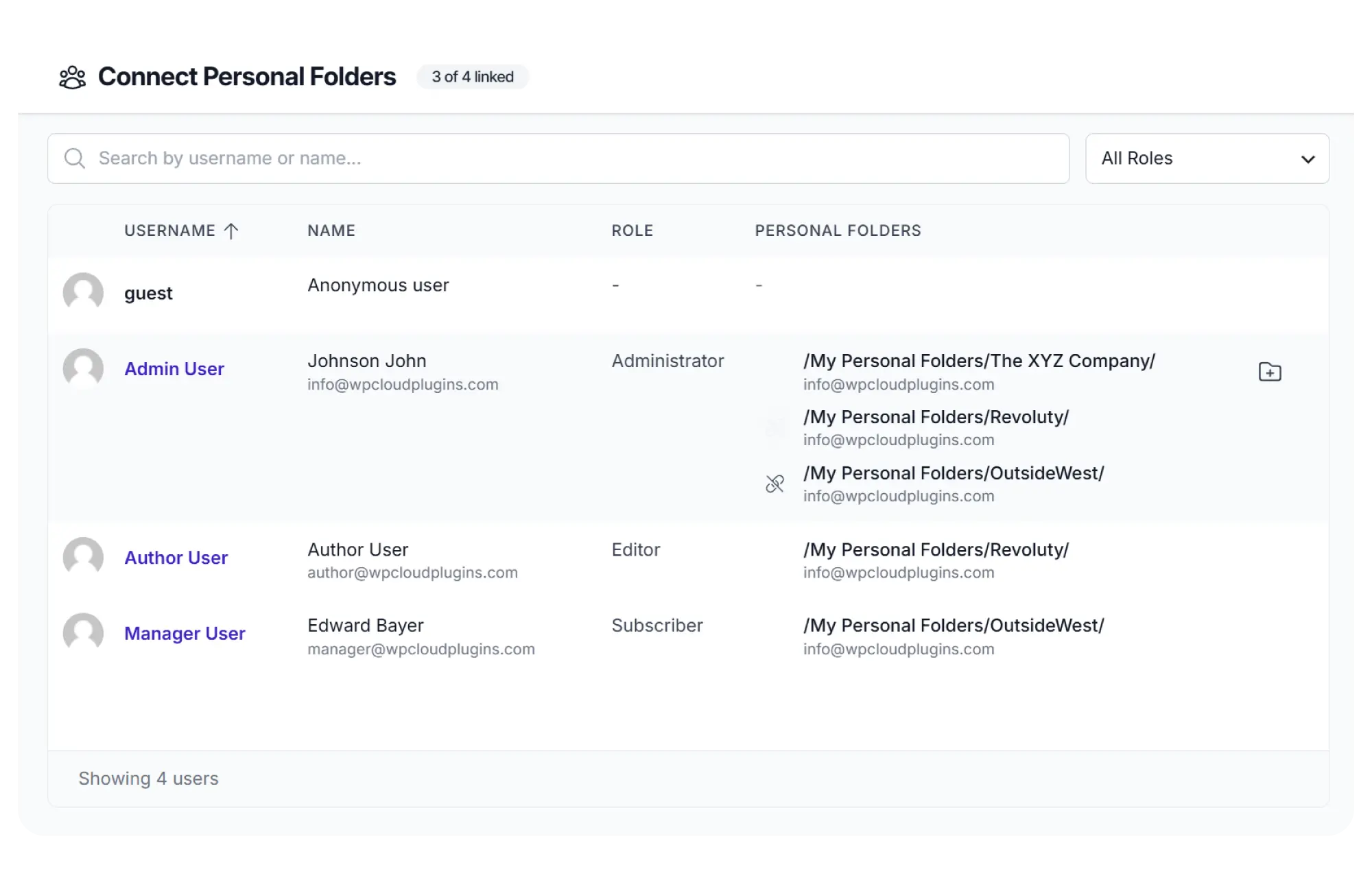
Automatically create a cloud folder for each new user, role, or WooCommerce order. Folders are named using templates with placeholders like username, email, or order ID.
One File Browser module on your portal page serves every user their own private content.
Configure visually. No code needed.
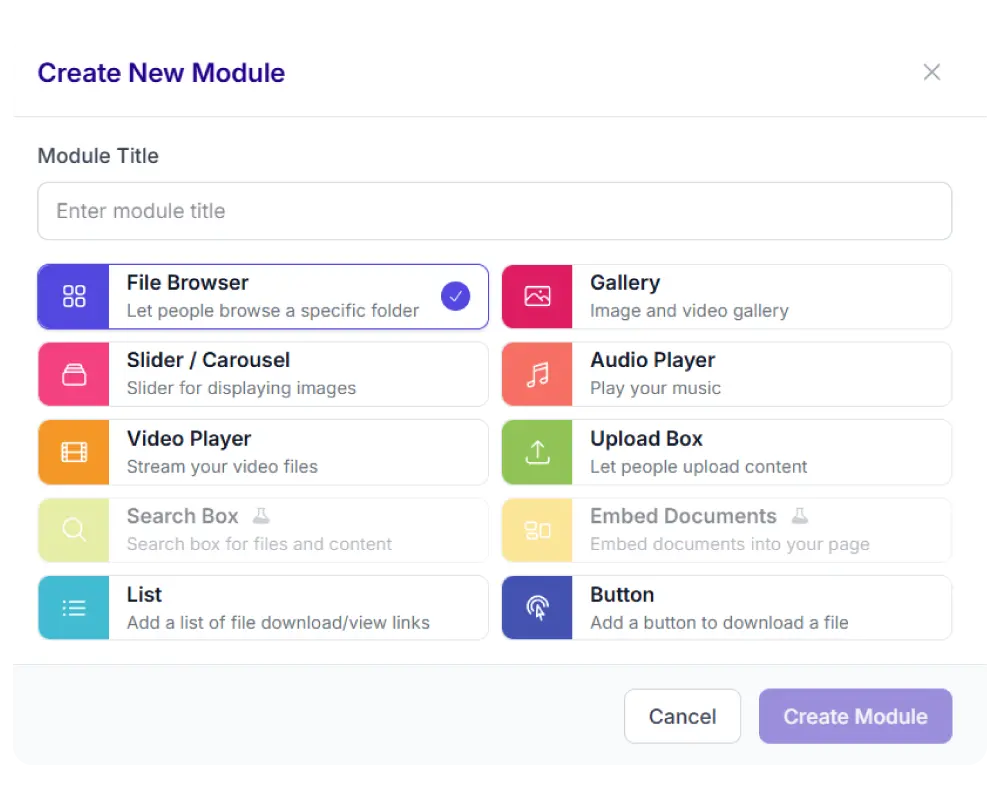
Set up your File Browser through the Module Configurator. Select a source folder, choose which actions to allow, pick a layout, and publish. Place the module on any page using a shortcode, Gutenberg block, or your preferred page builder widget.
The configurator covers everything: content source, accessibility, layout, sort order, file type filters, upload settings, usage limits, and notifications. Every option has a clear label and preview.
Built into every File Browser
Synkivo gives you the freedom to show your cloud content in a highly customizable and user-friendly way. No coding knowledge required!
Inline previews
Preview documents, images, and media directly in a built-in Lightbox.
Always in sync
Changes in your cloud folder are reflected on your site automatically. No manual refresh needed.
Permissions
Choose who you want to have the right to perform which action.
Notifications
Get notified when someone downloads, uploads or deletes content.
Easy setup
Link your account, add the module to your site and choose your content. Done.
Responsive
Synkivo uses modern UI and UX patterns. Your content will look great on both desktop and mobile pages.
Password protection
Require a password before visitors can access the module. No login required.
Your accent color
Selected items, buttons, and highlights use your site's accent color. Configured once, applied everywhere.
Keyboard navigation
Navigate files with arrow keys, open with Enter, and search with a single keystroke. Full screen reader support.
Works with the tools you already use
Place the File Browser in any page builder: Gutenberg, Elementor, Divi 5, or WPBakery. Combine it with form plugins to let visitors upload files through a form submission. Connect to WooCommerce to deliver downloadable products directly from your cloud.