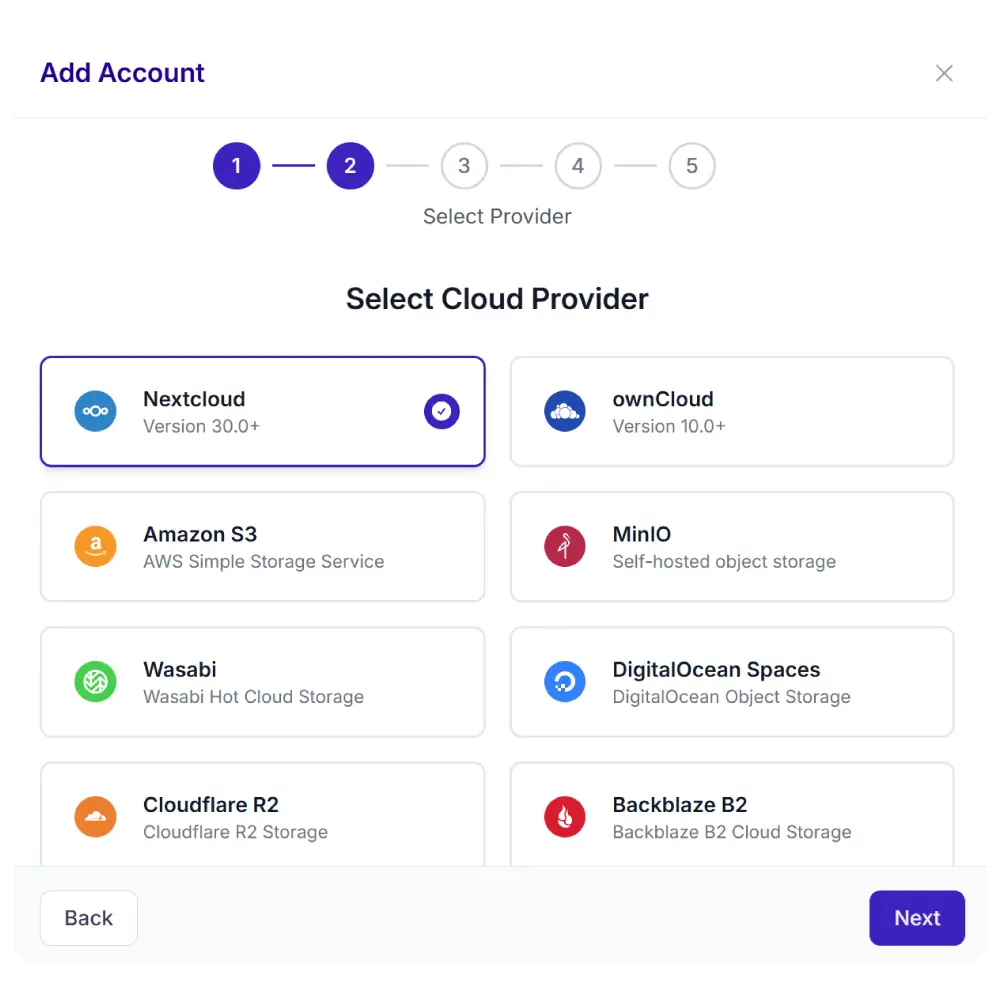
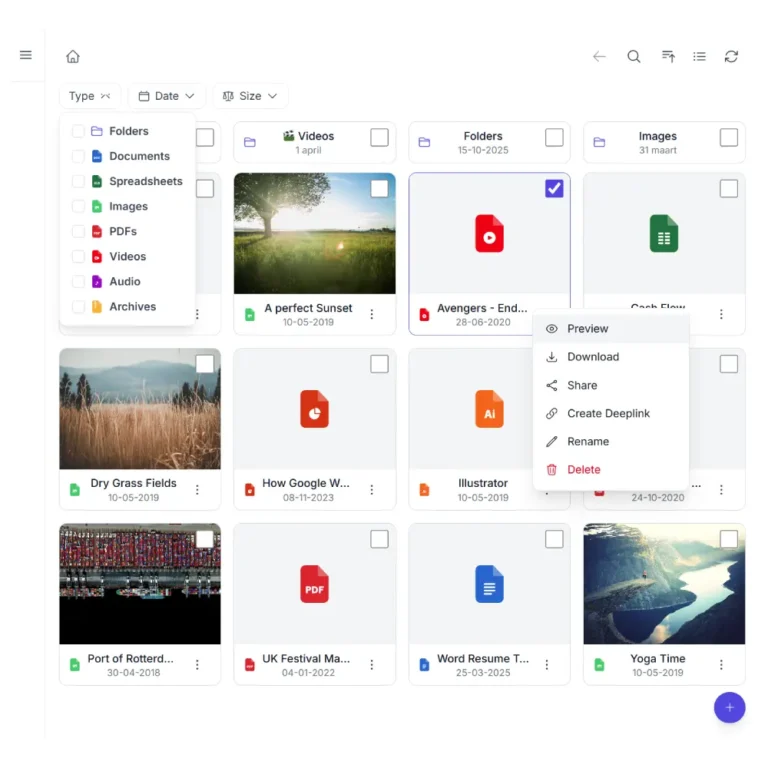
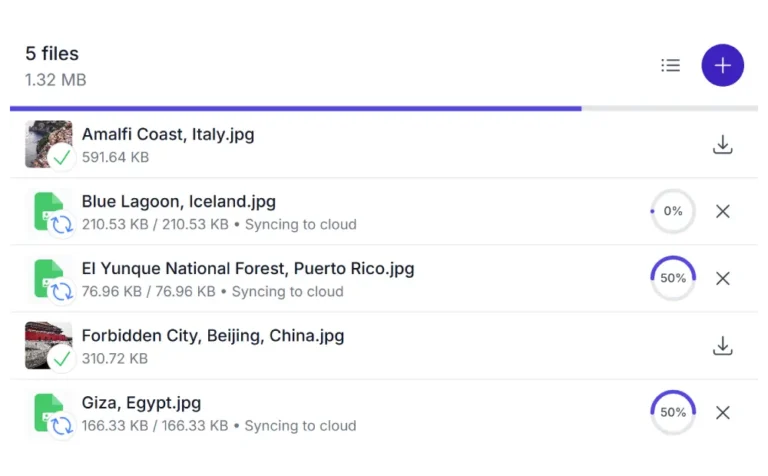
Turn any folder in your Nextcloud, ownCloud, Dropbox, OneDrive, SharePoint, AWS S3, Wasabi, DigitalOcean Spaces, Cloudflare R2, Backblaze B2, MinIO, pCloud, WebDAV servers, and S3-compatible storage into a responsive image gallery on your WordPress site. Add images to your cloud. The gallery updates itself. No re-uploading, no rebuilding, no plugin configuration needed every time.
This is a live Gallery module connected to a real folder in cloud storage. Click any image to open the lightbox. Navigate folders to browse collections. Edit actions like rename and delete are shown but disabled in this demo.
Demo using AWS S3
One plugin. Multiple cloud providers. Your choice.
Synkivo is built for teams that care about where their files live. Whether you self-host on Nextcloud, ownCloud or your NAS for full data sovereignty on your own infrastructure, or prefer the scalability of AWS S3, Wasabi, DigitalOcean Spaces, Cloudflare R2, Backblaze B2, MinIO, and other cloud services — Synkivo connects your storage to WordPress.
Everything you need to publish images from your cloud
Each module is visually configured — no code required. Place it anywhere with a shortcode, Gutenberg block, or page builder widget.
Justified, Masonry, or Grid: your choice
Choose from Justified, Masonry, or Grid layout. Justified fills rows edge-to-edge. Masonry flows images at natural proportions. Grid shows uniform square tiles.
Visitors can switch between layouts if you enable it. The same source folder powers all three.
Demo using AWS S3
Click any image to open a full-screen lightbox
The Gallery includes a built-in lightbox. Visitors click an image and it opens full-screen with keyboard and swipe navigation.
Supports slideshow mode, zoom, captions from file descriptions, and an optional download button.
Navigate subfolders inside your gallery
Organize images into subfolders in your cloud storage. The Gallery reflects that structure automatically. Visitors click into folders to browse collections without leaving the page.
An optional sidebar folder tree is available for deeper hierarchies. And you can set a custom cover image.
Demo using AWS S3
Add images in your cloud. The gallery updates itself
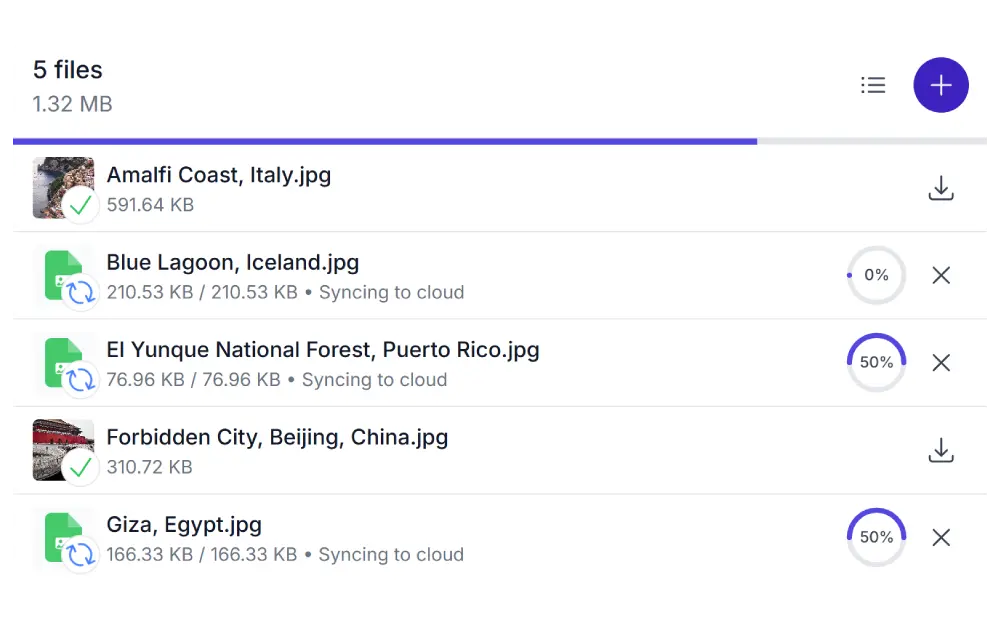
Add, remove, or rename images in your cloud folder via the native cloud software or website. The gallery on your WordPress site reflects the change automatically.
No media library uploads. No shortcode edits. No WordPress admin access needed to keep the gallery current.
Share links
Let visitors share a direct link to a specific image or folder from your gallery. Password protection and expiration dates are available when the provider supports it.
Who uses the Gallery module
The Gallery works for any WordPress site that wants to display images from a cloud folder without the overhead of WordPress media management
Photographers
Publish client galleries directly from your cloud storage. Organize by shoot, date, or client. Clients browse and download their images without you touching WordPress.
Event companies
Share event photos with attendees after the event. Create a folder per event, link it to a Gallery module on the event page. Photos are live as soon as you upload them.
Architecture and design
Showcase project portfolios organized by project folder. Large, high-resolution images stream directly from cloud. No server storage consumed.
Real estate agencies
Display property photo sets per listing. Each property gets its own cloud folder and gallery embed. Update photos in the cloud, the gallery reflects it instantly.
Product images
Show eCommerce product variants, lifestyle photos, or lookbooks stored in organized cloud folders. Keep the gallery current without touching the product page each time.
Travel and lifestyle blogs
Publish destination galleries directly from your cloud archive. Readers browse full albums without leaving your site.
Build your WordPress image gallery from Nextcloud, ownCloud, Dropbox, OneDrive, SharePoint, AWS S3, Wasabi, DigitalOcean Spaces, Cloudflare R2, Backblaze B2, MinIO, pCloud, WebDAV servers, and S3-compatible storage cloud folder.
You control who can do what
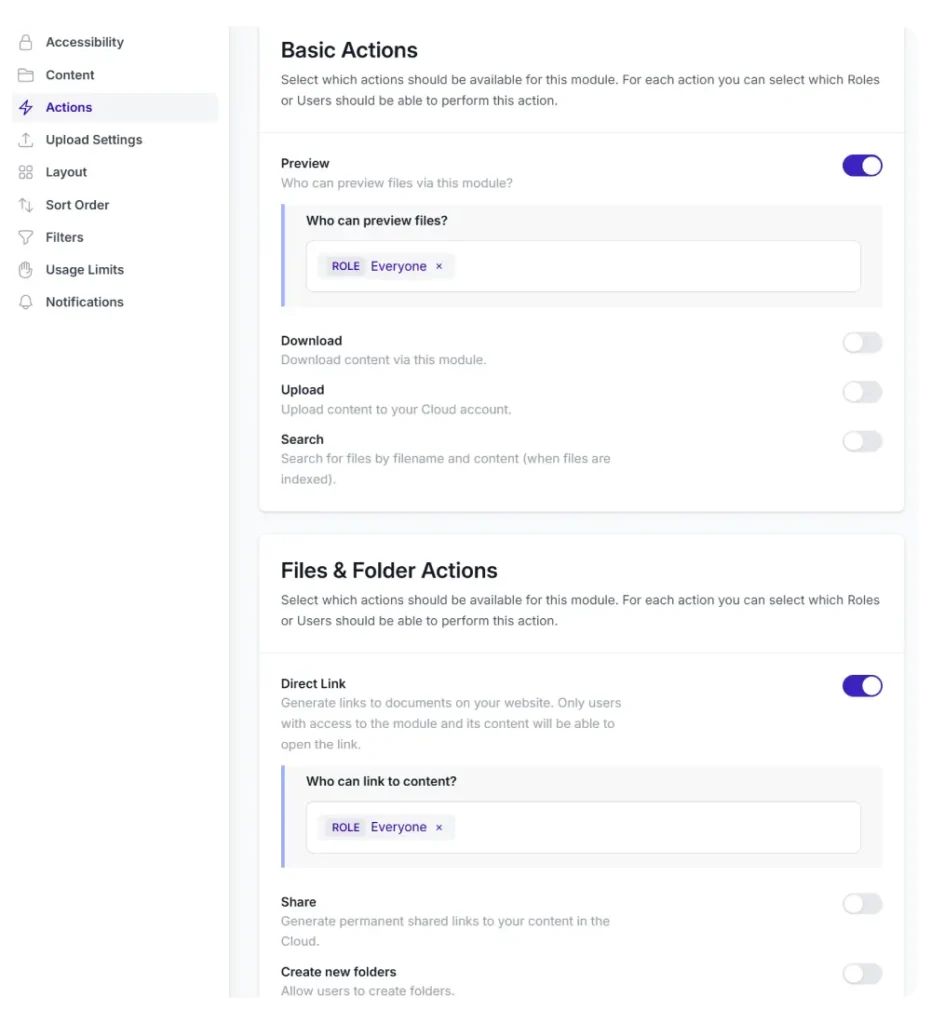
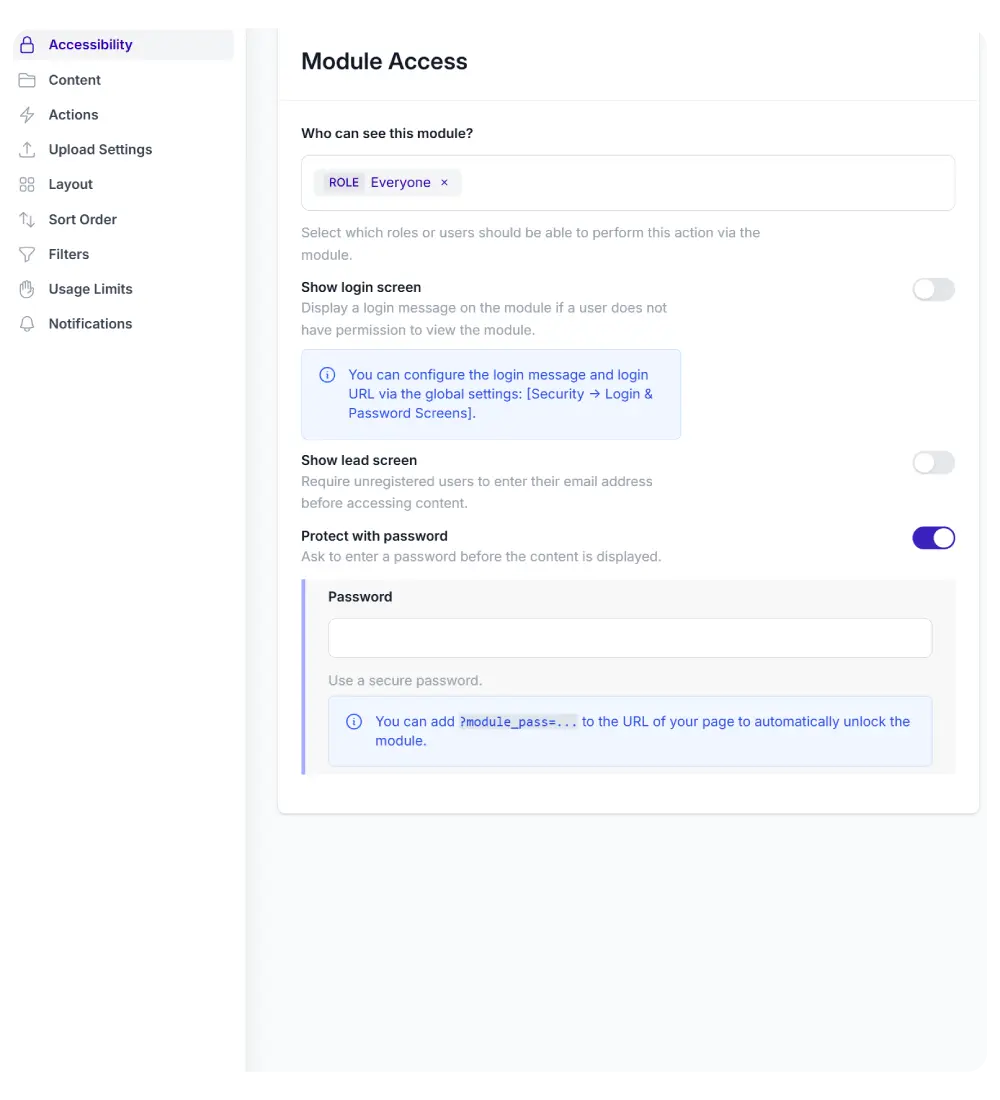
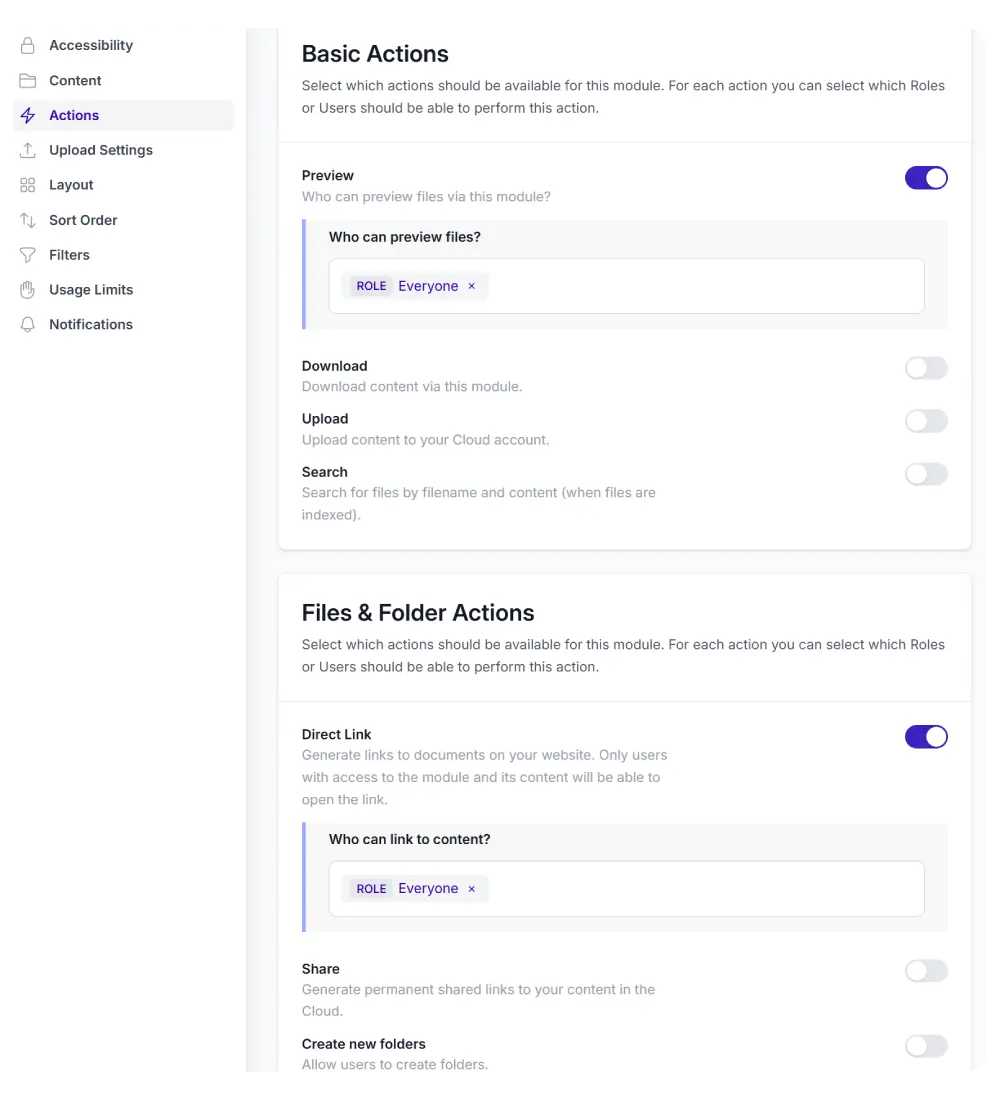
The Gallery integrates with WordPress user roles. For each Gallery module, you control exactly who can access it and what actions they can take.
Configure permissions for:
Viewing and accessing the module
Previewing files in the lightbox
Downloading images (single and ZIP)
Uploading new files
Renaming files and folders
Deleting files and folders
Sharing links to images and folders
Creating new folders
Restrict the entire gallery to a specific role, or make it public with download disabled. Non-logged-in visitors can be shown a login prompt or a password entry form.
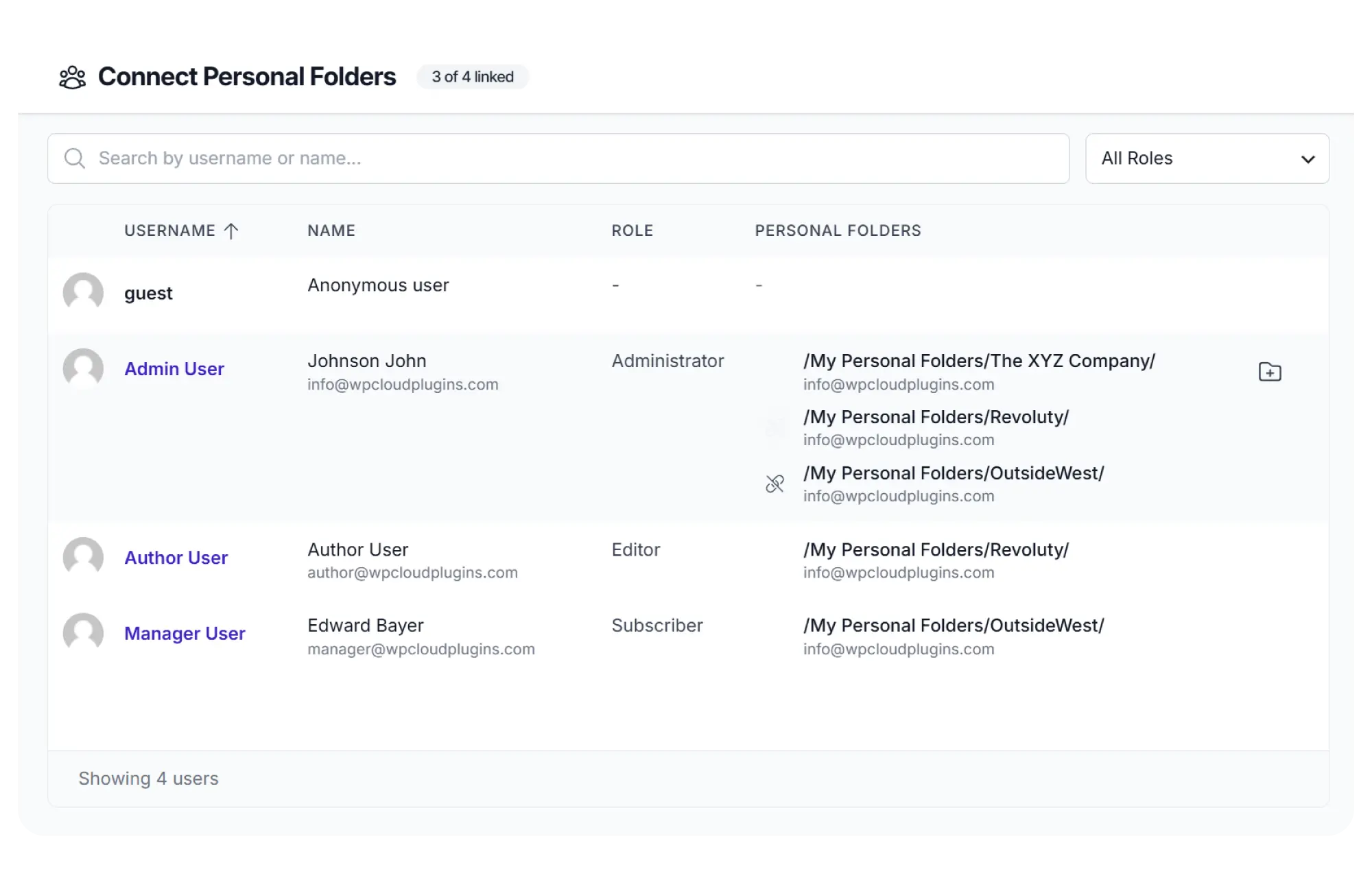
Automatically create a cloud folder for each new user or WooCommerce order. Ideal for wedding photographers, event companies, or any workflow where each client gets a delivery.
One Gallery module on your site serves every client their own private collection. No separate pages. No separate configurations.
Configure visually. No code needed.
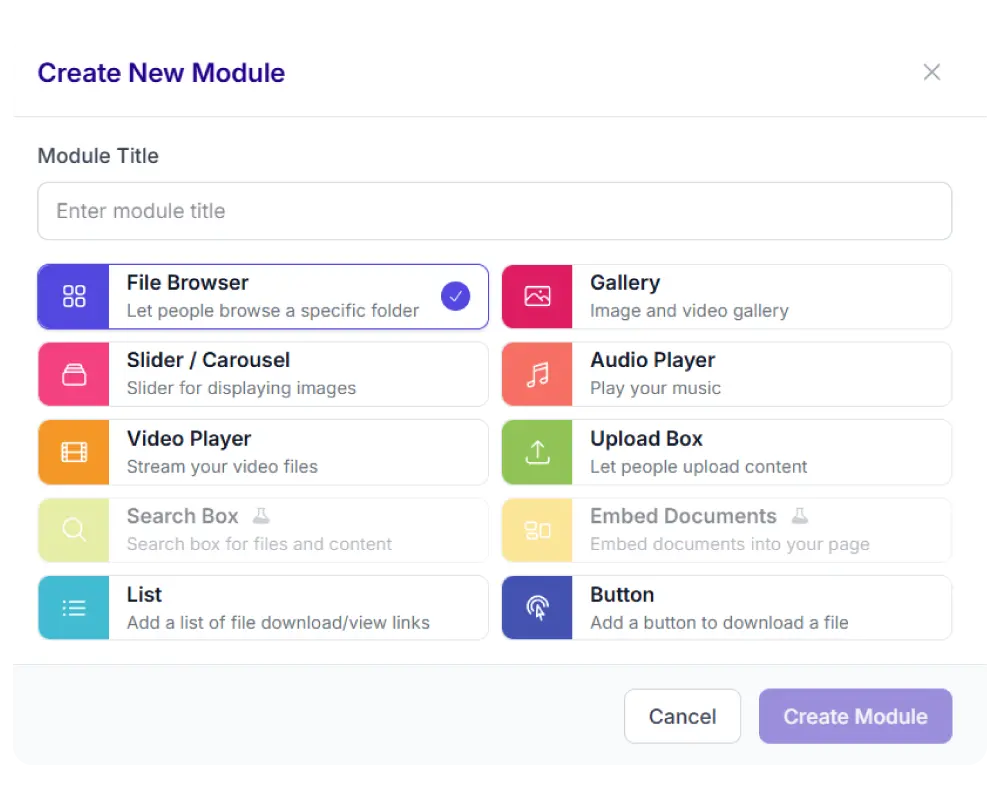
Set up your Gallery through the Module Configurator. Select the source folder from your connected cloud account, choose a layout, set image sizing and spacing, and publish.
Layout mode (Justified, Masonry, or Grid)
Target image height (for Justified) or column count (for Masonry/Grid)
Image gap and border radius
Lightbox behavior (on/off, slideshow speed)
Which file formats to include (JPG, PNG, WebP, etc.)
Download and share permissions per role
Place the finished module on any page using a shortcode, Gutenberg
block, or page builder widget.
And there is more
Every gallery you create includes these features by default.
Share Links
Let visitors share a direct link to an image or folder from your gallery. Password protection available.
Always in sync
Your gallery updates automatically when you add, remove, or rename images in your cloud folder.
Notifications
Get notified when someone downloads images. Via email, Slack, or webhooks.
Light & Dark mode
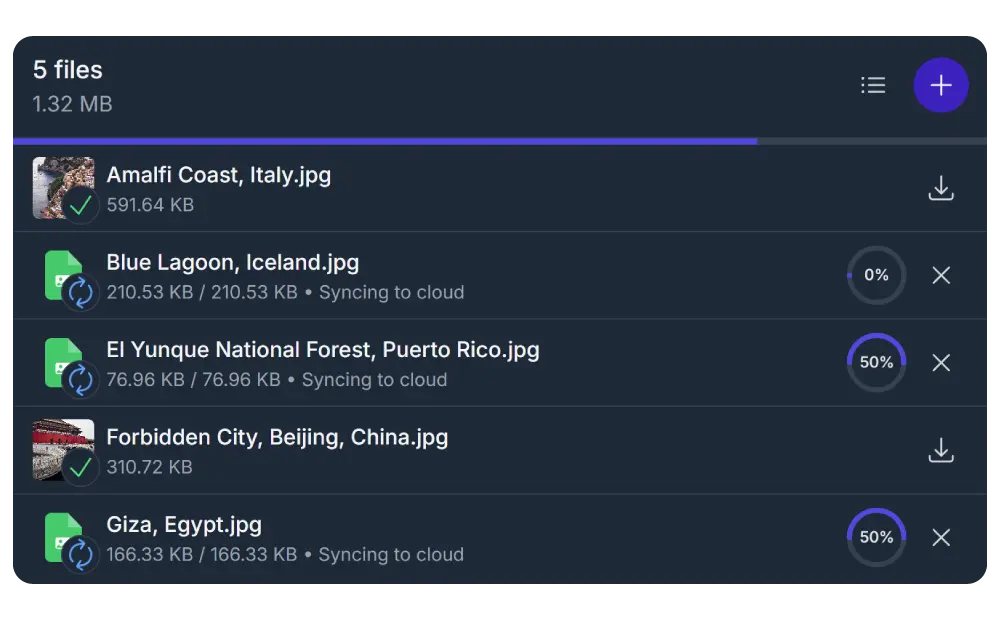
The gallery adapts to your site's color scheme or the visitor's system preference.
Easy setup
Link your account, add the module to your site, select a folder and publish. Done.
Responsive
Synkivo layouts adapt to any screen width. Works on mobile without separate configuration.
Works with the tools you already use
Place the Gallery in any page builder: Gutenberg, Elementor, Divi 5, or WPBakery. Use it inside existing page templates without touching your theme. The Gallery adapts to the width of its container automatically.