
The WordPress plugin for pCloud
Files stay in your pCloud account.
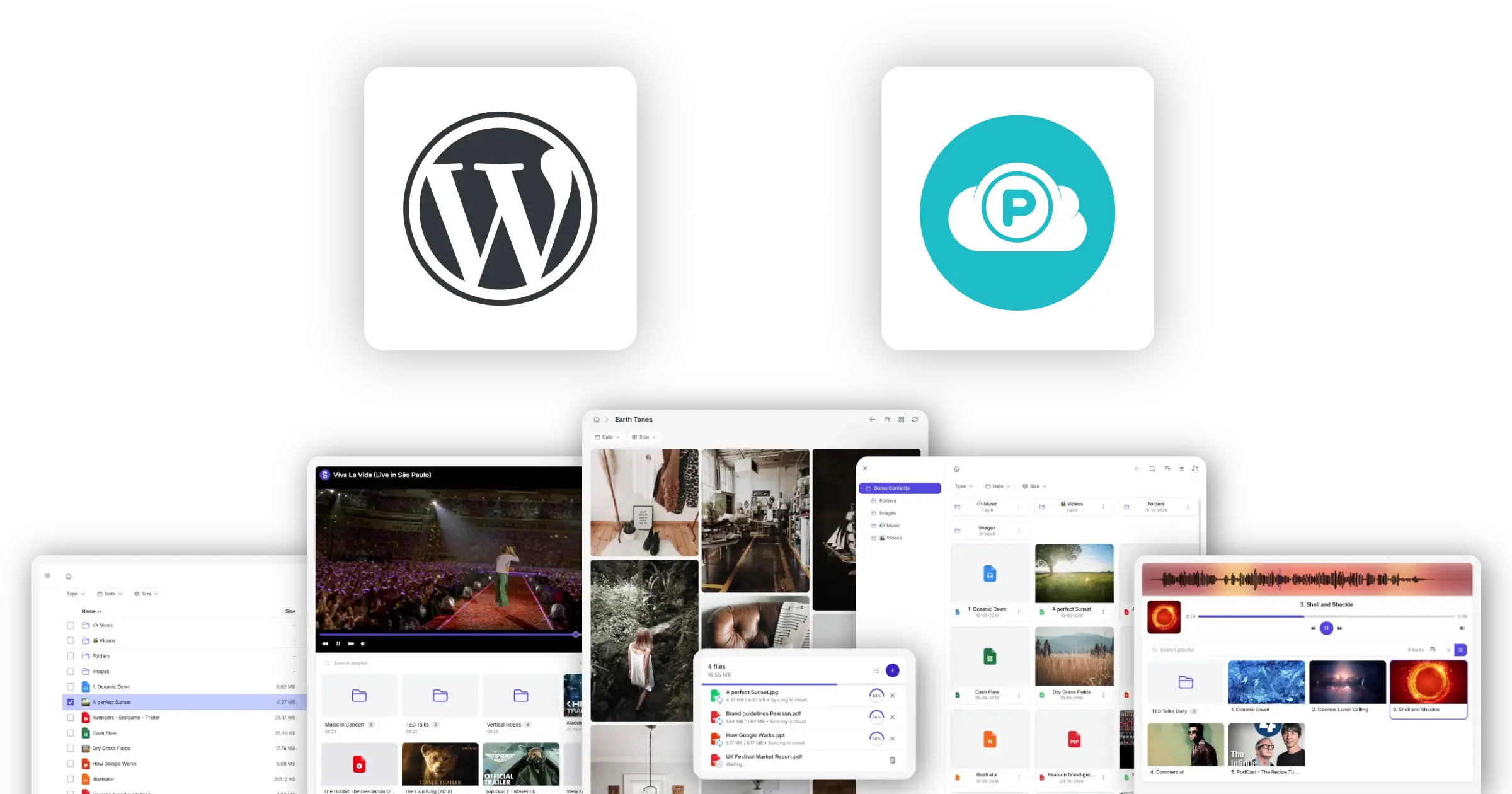
Your pCloud files, on your WordPress site
Stream media, show downloads, deliver digital products. pCloud stores. WordPress shows.
Synkivo connects pCloud to WordPress. Once connected, any page can browse, display, or stream files from your pCloud account. The files stay in pCloud. Your WordPress host never touches them.
Three examples: a podcast site streams every episode directly from pCloud; a creator sells video lessons through WooCommerce, with customers receiving temporary download links after purchase; a consultancy provides client portals where each customer downloads their own reports and project files.
Synkivo connects through pCloud’s OAuth authentication flow. Simply sign in with the pCloud account that contains the files you want to use on your WordPress site. Choose between pCloud’s EU data centers (Luxembourg) and US data centers based on your audience or compliance needs.
What you can do with pCloud on WordPress
What you can build with pCloud files on a WordPress page.
Browse pCloud folders
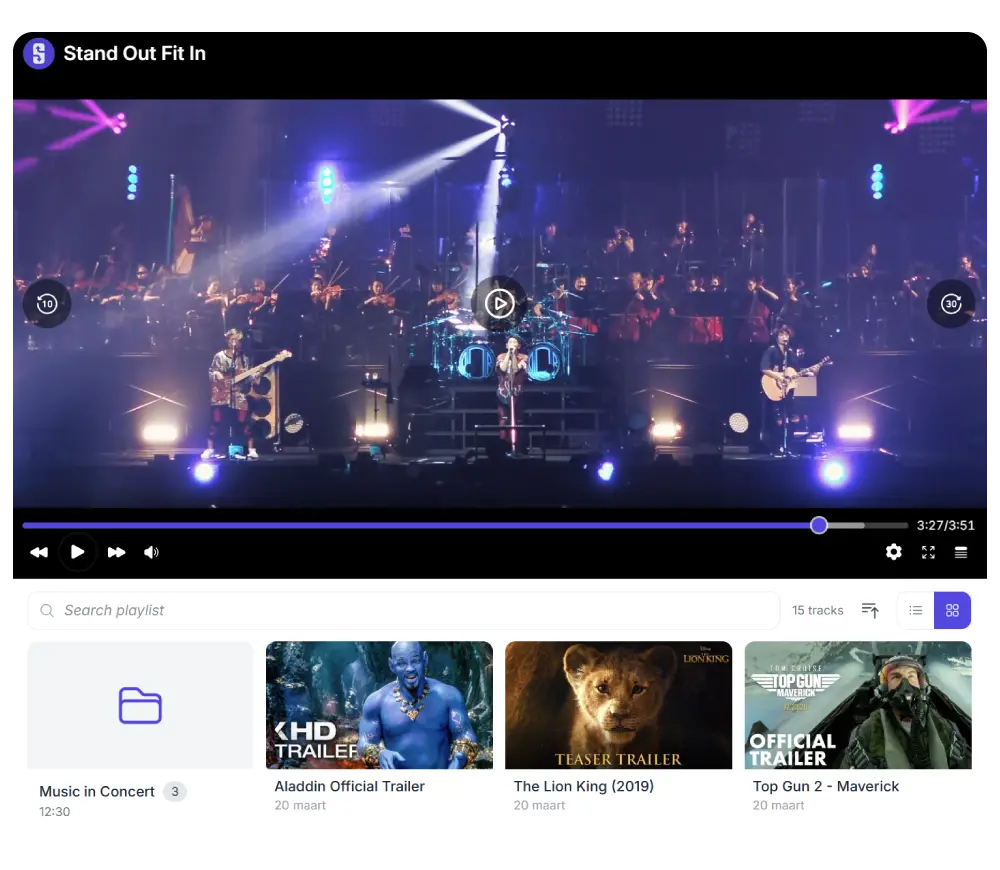
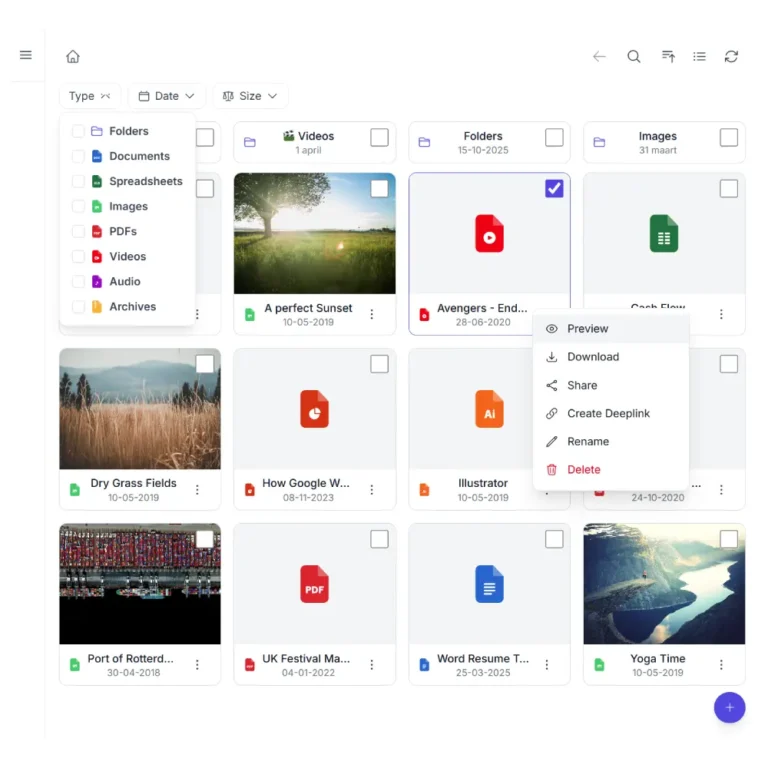
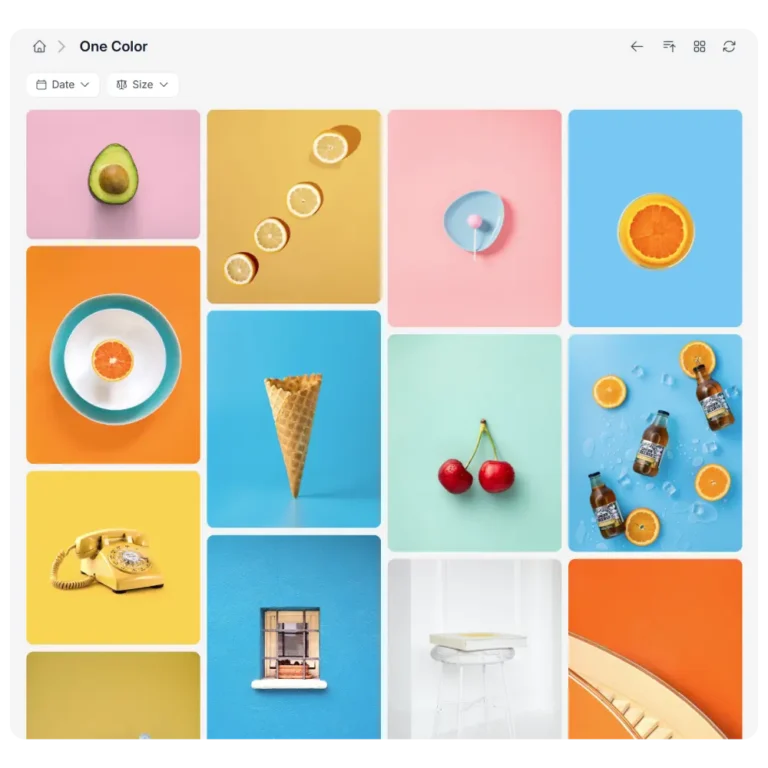
Show a file browser on any page that lists folders and files from your pCloud account. Visitors navigate, preview, and download.
Stream audio and video
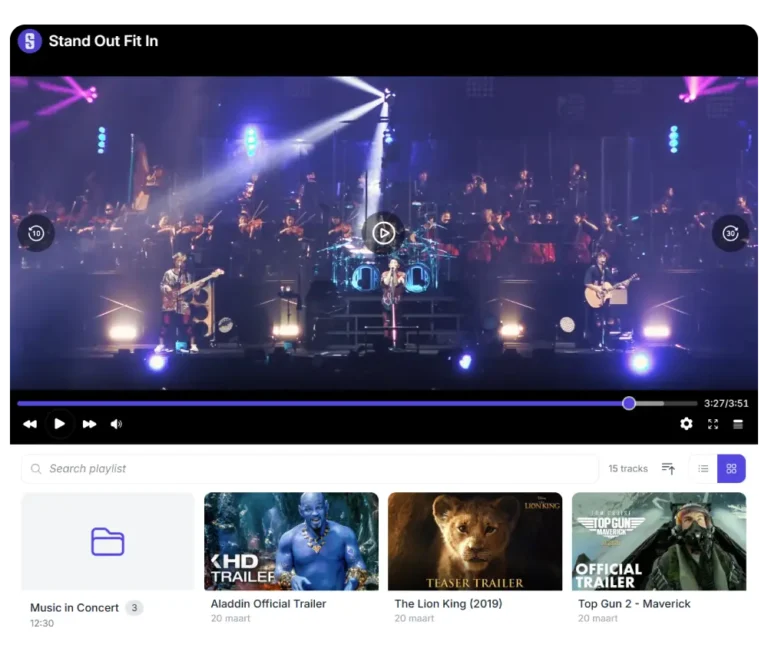
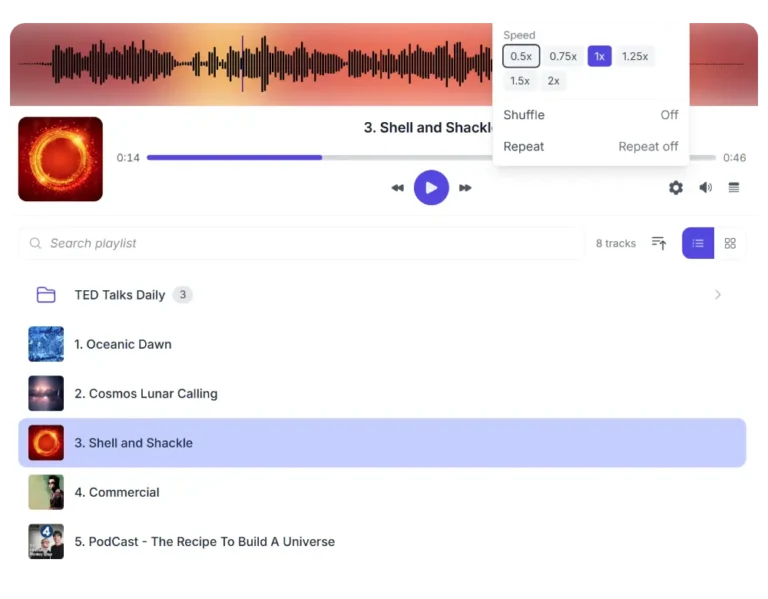
Embed audio and video players that stream MP3, MP4, WebM, and other common formats directly from pCloud's servers.
Deliver large files
Share software packages, design assets, PDFs, training materials, and other large files directly from pCloud without consuming WordPress hosting bandwidth.
Direct uploads to pCloud
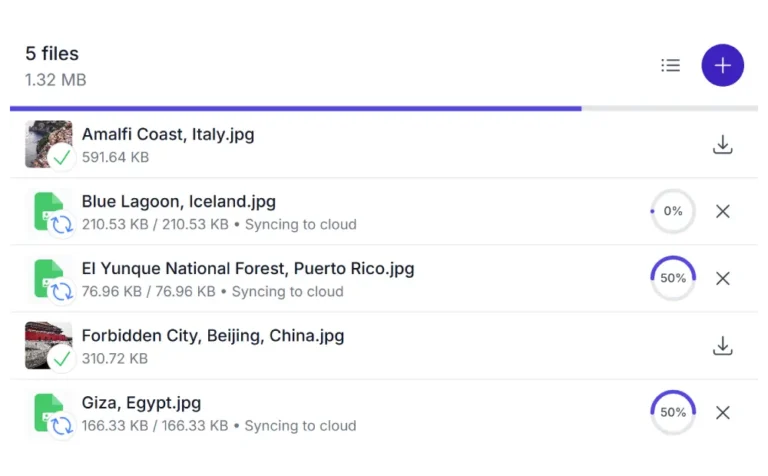
Visitors upload files straight from their browser to your pCloud.
Public Asset URLs
Every embedded file gets a permanent WordPress-hosted URL through Synkivo's Public Assets system, even if you rename or move the file in pCloud later.
Offload WordPress media hosting
Move media files out of your WordPress uploads folder into pCloud. Your WP host disk usage stays flat; pCloud streams the content.
Three steps to connect pCloud to WordPress
No syncing. No duplication.
1.
Connect your cloud
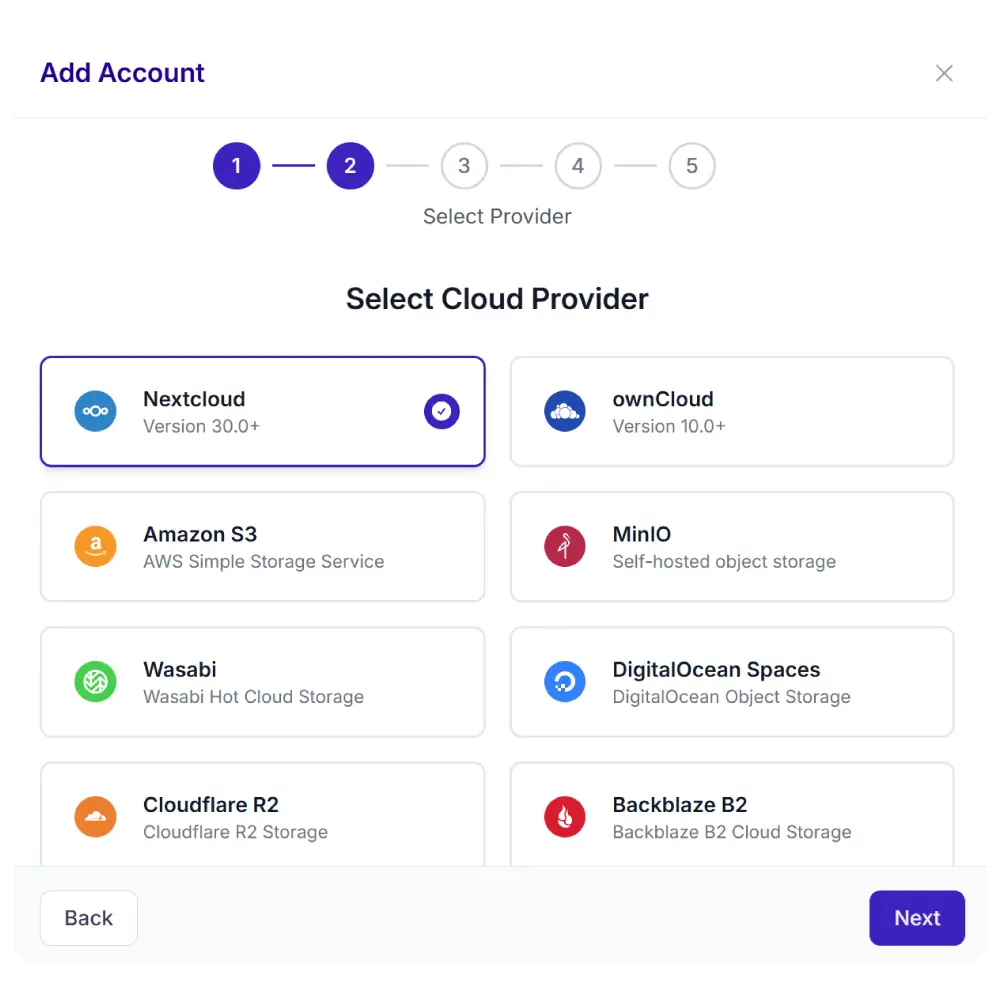
Click “Add Account” in Synkivo and pick pCloud. Sign in with your pCloud account through pCloud’s standard OAuth flow.
3.
Configure visually
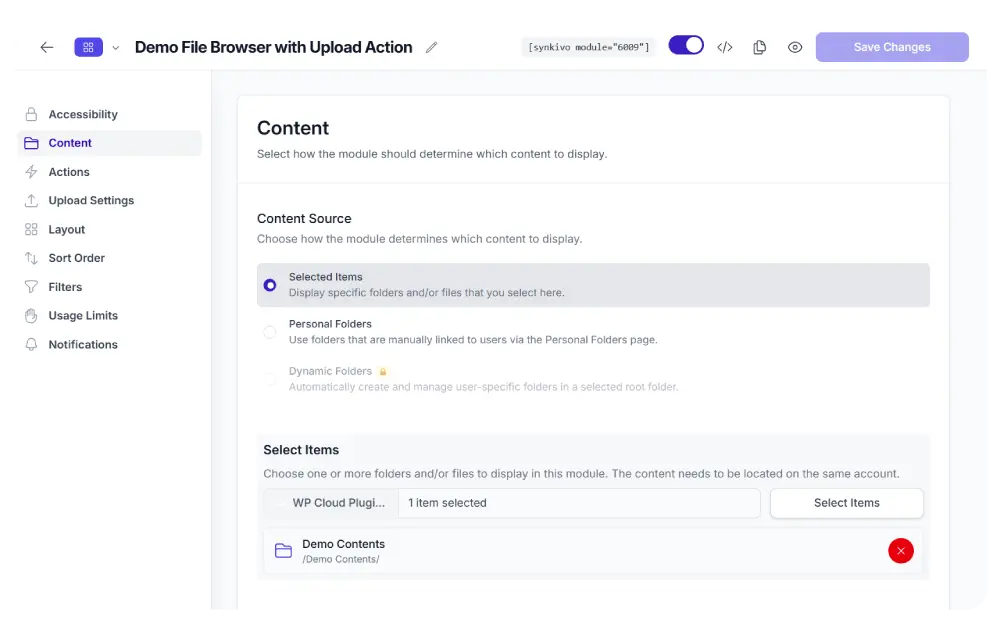
Choose a pCloud folder. Set role-based permissions per WordPress role.
4.
Publish
Drop the module on any page or post. Visitors browse, stream, or download directly from your pCloud.
Deliver digital products from pCloud
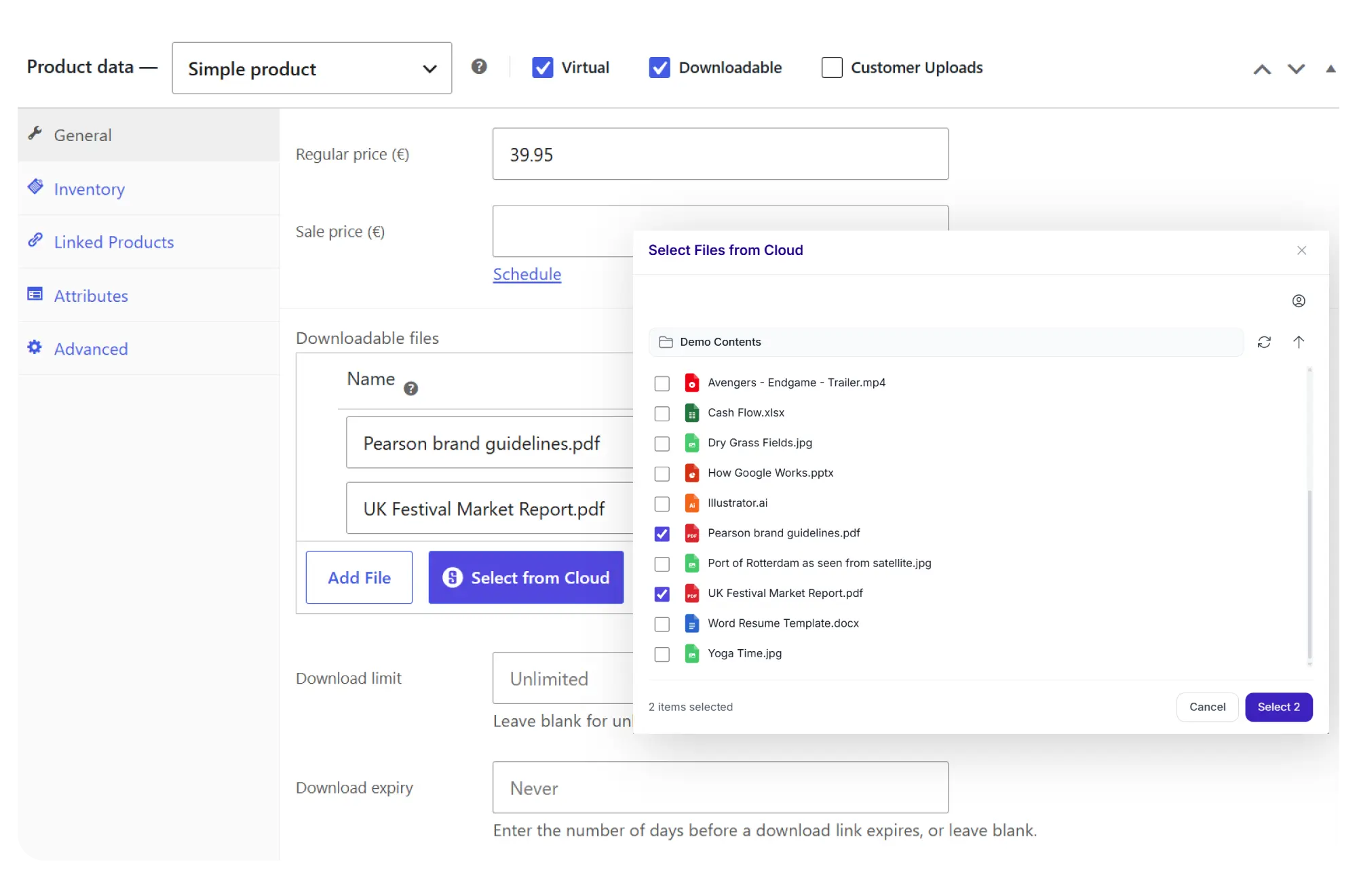
Add pCloud files to WooCommerce or Easy Digital Downloads. Customers buy. pCloud delivers. WordPress hosting stays untouched.
- Pick files from pCloud in the WooCommerce or EDD product editor
- Secure, temporary download links generated per order
- Files served directly from pCloud; never copied to WordPress
- Update files in pCloud once; all future buyers get the latest version
- Works with both WooCommerce and Easy Digital Downloads
pCloud files in the WordPress Media Library
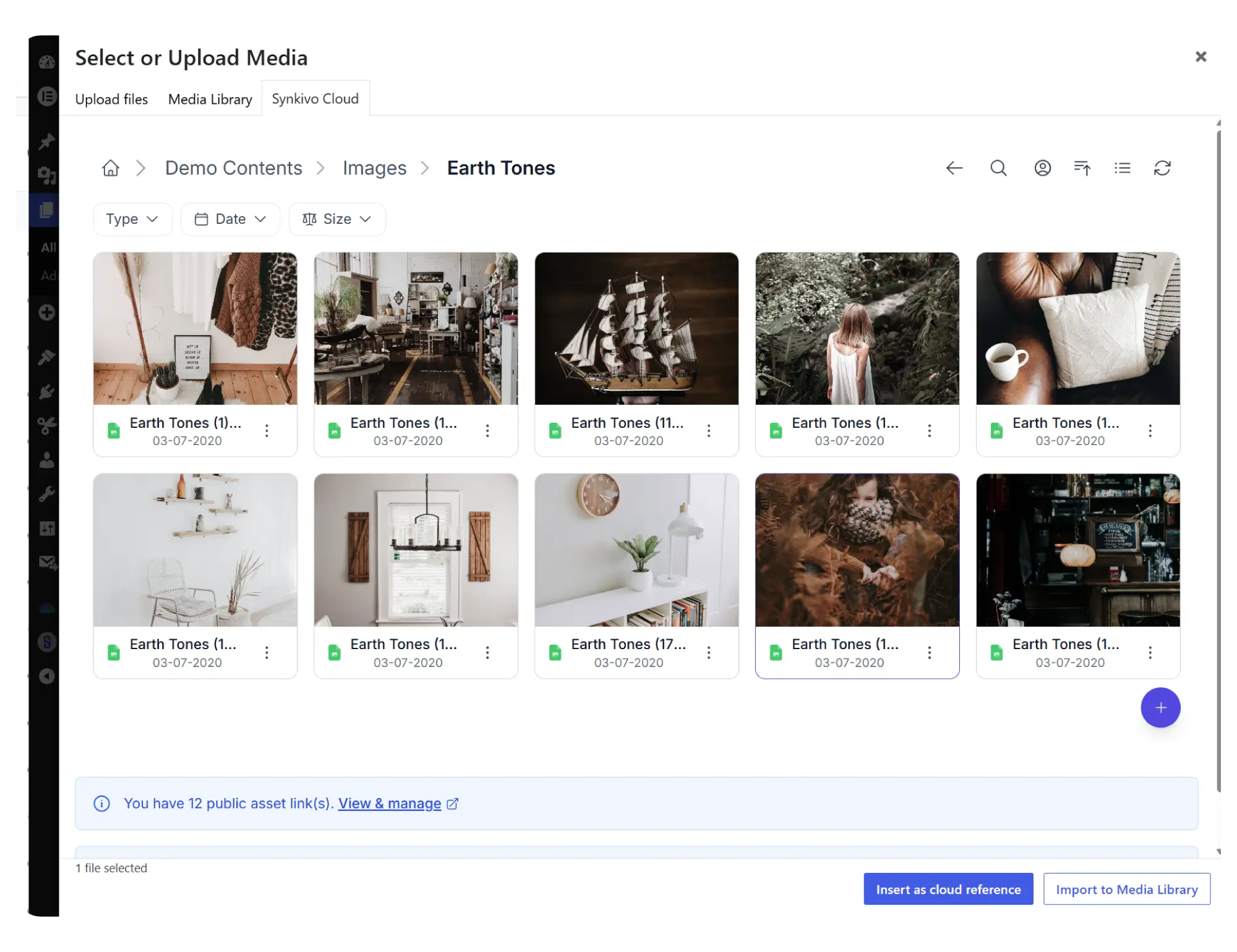
Pick a pCloud file. Insert it on any page or post. The file stays in pCloud.
Synkivo adds a pCloud tab to the WordPress Media Library dialog. Click “Add Media” in the editor, browse your pCloud, pick a file, and insert it. No download. No re-upload.
When you insert a file, you choose Embed or Import. Embed links to the file in pCloud; the WordPress page references it live, and any update in pCloud reflects on your site immediately. Import copies the file once into WordPress uploads, useful when you want a local copy that survives even if the pCloud connection is unavailable.
Every embedded file gets a permanent WordPress-hosted URL through Synkivo’s Public Assets system. Rename or move the file in pCloud later, and the WordPress URL stays valid.
See the WordPress Media Library cloud storage page for the broader pattern.
Everything you need to share files on your site.
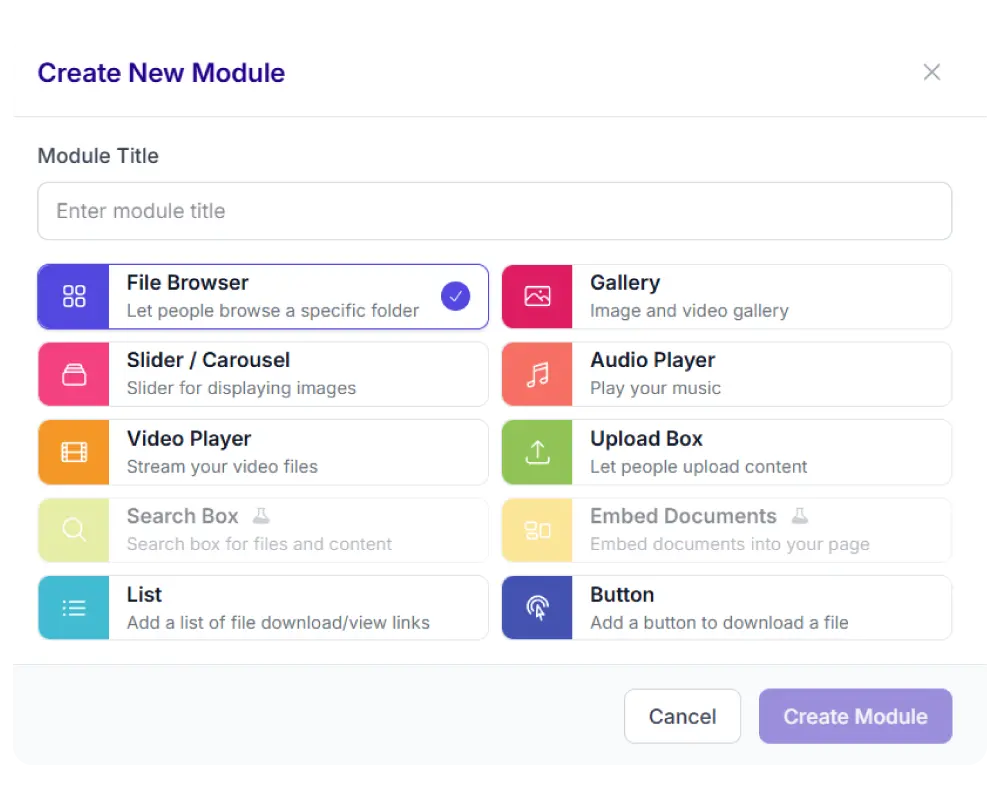
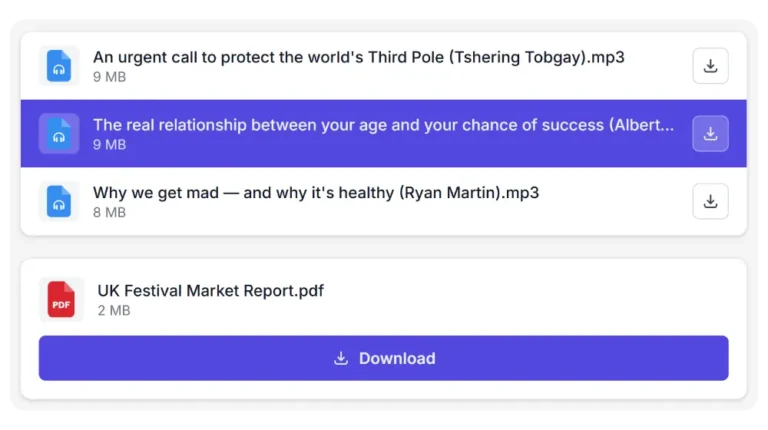
Each module is visually configured — no code required. Place it anywhere with a shortcode, Gutenberg block, or page builder widget.
Every Synkivo module works with pCloud
Pick the module that fits your page. The same pCloud connection powers all of them.

Secure by default
Sign in with pCloud OAuth. Synkivo scopes the access. WordPress decides what each visitor can do.
pCloud OAuth authentication
Sign-in goes through pCloud directly, with whatever authentication rules your pCloud account requires (password, 2FA).
Folder-level access control
Each module points to specific folders in your pCloud account. Visitors can only browse the locations configured for that module.
Encrypted credentials
pCloud OAuth tokens are encrypted at rest in your WordPress database. Token refresh happens automatically.
Personal folder
Link individual WordPress users to specific pCloud sub-folders. Each visitor sees only the folder linked to their account. Pro plan and above.
Signed URLs from pCloud
Files served through short-lived signed URLs issued by pCloud. A shared link cannot be reused beyond its lifetime.
EU or US data region
Your pCloud account lives in either the EU (Luxembourg) or US data centers, chosen at pCloud account creation. Files never leave the region you selected.
Use cases for pCloud and WordPress
Where pCloud's storage and delivery meet WordPress's content layer.
Streaming audio and video
Podcasts, audiobooks, online courses, and video libraries. Stream media directly from pCloud while WordPress handles the content, navigation, and user experience.
Customer download portals
Provide clients with reports, project files, recordings, PDFs, and deliverables stored in pCloud. Synkivo handles access, downloads, and folder permissions inside WordPress.
WooCommerce and Easy Digital Downloads
Sell videos, templates, software packages, design assets, and other digital products stored in pCloud. Update files once in pCloud and every future customer receives the latest version.
Internal file libraries
Create searchable file libraries for employees, partners, or members. pCloud stores the files while WordPress provides the interface and access control.
Connect pCloud to WordPress today
Why pCloud?
pCloud is designed for storing and delivering large media libraries. Unlike cloud platforms that are primarily built around productivity tools, pCloud focuses on storage, sharing, and media delivery.
For WordPress sites with galleries, videos, podcasts, downloads, and other large assets, pCloud keeps files outside your hosting environment while Synkivo makes them available on your website.
pCloud offers both subscription and lifetime plans, making it an interesting option for projects that expect to store large volumes of content over many years.
Predictable cost models
Subscription plans and unique lifetime plans for long-term commitment. Storage becomes a fixed cost rather than a variable expense.
Works well for large media libraries
Handles audio, video, and image streaming through signed URLs. Suitable for media-heavy WordPress sites that grow over time.
Large storage tiers
Suitable for media-heavy WordPress sites that outgrow other consumer cloud plans.
Data residency
Choose where your data lives geographically. Swiss company with Luxembourg data centers & US data centers.
Common Questions Answered
How is the connection authenticated and where are credentials stored?
Synkivo authenticates to pCloud using standard OAuth. After sign-in, pCloud issues an access token that Synkivo encrypts and stores in your WordPress database. Tokens refresh automatically; credentials never appear in your site's page source.
Are my files copied to WordPress, or do they stay in pCloud?
Files stay in pCloud. Synkivo does not copy, mirror, or sync files to your WordPress server. When a visitor browses, streams,downloads, or previews a file, Synkivo retrieves it from pCloud in real time through signed URLs. Only files explicitly imported through the Media Library Import option are copied to WordPress uploads.
Can I connect multiple pCloud accounts?
Yes. Synkivo supports connecting multiple pCloud accounts to the same WordPress installation. Each module can be linked to a different account and folder, allowing you to combine content from multiple pCloud accounts on one site.
Where is my data stored: EU or US?
pCloud accounts are tied to a data region at creation. EU accounts store data in pCloud's Luxembourg data centers; US accounts store data in US data centers. Synkivo respects this; files never leave the region you chose. The data region is decided at pCloud signup and cannot easily change later, so pick the region that matches your audience and compliance needs before signing up.
Can I sell digital products from pCloud through WooCommerce or Easy Digital Downloads?
Yes. Synkivo integrates with both WooCommerce and Easy Digital Downloads. Add pCloud files to any downloadable product using the Synkivo file picker. After checkout, customers receive secure, temporary download links served directly from pCloud. Update the file once in pCloud; future customers get the latest version. See the WooCommerce integration and Easy Digital Downloads integration pages for details.