
The WordPress plugin for SharePoint
Your SharePoint files stay in your Microsoft 365 tenant.
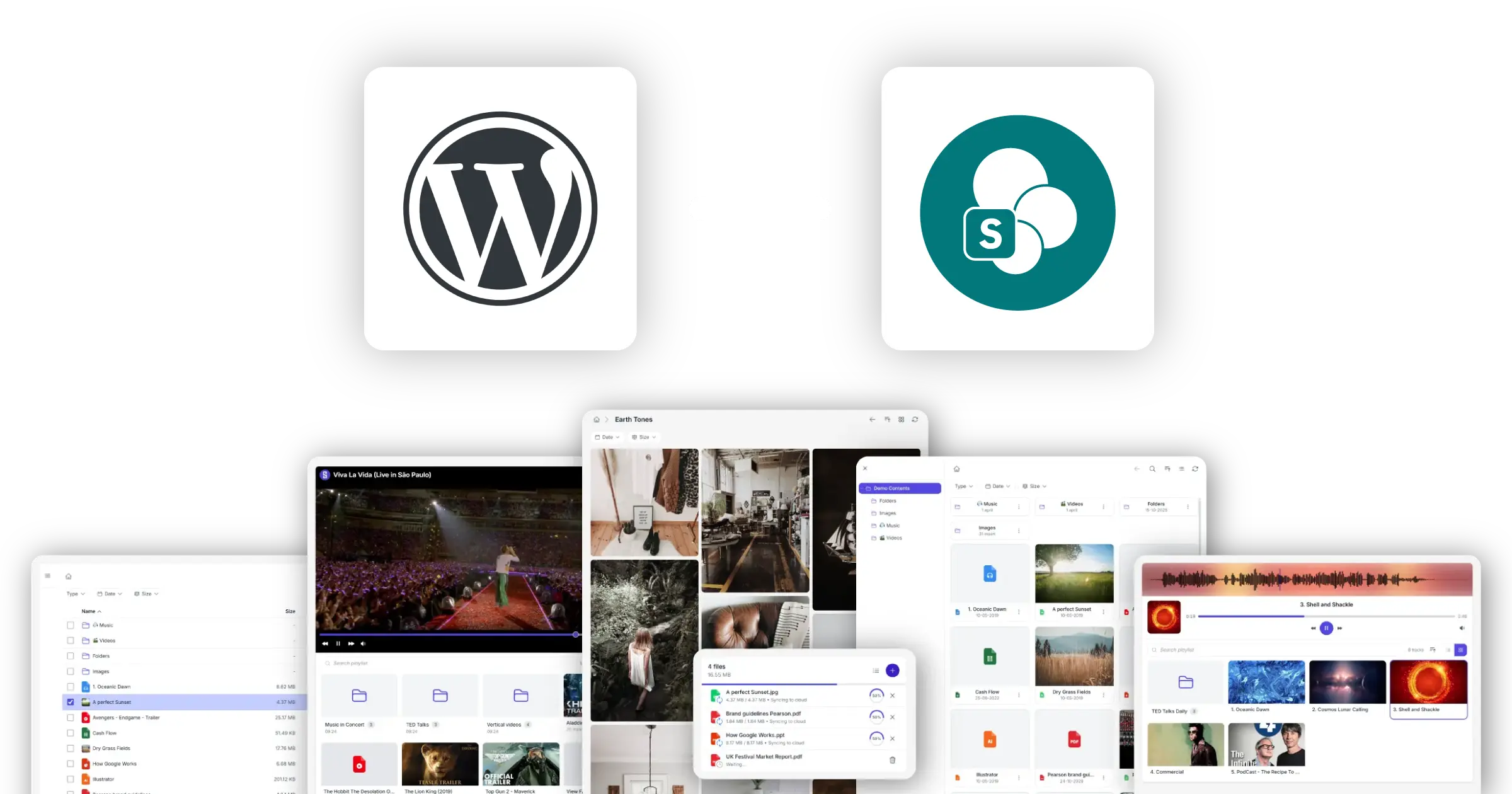
Your SharePoint document libraries, on your WordPress site
Show SharePoint files on WordPress pages. SharePoint stays the source of truth.
Synkivo connects SharePoint to WordPress. Once connected, any page can browse, display, or accept files from your SharePoint sites and libraries. The files stay in SharePoint. The permissions stay in your Microsoft 365 tenant.
Three examples: a corporate intranet backed by an internal SharePoint site; a partner portal that exposes specific document libraries to external collaborators; a public site where the editorial team works in SharePoint and visitors browse the content on WordPress.
Authentication uses the Microsoft Graph API and standard Microsoft 365 OAuth. SharePoint permissions, sharing rules, and site membership apply end-to-end.
What you can do with SharePoint on WordPress
What you can build with SharePoint content on a WordPress page.
Browse files
Show a file browser on any WordPress page that lists files from your SharePoint sites. Visitors navigate libraries and folders, preview files, and download.
Search across SharePoint libraries
Search files from connected SharePoint sites and libraries from a single WordPress interface. Visitors find content without leaving the WordPress page.
Previews and Thumbnails
Microsoft Graph generates thumbnails for Word, Excel, PowerPoint, PDF, and image files. Galleries and file browsers load fast even on large libraries.
Direct uploads to SharePoint libraries
Let logged-in users or visitors upload files directly to a SharePoint document library from a WordPress page. Files arrive in SharePoint with metadata intact.
Create secure client portals
Combine personal folder mapping, role-based access, and signed URLs to build private portals where each user sees only their own files.
Offload WordPress media hosting
Move media files out of your WordPress uploads folder into SharePoint. Your WP host disk usage stays flat; SharePoint grows independently.
How Synkivo connects SharePoint to WordPress
No syncing. No duplication.
1.
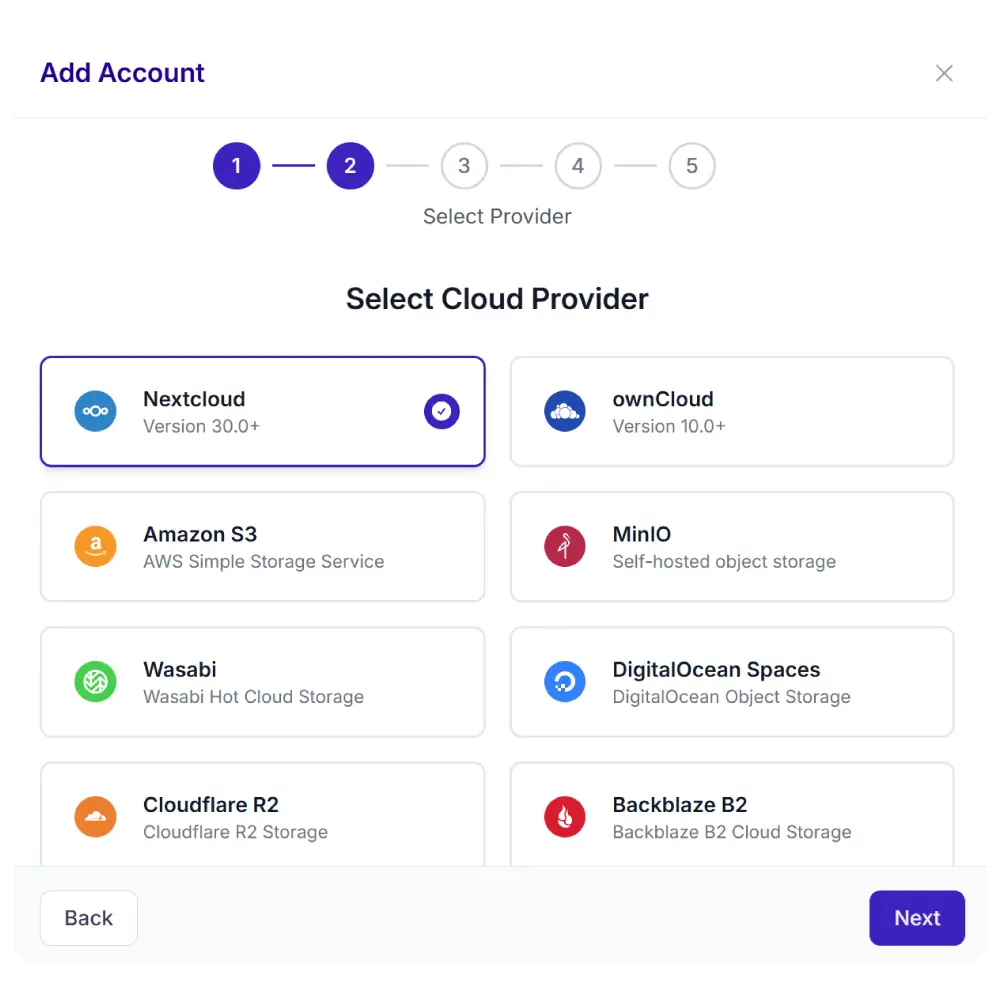
Connect your cloud
Sign in with your Microsoft 365 account. For enterprise tenants, a tenant administrator grants consent once. Synkivo registers as an app in your Azure AD.
2.
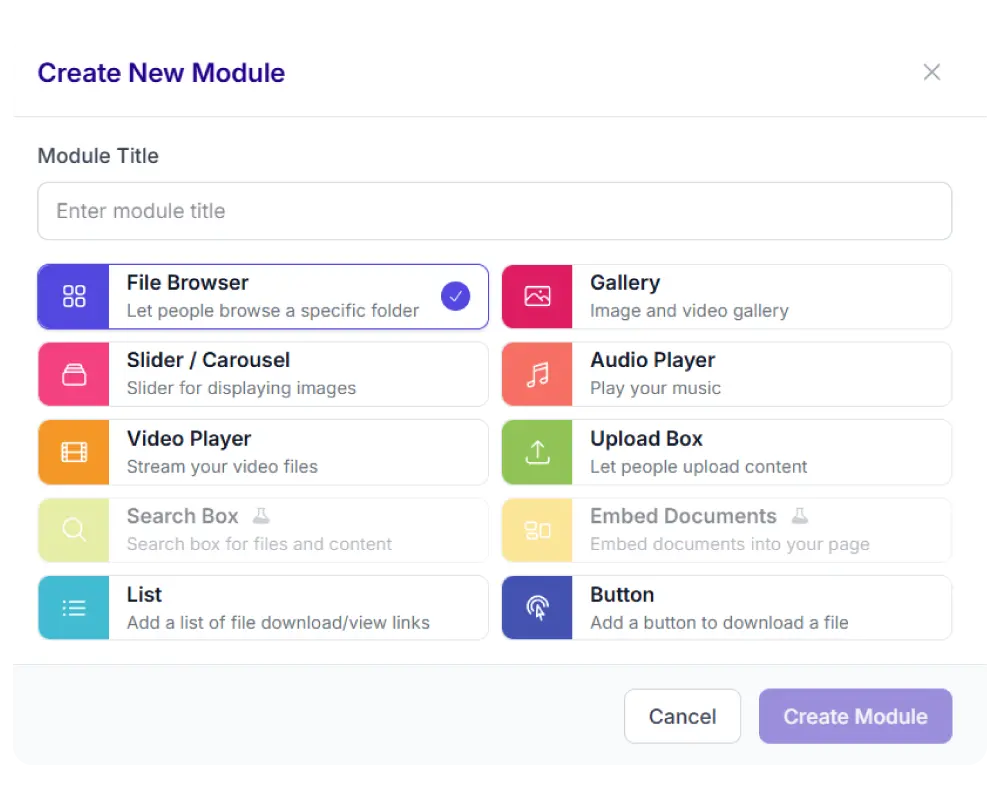
Pick a module
Pick a SharePoint site and document library. Choose from 8 display types: file browser, gallery, upload box, player, and more.
3.
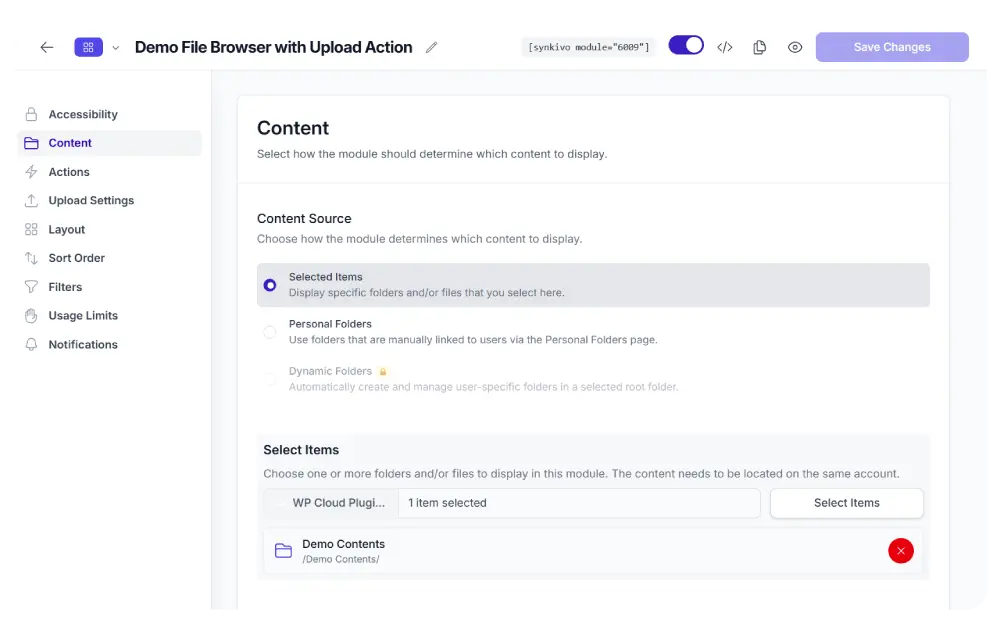
Configure visually
Assign a folder and user permissions and configure the layout.
4.
Publish
Drop the module on any page or post. Visitors interact with SharePoint files directly.
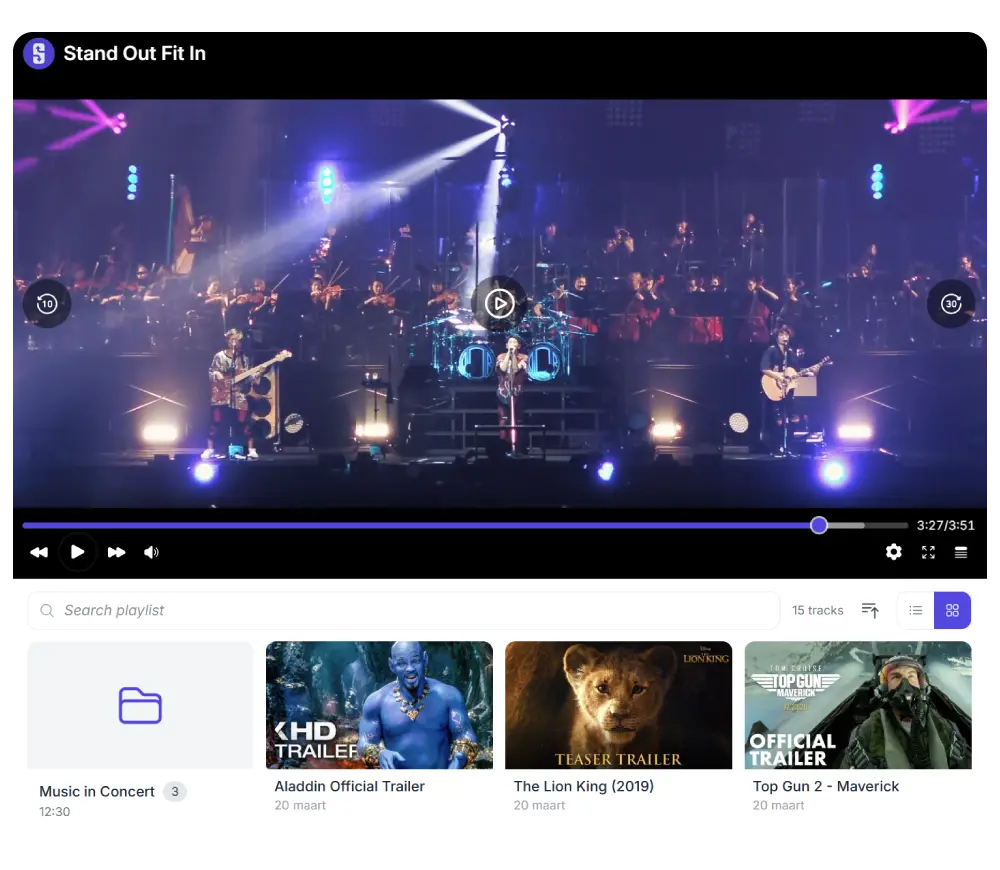
SharePoint files in the WordPress Media Library
Pick a SharePoint file. Insert it on any page or post. The file stays in SharePoint.
Synkivo adds a SharePoint tab to the WordPress Media Library dialog. Click “Add Media” in the editor or any plugin using the standard media picker, browse your SharePoint document libraries, pick a file, and insert it. No download. No re-upload.
When you insert a file, you choose Embed or Import. Embed links to the file in SharePoint; the WordPress page references it live, and any update in SharePoint reflects on your site immediately. Import copies the file once into WordPress uploads, useful when you need a local copy that survives even if the SharePoint connection is unavailable.
Every embedded file gets a permanent WordPress-hosted URL through Synkivo’s Public Assets system. Rename or move the file in SharePoint later, and the WordPress URL stays valid. Revoke access with one click in the Public Assets admin page.
For organizations that already work in Microsoft 365, this makes SharePoint the single content source for the WordPress site. Editors keep working in SharePoint; WordPress picks up the right files automatically. See the WordPress Media Library cloud storage page for the broader pattern.
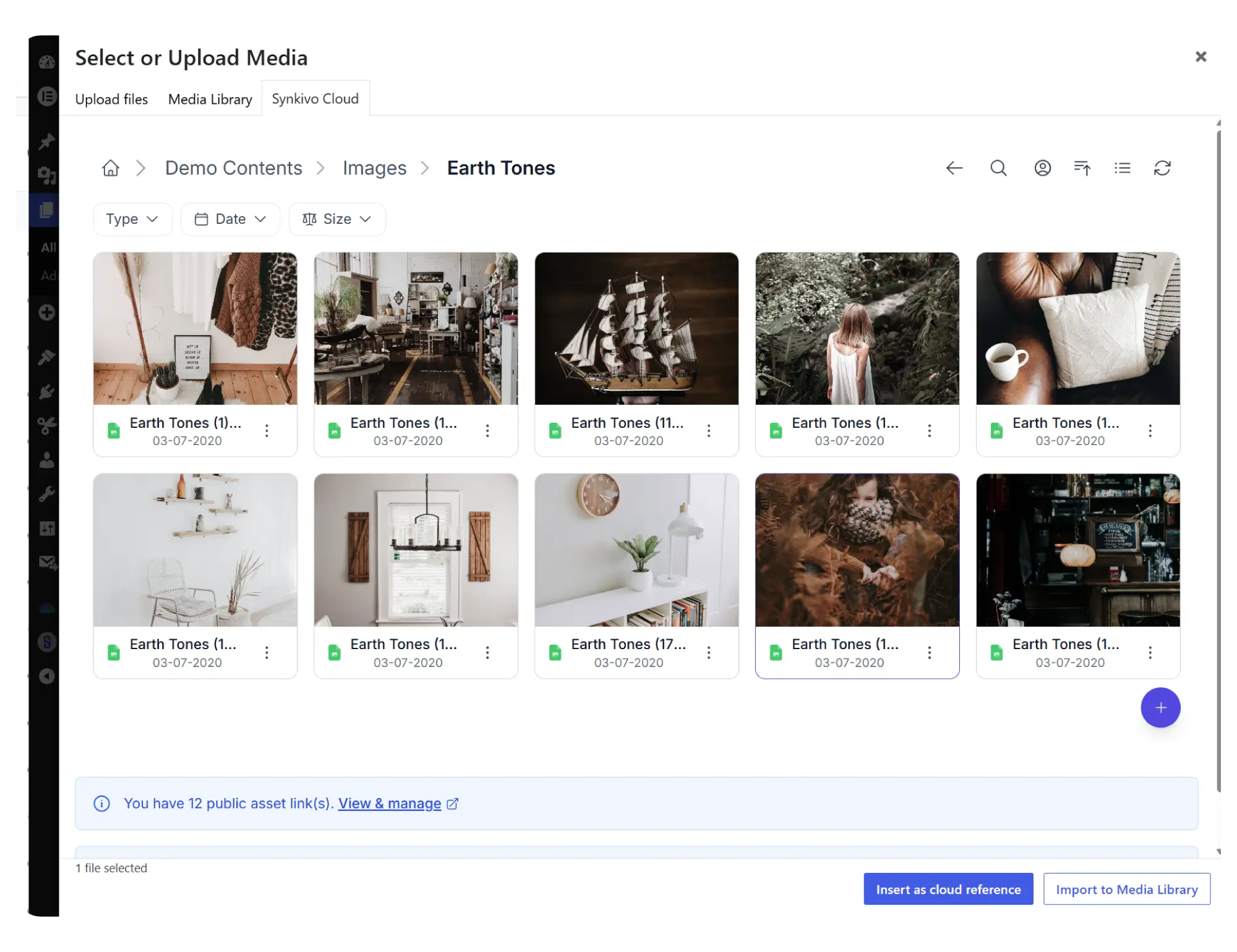
Everything you need to share files on your site.
Each module is visually configured — no code required. Place it anywhere with a shortcode, Gutenberg block, or page builder widget.
Every Synkivo module works with SharePoint
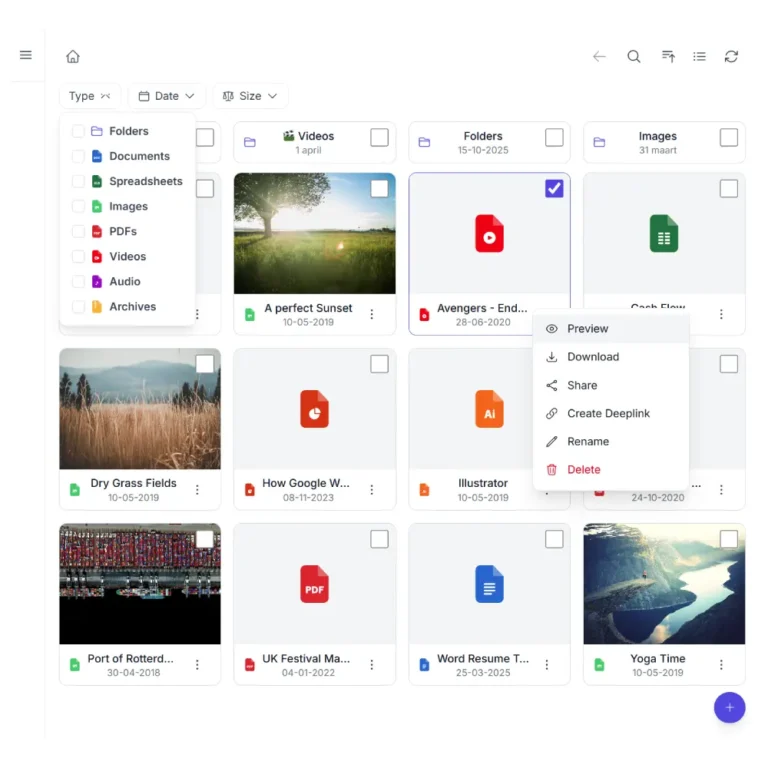
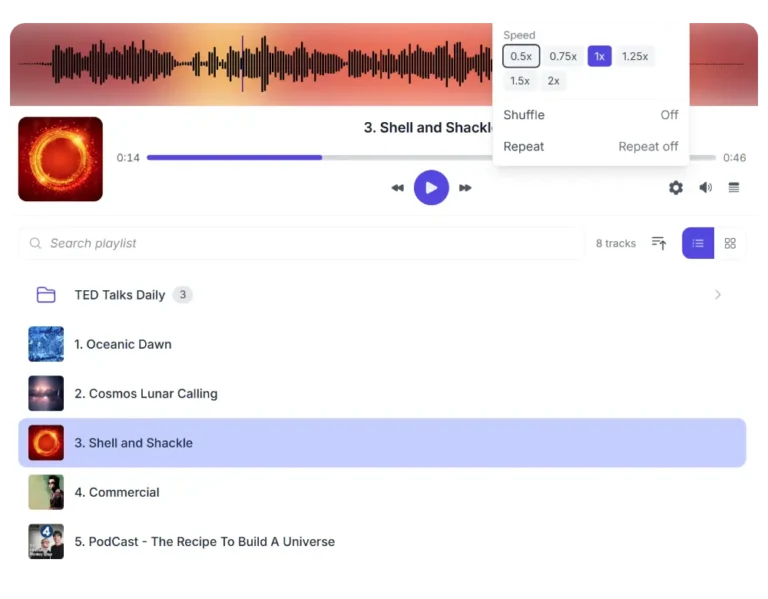
Pick the module that fits your page. The same SharePoint connection powers all of them.

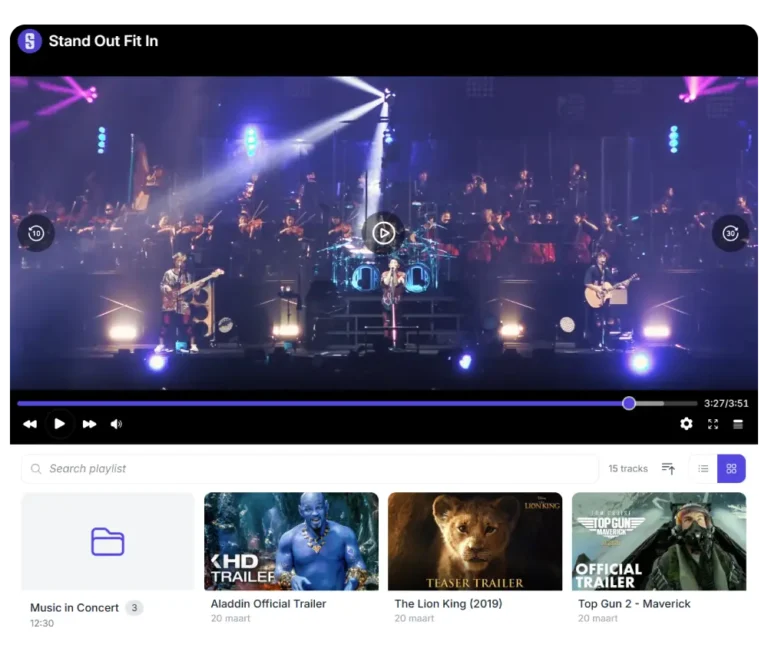
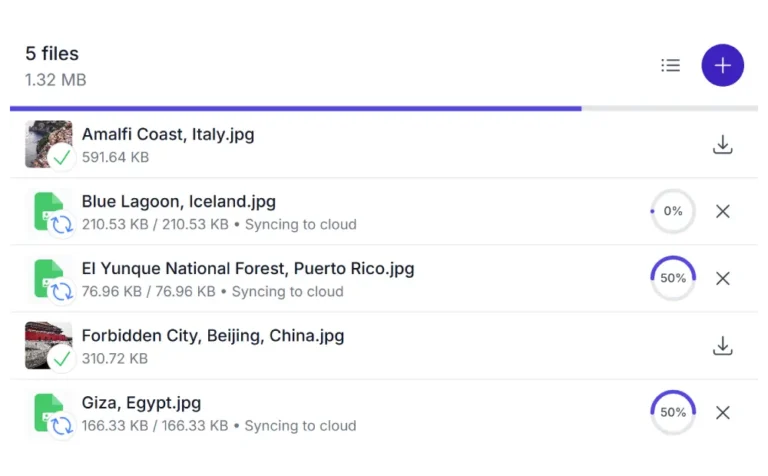

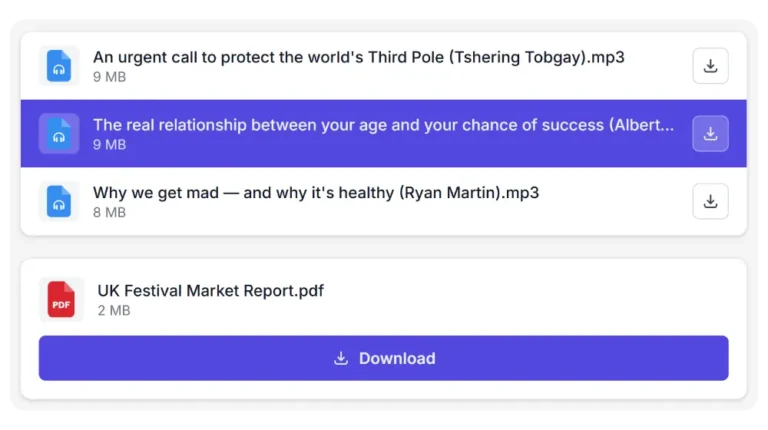
Secure by default
SharePoint protects your storage. Synkivo controls access in WordPress. Together they form a layered security model.
Microsoft 365 authentication
Synkivo authenticates through standard Microsoft 365 OAuth and Azure AD. Conditional access policies, MFA, and tenant-level rules apply automatically.
Encrypted credentials
Microsoft Graph tokens are encrypted at rest in your WordPress database. Token refresh happens automatically without exposing credentials in page source.
Role-based actions
Define what each WordPress role can do per module: browse, upload, download, rename or delete. Access is enforced inside WordPress before requests reach SharePoint.
Personal folder
Link individual WordPress users to specific SharePoint folders or libraries. Each visitor sees only what their WordPress account is mapped to. Pro plan and above.
Signed URLs
Files are delivered using signed URLs with expiration. Direct access to your SharePoint is never exposed publicly.
Data residency control
Microsoft 365 customers choose their tenant's data location through Microsoft 365 admin settings. Synkivo respects this.
For organizations under GDPR, HIPAA, or similar compliance rules, the layered model means audit logs and policy enforcement stay in your existing Microsoft 365 setup. Synkivo adds WordPress-side access controls on top. For the full security architecture, see the security features page.
Use cases for SharePoint and WordPress
Patterns Synkivo customers most commonly build with SharePoint.
Corporate intranets
An internal WordPress site for staff backed by SharePoint document libraries. Synkivo's File Browser and Gallery surface departmental files; SharePoint permissions decide who sees what. Staff keep working in SharePoint; WordPress is the front end.
Partner and client portals
A public-facing portal where partners or clients access curated SharePoint files. Synkivo's Personal Folders maps each WordPress account to a specific SharePoint scope. External users get exactly what is shared with them; internal SharePoint structure stays untouched.
Department knowledge bases
HR, legal, operations, and finance teams already store documents in SharePoint. Synkivo lets WordPress surface those libraries in a searchable, user-friendly interface without moving content to a separate platform.
Public sites with M365-managed content
A marketing site or knowledge base where editorial content lives in SharePoint document libraries. Editors keep using SharePoint; WordPress handles the public presentation. Updates in SharePoint reflect on WordPress without manual sync.
Connect SharePoint to WordPress today
Why SharePoint?
SharePoint is not just cloud storage. It is Microsoft’s document management and collaboration platform.
Where OneDrive is designed around individual users, SharePoint is designed around teams, departments, projects, and organizations. Document libraries, metadata, approval workflows, version history, and granular permissions are all built into the platform.
For organizations already running Microsoft 365, SharePoint often becomes the system of record for documents. Connecting WordPress to SharePoint means employees continue working in SharePoint while WordPress provides the public website, intranet, client portal, or knowledge base experience.
Built for teams, not individuals
SharePoint's permission model, sites, and libraries are designed around groups, departments, and projects. Collaboration is the default, not an add-on.
Built for large media libraries
Designed for sites that store gigabytes to terabytes of media: photography, video, audio, archives, course content.
Document libraries with metadata
Files in SharePoint live in libraries with metadata columns, version history, and approval workflows. Cloud drives store files; SharePoint manages them.
Tenant data residency
Microsoft 365 customers choose where their tenant data lives geographically. SharePoint content surfaced through Synkivo stays in the data centers configured for your tenant.
Common Questions Answered
How is the connection authenticated and where are credentials stored?
Are my files copied to WordPress, or do they stay in SharePoint?
Can I use SharePoint files in the WordPress Media Library?
Does Synkivo respect SharePoint's existing site and library permissions?
Can I give different WordPress users access to different SharePoint sites or libraries?
Yes, with Personal Folders (Pro plan and above). Link each WordPress user to one or more specific SharePoint folders or libraries. When a user visits a Synkivo module, they see only the scope linked to their WordPress account. Business plan adds Dynamic Folders, which create per-user folders automatically. See personal folders.
What happens with SharePoint document libraries that have custom columns or metadata?
Synkivo surfaces files from libraries that have custom columns and metadata defined. File listings show standard properties (name, modified date, size, file type) but do not display custom column values.